MT940 is what business banking looks like in the Netherlands and Germany. Log into a business account, download a statement, and a .sta or .mt940 file arrives: the SWIFT customer statement format, which Exact Online, Twinfield, and the rest of the local accounting stack read without complaint. It has been the working standard for decades and it still is.
The friction appears when the accounting software is not local. Plenty of businesses in the Netherlands and Germany run Xero or Sage, sometimes because the owner is used to it, sometimes because the group standardized on it, sometimes because it simply fits better. Those packages were built around OFX and have no MT940 import. Your bank is producing the local standard and your software is expecting the international one, and neither is going to change for you.
Ledger Tome reads the MT940 and writes an OFX. This page covers what transfers between the two, why OFX rather than CSV matters for ongoing reconciliation, and how to make the conversion a routine monthly step rather than a recurring annoyance.
Local Banking Standard, International Software
Both formats are well established. They just serve different markets:
MT940 is the Dutch and German standard
The SWIFT customer statement format, delivered by business banking across the region and read by the local accounting stack.
OFX is what cloud accounting expects
Xero, Sage, MYOB, and most international packages import OFX and were never built to read SWIFT statements.
No overlap
Xero has no MT940 import and European business banking has no reason to produce OFX. Neither side will add the other.
CSV is the tempting shortcut
It works, and it discards the transaction identifiers that keep reconciliation from duplicating entries.
The conversion is straightforward. Choosing OFX over CSV is what keeps the monthly reconciliation clean.
Why Convert to OFX Rather Than CSV?
Xero accepts both. They do not behave the same during reconciliation.
OFX (recommended)
Every transaction carries a unique identifier. Xero uses it to recognize entries it has already imported, so an overlapping period or a re-uploaded file will not produce duplicates. Dates are encoded unambiguously and the account and currency travel with the file.
CSV (works, riskier)
A flat table with no identifiers. Xero cannot tell a new transaction from one it already holds, so overlapping imports need care from you. Acceptable for a single import, less good as a monthly habit.
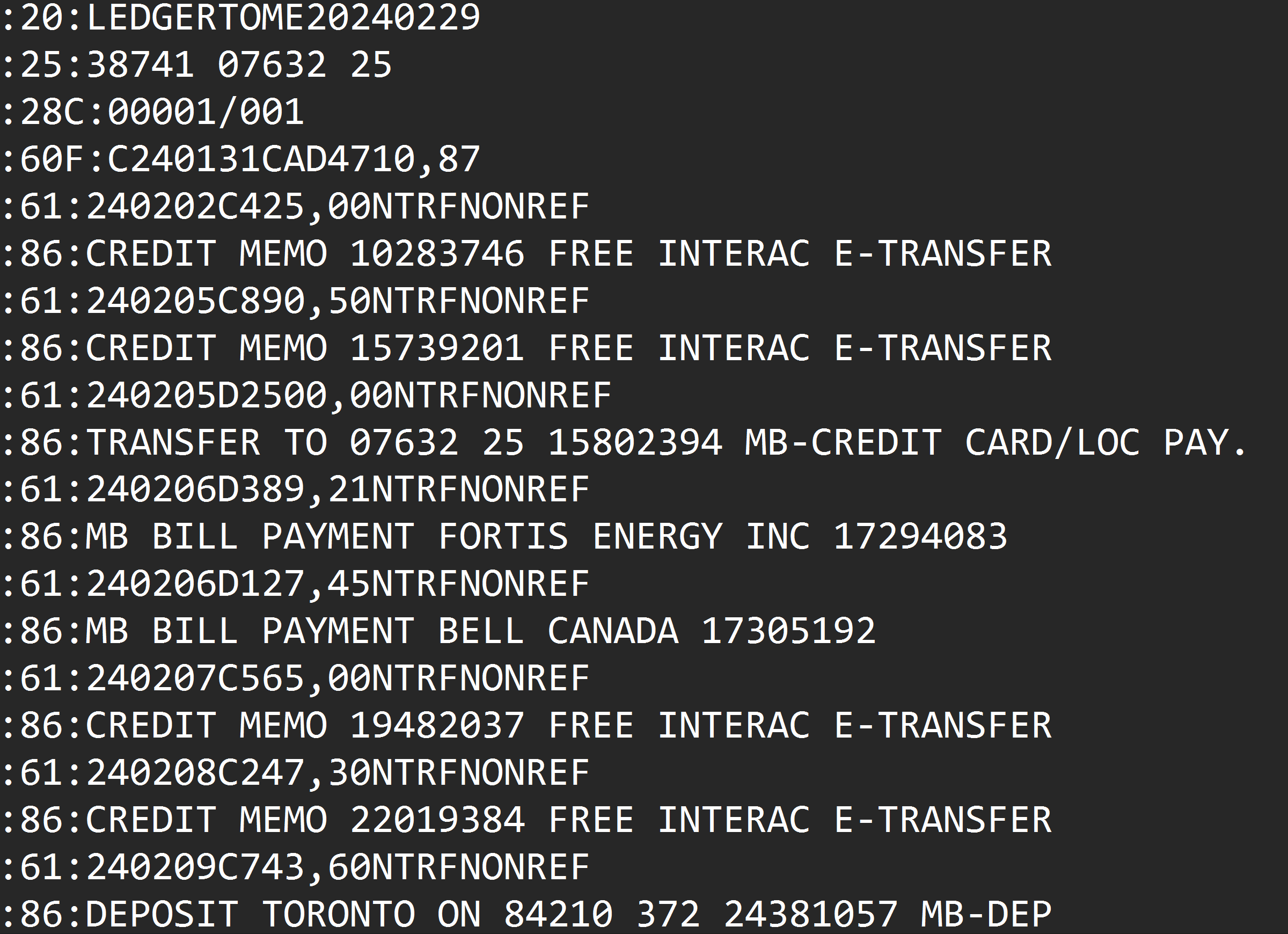
MT940 and OFX are closer in richness than CAMT.053 and OFX, so this conversion loses less than you might expect. Dates, amounts, direction, descriptions, the account, and the opening and closing balances all transfer. MT940's :86: description lines, which are wrapped across several lines in the source, are joined back into complete descriptions rather than arriving fragmented. What MT940 carries that has no direct OFX equivalent is its transaction type codes, which end up reflected in the description rather than in a dedicated field.
MT940 is a statement format with an opening and closing balance, and those are used rather than ignored. The running balances are reconstructed from the opening figure and checked against the stated closing balance; if they disagree, you get a warning rather than a file that quietly asserts numbers the statement does not support.
Prefer the statement in a spreadsheet? See MT940 to Excel . On the newer ISO 20022 format instead? See CAMT.053 to OFX . The full Xero guide is at Import into Xero .
Common Ways to Get MT940 Data Into Xero
Ask the Bank for OFX
Dutch and German business banking generally has no OFX option, because the market never used it. Worth a look, rarely fruitful.
Export CSV From the Bank Instead
Many banks offer CSV alongside MT940, and it works. It also throws away the transaction identifiers and often arrives in an awkward column layout.
Route Through Local Accounting Software
Import the MT940 into Exact or Twinfield and export something else. Adds a software subscription to a file conversion.
Automated MT940 to OFX Conversion
Reads the SWIFT statement directly and writes OFX with duplicate-safe transaction IDs. Free to start.
MT940 to OFX: Method Comparison
| Method | Time Required | Accuracy | Best For | Cost |
|---|---|---|---|---|
| Bank OFX download | Instant, if offered | Native | Almost no European bank | Free |
| Bank CSV export | Minutes | No duplicate protection | A single one-off import | Free |
| Via local accounting software | 20+ minutes | Good | Businesses already running one | Subscription |
| Ledger Tome | Under a minute | Duplicate-safe IDs, balances verified | Any MT940 statement | Free to start |
Why automated conversion wins: it takes a minute, and the transaction IDs mean an accidental re-import costs you nothing.
How Ledger Tome Converts MT940 to OFX
Ledger Tome parses SWIFT statements natively and writes the OFX cloud accounting software expects.
Upload
Upload your .sta, .940, or .mt940 file
SWIFT Parsing
Tags, entries, and balances read from the statement structure
Review & Verify
Check every entry and confirm the balances reconcile
Download OFX
A standard OFX statement file
Files are identified by their content, so .sta, .940, .mt940, and extensionless downloads all work. Descriptions wrapped across several :86: lines in the source are joined back into complete text. The opening and closing balances are read from :60F: and :62F: and the entries are checked against them, with a warning on any mismatch. Every transaction in the OFX gets a stable identifier derived from its date and position, so re-exporting the same statement produces the same IDs and your software keeps recognizing them.
From SWIFT Statement to a File Xero Accepts
Before: Raw MT940
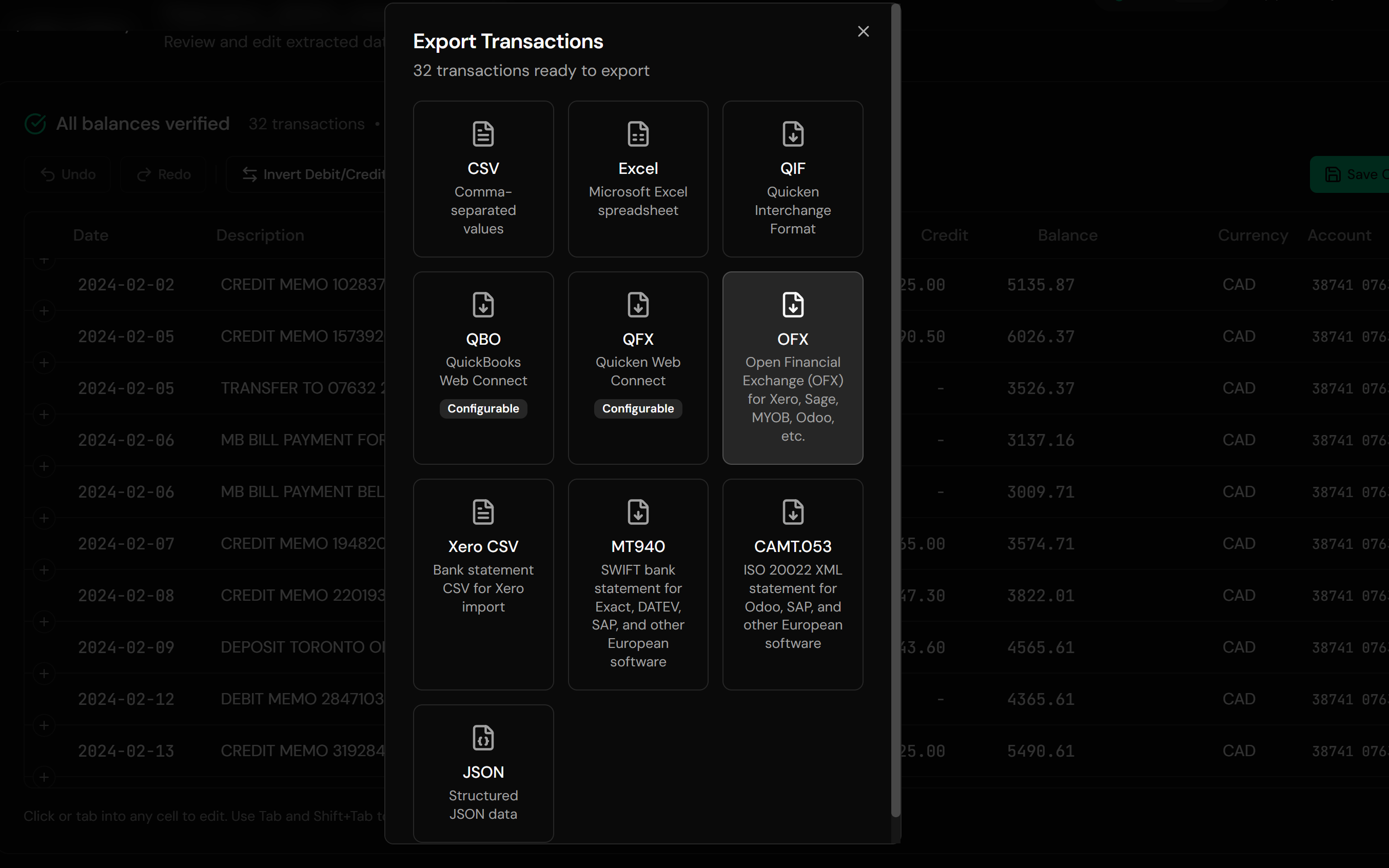
After: Standard OFX
Use Cases for MT940 to OFX Conversion
Dutch Businesses on Xero
Local banking, international accounting software.
German Businesses on Xero or Sage
The same seam, a different country.
Subsidiaries Reporting Into Group Systems
Local accounts, group-standard software.
English-Speaking Owners in the Benelux
Running familiar software locally.
Accounts Without a Xero Feed
Where direct bank connections are unavailable.
Monthly Reconciliation
The same conversion each month, in under a minute.
Who MT940 to OFX Conversion Is For
This type of conversion is commonly used by:
Dutch Small Businesses
MT940 from the bank, Xero in the office.
German Businesses on International Software
Where the local stack was not the choice.
Bookkeepers With Cross-Border Clients
Handling both banking worlds at once.
Subsidiary Finance Teams
Local banking feeding a group standard.
Sage Users in the Benelux and DACH
The same problem, a different destination.
Anyone Standing on the Seam
Local bank format, international software.
Related Converters
Ledger Tome supports multiple input and output formats. Choose the one that fits your workflow:
Reading MT940 files in a spreadsheet.
The ISO 20022 version of this page.
Statements that only exist as PDFs.
The full Xero import guide.
Producing MT940 files rather than reading them.
What Ledger Tome Does Not Do
For clarity and transparency, Ledger Tome does not:
- Access bank accounts directly
- Initiate or modify transactions
- File taxes or submit reports
- Replace accounting software
- Categorize transactions automatically
It focuses solely on converting statement data into structured, accounting-ready formats.
Security & Privacy
Your Financial Data is Protected
We take statement security seriously. Here's how we protect your data:
-
Encrypted in transit and at rest
TLS on everything moving in or out, AES-256 on anything stored
-
No one reads your statements
Conversion is automated end to end. A person only ever sees a document if you send it in yourself on a conversion that failed
-
Automatic Deletion
All uploaded files are permanently deleted after 7 days (or immediately upon request)
-
No Training Data
Your statements are never used to train AI models or shared with third parties
-
No Account Access
We never access your bank account directly or store your banking credentials
-
GDPR Compliant
Full compliance with data protection regulations
-
No Permanent Storage
We don't maintain a database of your financial information
Privacy First: We process your data solely for conversion purposes. No marketing, no data selling, no third-party sharing.
Frequently Asked Questions
How do I import an MT940 statement into Xero?
Why not just use the bank's CSV?
What file extensions are supported?
What gets lost in the conversion?
Will importing the same file twice duplicate transactions?
Are the balances checked?
My descriptions are split across several lines in the source.
Does this work for Sage as well as Xero?
Does this work for credit card accounts?
Should I switch to Exact or Twinfield instead?
Can I get the data in Excel too?
How much does it cost?
Troubleshooting Common Issues
Xero rejected the OFX
Check the .ofx extension survived the download and that the currency matches the Xero bank account you are importing into.
Transactions went to the wrong account
Confirm the target account during Xero's import rather than letting it default. The account identification comes from the MT940's :25: field.
A balance warning appeared
The entries and the stated closing balance disagree in the source file. Check the statement itself; the warning is reporting a real inconsistency rather than a conversion problem.
Descriptions look different from the bank's portal
MT940 stores descriptions across wrapped lines, which are joined back together. The portal may present the same data with different formatting.
Duplicates after a feed was connected
If a Xero bank feed later covers a period you imported, the transaction identifiers should prevent duplication. Where a feed generates its own IDs, remove the overlapping imported batch instead.
Summary
MT940 is the working standard for Dutch and German business banking, and OFX is what international cloud accounting expects, which leaves plenty of businesses holding a statement file their software will not read. Converting to OFX rather than the bank's CSV keeps the transaction identifiers that make monthly reconciliation safe, joins the wrapped descriptions back together, and carries the verified opening and closing balances across.
If your bank sends MT940 and your accounting software wants OFX, Ledger Tome converts it in under a minute.
Ready to Get Your Statements Into Xero?
Stop being caught between local banking and international accounting software. Convert your first MT940 file to OFX in minutes.
Used by Dutch and German businesses on Xero and Sage