Convert bank statement PDFs to Excel
A PDF on one screen and an empty spreadsheet in the other. Ledger Tome closes the gap for you.
- A proper Excel file with relevant transaction rows
- Each extracted row contains Date, Description, Debit, Credit, Balance, Currency and Account id
- Combine statements chronologically
Export and start working
The download is one sheet, called Transactions, with a header row and one line per transaction. Filter it, sum a column, sort by amount. The file works right out the gate without you having to worry about Excel data type conversions hidden behind a drop down box that has moved three times since you last used it.
Or just import it into your accounting software, provided that it supports Excel. Column names can be modified to default to your software as well.
Two accounts in one statement? The Account_ID column tells them apart.
Date          Choose between date and text format in export options
Description   text
Debit         number
Credit        number
Balance       number
Currency      text
Account_ID    text
Filterable
Cell data type is what separates a sheet you can work in from one you have to clean first.
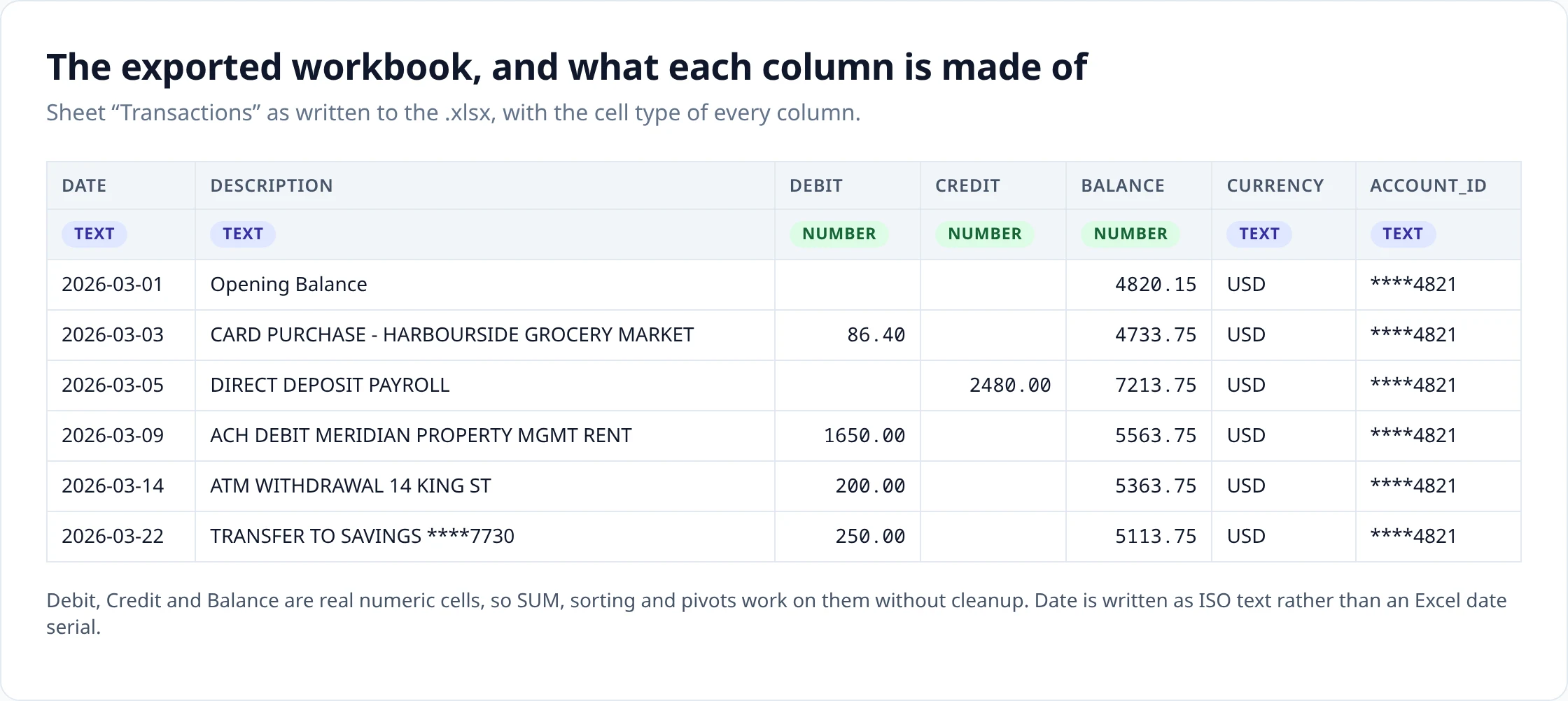
The amounts don't need editing. Debit, Credit and Balance are actual numbers, so SUM, subtotals, conditional formatting and pivots all work immediately. Where a row had no debit (or credit), the cell is empty.
The dates are the choice. By default they arrive as ISO text, 2026-03-14, which sorts correctly and can never be misread as the wrong month, but is not something Excel can do arithmetic on. Pick the Excel date option before exporting and the column comes through as real date cells instead, so MONTH(), date filters and a pivot grouped by quarter all work the moment the file opens.
Text is still the default, deliberately. It is the form that cannot be re-interpreted by whatever locale the next machine is set to, which matters for international work flows or certain accounting software. Choose Excel dates when you want to do analysis or filtering in Excel.
Descriptions are extracted from the statements, allowing you to create custom filters against them or just match them quicker during reconciliation.
Turning it into a workpaper
Most people are not exporting a workbook to admire it. They are going to reconcile it, annotate it and leave it behind as the thing that supports the entries they posted. The export is the first step of that, not the last.
- Fix anything flagged during review in the app. Automatic balance checks and accounting specific tools make your life easier here.
- Open the .xlsx and filter as needed.
- Add your own columns to the right: a category, your initials, a status, a reference to the invoice it matches, receipt check.
- Save it.
Combine a year's worth of statements into one file
Rather than exporting twelve workbooks and pasting them under each other, convert each statement and combine them into a single entry before you export.
The merge puts every row in date order and joins consecutive statements using their opening and closing balances, so the running balance carries straight through the year.
Overlaps are the part worth knowing about. Where two statements cover the same day, rows that appear in both are spotted and only one copy is kept. Where a day holds several genuinely identical rows such as repeat purchases with refunds when someone messed up a coffee order and the matching cannot tell a duplicate from a repeat, you are shown the run and asked, rather than having one of them silently dropped.
Pending transactions are separated from the rest of the transactions, left for you to review.
Where a spreadsheet stops being the right answer
Worth being clear about what an .xlsx will get you at the far end, because "Excel" and "importable" are not always the same thing and depend on the software you use.
Xero's bank statement import documentation centres on CSV and the OFX and QIF family, and recommends OFX where your bank offers it; an arbitrary spreadsheet is not its bank statement format. Some Sage products do accept XLS and XLSX, but which formats a Sage product takes differs between them, so check the one you actually use.
Sources: Xero: About manually importing bank transactions · Sage Accounting: Import a bank statement · Sage Sole Trader: Import bank statements
So if the workbook is only ever going to be re-exported into something else, consider using other export formats:
- Feeding a script, a database or an import wizard: CSV .
- QuickBooks Desktop Bank Feeds: QBO
.
Source: Intuit: Set up bank accounts for Bank Feeds in QuickBooks Desktop
- Quicken: QFX .
- Anything whose own documentation names OFX: OFX
.
Sources: Xero: Import an OFX bank statement · GnuCash manual: Importing transactions from files
Excel is best when you want to do custom editing, but with that said, there are accounting software that import Excel files too.
Upload
Add the statement PDF, or several at once.
Review
Check the extracted rows against the statement and fix anything that looks wrong.
Export
Download in the format you need.
How it works covers extraction, validation and combining statements in detail.
Questions about this format
- Is the output a real .xlsx file?
-
Yes, a genuine workbook that opens straight into Excel, LibreOffice, Numbers or Google Sheets with no import dialog in the way.
- Are dates real Excel date cells?
-
They can be. Choose the Excel date option in the Ledger Tome export layout and the column gets written as Excel date cells, ready for MONTH(), date filters and pivots grouped by period. The default is ISO YYYY-MM-DD text, which still sorts chronologically and cannot be misread as the wrong month by another machine locale. The DD/MM/YYYY and MM/DD/YYYY layouts are text and will not sort correctly, so pick those only when a downstream importer demands that exact shape.
- Are amounts numeric cells?
-
Yes. Debit, Credit and Balance are written as numbers, so SUM, subtotals, conditional formatting and pivot tables work on them straight away with no cleanup pass.
- Can I sort and filter the sheet?
-
Yes, though you switch the filter on yourself: select the header row and press Ctrl+Shift+L. Column widths come set wide enough that descriptions and account numbers are readable without dragging anything.
- Can I combine several statement months into one workbook?
-
Yes. Convert each statement, then combine the results in Ledger Tome before exporting. The combine step orders the rows by date, stitches the months together using each statement opening and closing balance, and flags duplicate rows where two files overlap so you can decide what to keep.
- Does the workbook include the balance?
-
Yes, on every row. Where the statement prints a running balance per line, that figure is used. Where it prints only an opening and a closing balance, the column is worked out from those two anchors and the amounts between them, so the last row lands on the closing balance the bank printed. When the balances do not match, it is flagged for your review.
- Excel or CSV for an accounting import?
-
It is recommended to use native formats first: QBO for QuickBooks Desktop, OFX for Xero and others. Between the two, CSV is the one import wizards expect, but Excel is often supported too.
General questions about scans, languages, page counts, editing and pricing are answered on the FAQ .
Uploads and generated files are encrypted at rest, deleted automatically after seven days, and can be deleted from your history whenever you want. Documents sent to AI providers are not used to train their or our models.
Security sets out storage, retention and provider handling; Privacy is the full policy.
Related converters
- Bank statement to CSV — common format in accounting software.
- Bank statement to QBO — a Web Connect file for QuickBooks Desktop.
- PDF to OFX — learn what makes OFX formats different.
- Credit card statement to Excel — Information about credit card specifics such as purchases and payments.
Convert a statement and open the workbook before you commit to anything.
The free plan includes 10 tokens on signup plus 3 a week. Pricing