GnuCash has a better import story than most accounting software. It reads OFX and QFX, it reads QIF, and it has a CSV import assistant with proper column mapping. Nothing here is about working around a limitation in GnuCash, because there mostly isn't one. The problem sits one step earlier: the bank.
Plenty of banks still offer nothing but a PDF, or a CSV with a column layout that means re-teaching the import assistant every month, or a download whose date column is ambiguous in a way that only shows up months later. GnuCash will faithfully import whatever you give it, including the mistakes. Ledger Tome sits in front of that step and produces a clean, well-formed file from whatever the bank actually provided.
This page covers which of GnuCash's three import paths is worth using and why, how transaction IDs let the OFX path deduplicate where QIF and CSV cannot, and how to convert a statement so the import is boring rather than interesting. HomeBank users will find the same reasoning applies, since it accepts the same formats.
GnuCash Reads Three Formats. They Are Not Equivalent.
All three work. What differs is how much they protect you:
OFX/QFX: deduplicating
Imported through File, Import, Import OFX/QFX transactions. Every transaction carries an ID, so GnuCash recognizes entries it has seen before and its matcher offers them for review rather than duplicating them.
QIF: simple but unguarded
Imported through File, Import, Import QIF. No transaction IDs, so a repeat import duplicates. No date format recorded in the file either, so the layout has to be set deliberately.
CSV: flexible, manual
The CSV Transaction Import Assistant handles arbitrary layouts, which means it asks you to describe the layout. Every new bank format is a fresh mapping exercise.
PDF: not an import format
No accounting software reads a PDF statement directly, and this is the format banks are most willing to give you.
The practical hierarchy is OFX first, QIF where OFX is unavailable, CSV when you want the data somewhere else entirely.
Works With Banks Worldwide
Ledger Tome reads PDF statements and CSV/Excel exports from:
North America
Chase, Bank of America, Wells Fargo, Citi, RBC, Scotiabank, BMO
Europe
HSBC, Barclays, Lloyds, Deutsche Bank, ING, Rabobank, Revolut, N26
Asia-Pacific & Rest of World
Commonwealth Bank, ANZ, ASB, HDFC, ICICI, Standard Bank
Don't see the bank? The AI adapts to any statement layout automatically, which is the point when your bank is small enough that nobody has written a parser for it.
Which Format Should You Import?
OFX (recommended)
Carries an identifier on every transaction, an encoded date that cannot be misread, and the account and currency. GnuCash's OFX importer uses those identifiers to match against existing transactions, which is what makes re-importing an overlapping period safe.
QIF
Plain text, widely supported, and carries none of the above. No transaction IDs and no recorded date format. Fine when you are importing a period exactly once and you set the date layout deliberately.
CSV
Not really a statement format, but useful when the destination is a spreadsheet as well as GnuCash, or when you want a specific column arrangement. GnuCash's assistant will need the layout described.
If you use QIF or CSV, choose YYYY-MM-DD. It is the one layout that cannot be read two ways, GnuCash and HomeBank both accept it, and it removes the single most common cause of an import that looks fine and is quietly wrong. Ledger Tome's QIF and CSV exports both offer it directly.
Format deep dives: PDF to OFX , CSV to QIF , and OFX to QIF if you already have an OFX download.
How to Import the File Into GnuCash, Step by Step
GnuCash (OFX/QFX):
- File, then Import, then Import OFX/QFX transactions
- Select the .ofx file from Ledger Tome
- Match the file's account to an account in your chart of accounts
- Review the proposed matches in the import matcher, then confirm
GnuCash (QIF):
- File, then Import, then Import QIF
- Select the .qif file and work through the assistant
- Map the QIF account to a GnuCash account
- Review the transactions before committing them
HomeBank follows the same shape: its import assistant accepts OFX and QIF, and the same reasoning applies about which to prefer. Whichever path you use, import each period once and let the matcher handle any overlap rather than deleting and re-importing.
How Ledger Tome Prepares Statements for GnuCash
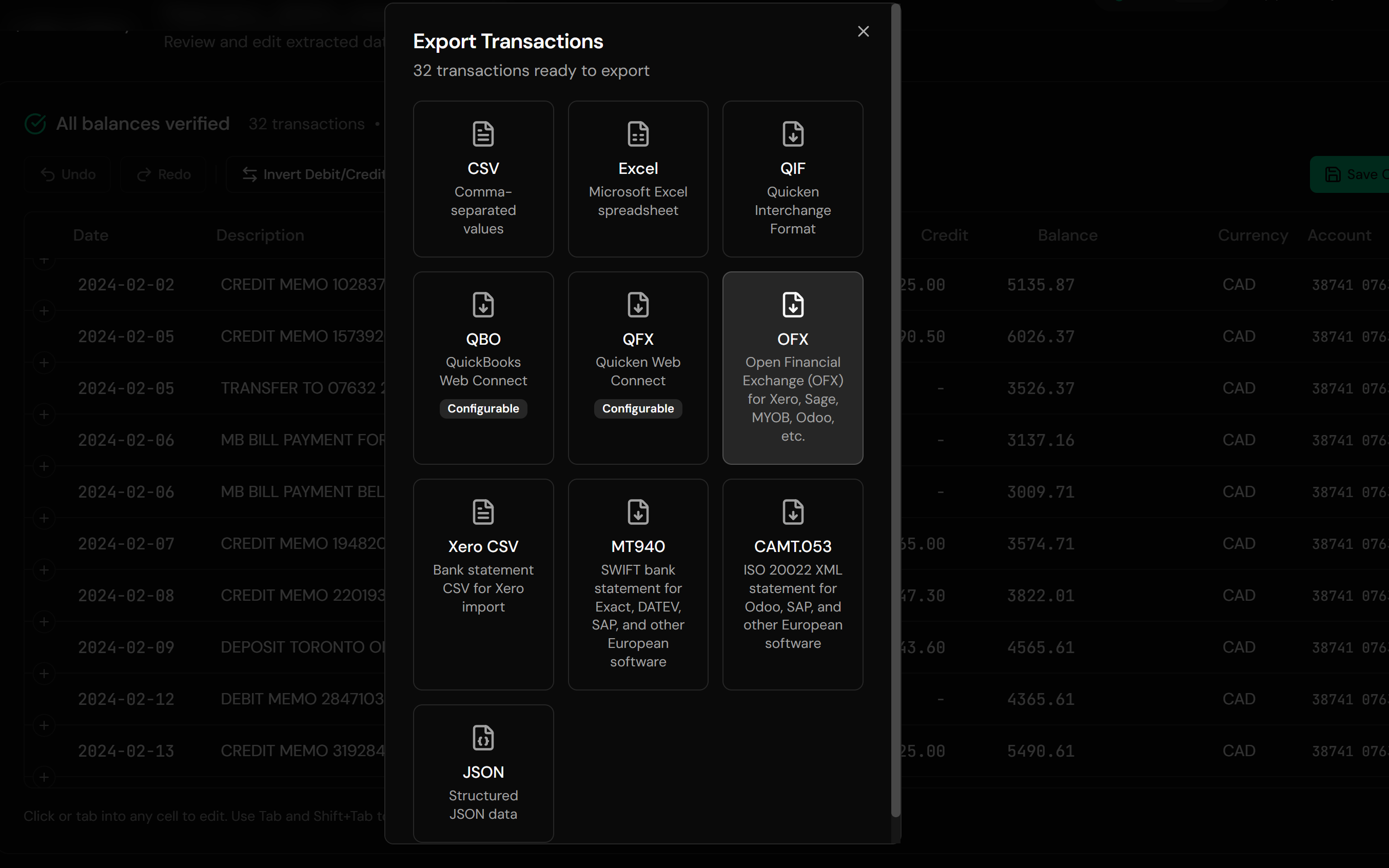
Ledger Tome turns PDF bank and credit card statements, CSVs, and Excel exports into well-formed OFX, QIF, and CSV files.
Upload
Upload the PDF statement or spreadsheet export
AI Extraction
Statement structure, columns, dates, and debit/credit logic detected automatically
Review & Edit
Check every transaction in an interactive preview before export
Download
OFX, QIF, or CSV, in the date layout you choose
The OFX output carries a stable FITID on every transaction, derived from the date and position, so re-exporting the same statement produces the same identifiers and GnuCash's matcher behaves consistently. Where a source date column is genuinely ambiguous you are asked to choose rather than having a guess made for you, and the QIF and CSV exports both offer ISO dates.
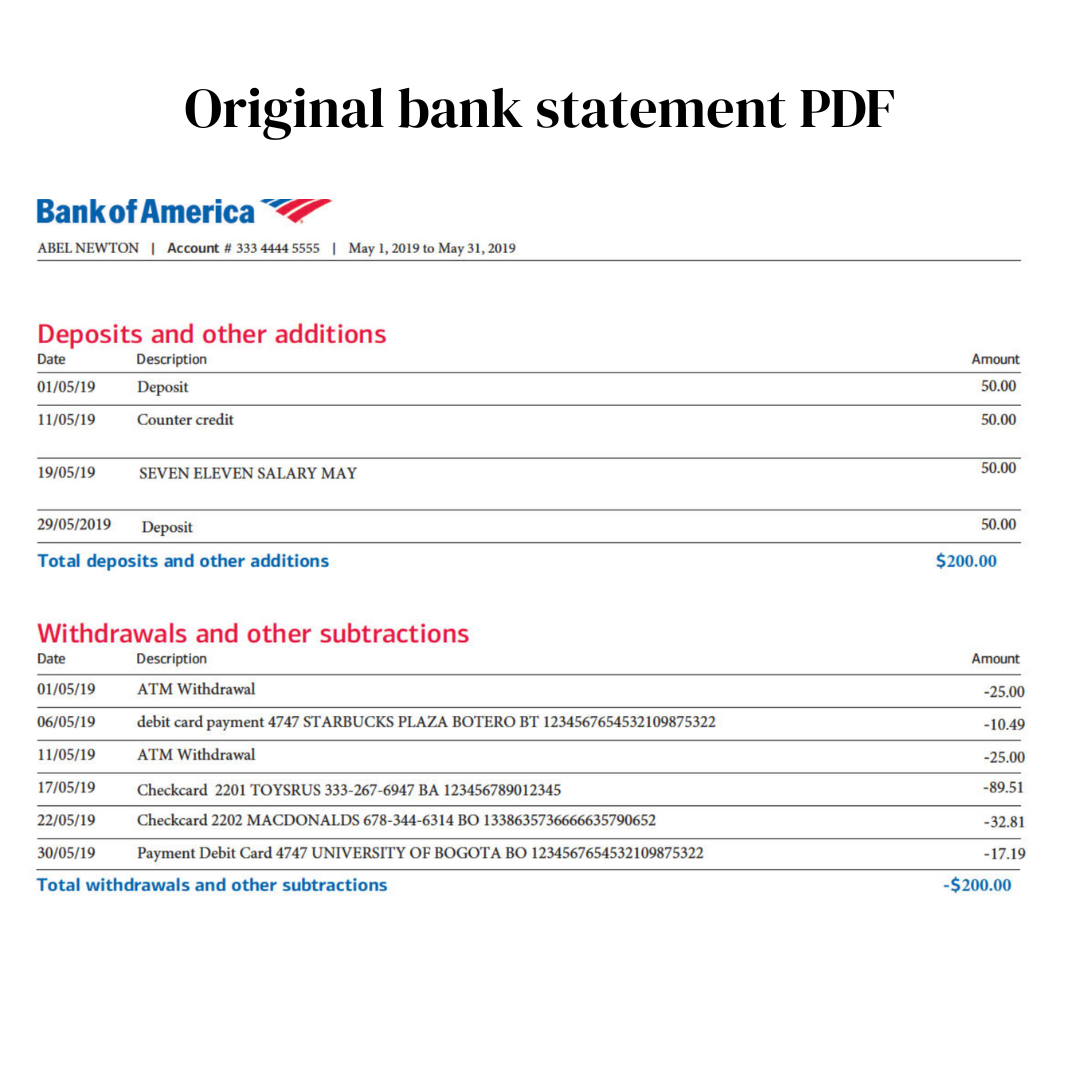
From Bank PDF to a Well-Formed Import File
Before: the bank's PDF statement
After: a clean OFX file
Use Cases
Banks That Only Offer PDFs
Common at smaller institutions and outside the major markets.
Awkward CSV Layouts
Stop re-teaching the import assistant a new column arrangement every month.
Ambiguous Date Columns
Resolve DD/MM versus MM/DD once, at conversion, rather than discovering it later.
Historical Backfill
Years of statements loaded into a new GnuCash book.
Credit Card Accounts
Card statements with the sign convention handled correctly.
Self-Hosted, Self-Managed Books
People who run their own finances properly and want the input clean.
Who It's For
GnuCash Users
Double-entry by choice, on any platform.
HomeBank Users
Same formats, same reasoning.
Free-Software Advocates
Running open tools and needing a way past the bank's PDF.
Technical Self-Employed
Doing their own books deliberately rather than reluctantly.
People With Small or Foreign Banks
Where no structured download exists.
Anyone Backfilling a New Book
Getting history in before starting properly.
Related Converters
Ledger Tome supports multiple formats and destinations. Choose the one that fits your workflow:
The format-first page for PDF statements.
Bank export into GnuCash's QIF path.
Already have an OFX download and need QIF instead.
When the spreadsheet is the destination too.
Reading existing QIF archives.
What Ledger Tome Does Not Do
For clarity and transparency, Ledger Tome does not:
- Access bank accounts directly
- Initiate or modify transactions
- File taxes or submit reports
- Replace accounting software
- Categorize transactions automatically
It focuses solely on converting statement data into structured, accounting-ready formats.
Security & Privacy
Your Financial Data is Protected
We take statement security seriously. Here's how we protect your data:
-
Encrypted Transmission
All uploads use 256-bit SSL encryption (the same security banks use)
-
Secure Processing
Files are processed in isolated, secure environments with no human access
-
Automatic Deletion
All uploaded files are permanently deleted after 7 days (or immediately upon request)
-
No Training Data
Your statements are never used to train AI models or shared with third parties
-
No Account Access
We never access your bank account directly or store your banking credentials
-
GDPR Compliant
Full compliance with data protection regulations
-
No Permanent Storage
We don't maintain a database of your financial information
Privacy First: We process your data solely for conversion purposes. No marketing, no data selling, no third-party sharing.
Frequently Asked Questions
How do I import a bank statement into GnuCash?
Which format should I import into GnuCash?
Can GnuCash import PDF bank statements?
Does GnuCash import CSV?
What date format should I use?
Will importing the same period twice duplicate transactions?
Do categories or account assignments come across?
Does this work with HomeBank?
Are credit card statements handled correctly?
Do I need an account to use this?
Is GnuCash's own OFX support required?
How much does it cost?
Troubleshooting Common Issues
The OFX import menu item is missing
GnuCash's OFX support depends on its OFX library being compiled in. If your build lacks it, export QIF instead, which needs no additional library.
Dates are wrong after a QIF or CSV import
The layout chosen at export did not match what the importer assumed. Re-export using YYYY-MM-DD, which cannot be misread.
Transactions duplicated
Expected with QIF and CSV, which carry no transaction IDs. Use OFX so GnuCash's matcher can recognize what it has already imported.
Amounts have flipped signs
Some banks export debits as positive. The preview shows the interpreted sign per transaction; correct the convention there before export.
The import matcher proposes the wrong account
GnuCash learns from corrections. Fix the first few and it will improve; this is GnuCash's matching rather than anything in the file.
Summary
GnuCash imports OFX, QIF, and CSV, and the choice between them matters more than it first appears: only OFX carries the transaction IDs that let the importer recognize what it has already seen. The gap worth closing is upstream, where the bank hands over a PDF or a CSV whose layout has to be re-described each month. Converting that into a well-formed OFX, with ISO dates where the format permits them, makes the import step uneventful.
If your bank gives you PDFs and your books live in GnuCash, Ledger Tome converts them in minutes each.
Ready to Get Statements Into GnuCash?
Stop retyping PDF statements into your ledger. Convert your first statement into a GnuCash-ready file in minutes.
Used by GnuCash and HomeBank users worldwide