Importing bank or credit-card transactions into Quicken?
Use QFX instead. Quicken documents QFX as its Web Connect format for downloading transactions, and its guidance on which account types accept QIF is inconsistent between help pages.
The date trap, and how to avoid it
If a QIF import ever goes wrong for you, this is overwhelmingly why. A QIF file carries no statement of which date layout it uses. Faced with 03/04/2026, a program set to a US locale reads 4 March and a program set to almost anywhere else reads 3 April. Both are confident. Neither warns you, and neither warns the person who wrote the file.
What makes it nasty is that it fails partially. Above the twelfth of the month there is only one possible reading, so two thirds of your rows import perfectly while the first twelve days of every month quietly land in the wrong one. You get a file that looks right at a glance and is wrong precisely where a period cut-off cares.
Which is why the layout is yours to set before you export, rather than something guessed on your behalf and discovered three months later. It defaults from your browser locale and is remembered after that:
-
YYYY-MM-DD, unambiguous, and the safest choice when you are not sure what the importer expects. -
DD/MM/YYYYfor software configured to a day-first locale. -
MM/DD/YYYYfor month-first, chiefly US software.
If you can import a handful of rows as a test first, do it, and check a row dated in the first twelve days of a month. That single check tells you whether the layout is right, and it takes a minute against the hours of unpicking a whole year imported the wrong way.
Six letters and a caret
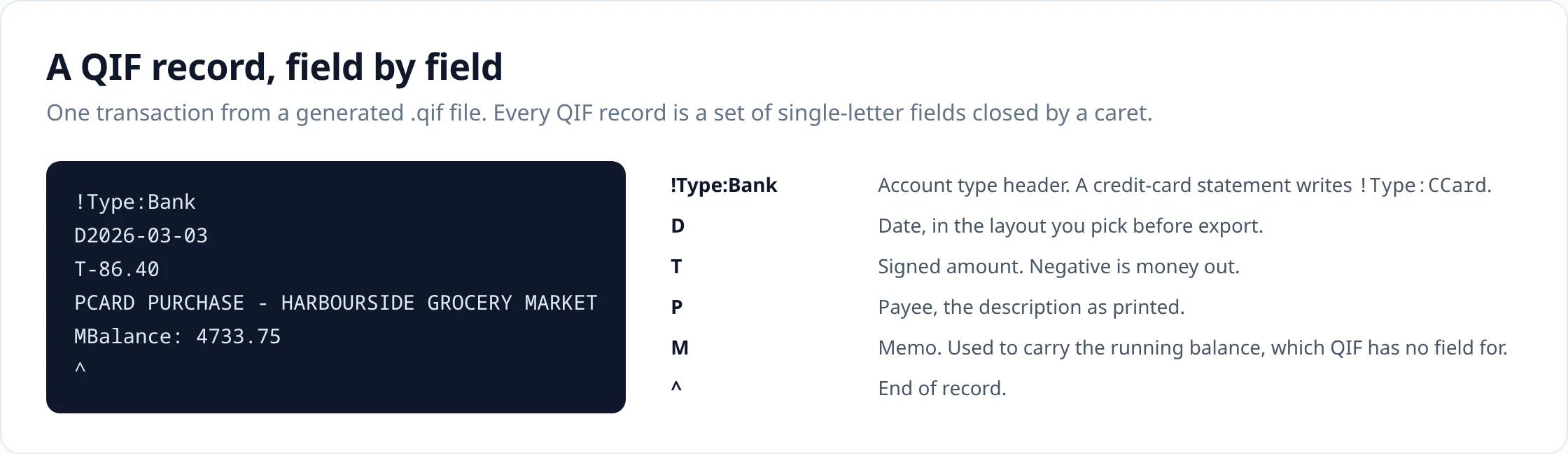
QIF is a flat text format: a header naming the account type, then one block per transaction in which each line begins with a single letter identifying the field, closed by a caret. Here are the first records of a file generated from a sample checking-account statement.
!Type:Bank
D2026-03-01
T0.00
POpening Balance
MBalance: 4820.15
^
D2026-03-03
T-86.40
PCARD PURCHASE - HARBOURSIDE GROCERY MARKET
MBalance: 4733.75
^
D2026-03-05
T2480.00
PDIRECT DEPOSIT PAYROLL
MBalance: 7213.75
^
-
!Type:Bankopens a bank or savings account. A credit-card statement opens with!Type:CCardinstead. -
Dis the date, written in the layout you selected. -
Tis the amount, signed: negative for money out of a bank account. QIF has no separate debit and credit columns, so the two columns of the statement collapse into one signed figure here. -
Pis the payee, which we fill with the description exactly as printed. There is no length limit, so nothing is truncated. -
Mis the memo, used to carry the running balance where the statement printed one. -
^ends the record. Lines are separated by newlines and the file is UTF-8.
No category (L) line is written, and no cleared-status flag. Both would be guesses, and a wrong category in a QIF is harder to undo than a missing one.
A record, labelled
The whole format is six field letters and a terminator. It is worth seeing once, because everything QIF cannot do follows from how little is in it.
What QIF cannot carry
These are not hypothetical gaps: they are fields our OFX-family exports write and the QIF export has nowhere to put.
- Transaction identity. OFX-family files carry a FITID per transaction, which is how an importer recognises a row it has already seen. QIF has no such field, so re-importing a QIF is a duplicate risk the file cannot help with.
- Account and institution. The account number, the routing number and the bank name all travel in an OFX file. A QIF file says only whether the account is a bank or a card, so the importer relies on you to select the right account.
- Currency. There is no currency field. A file of euro transactions and a file of dollar transactions are indistinguishable.
- Balance. No balance field, and therefore nothing for an importer to reconcile against after loading. Ours goes into the memo so the figure survives as text.
- Date certainty. Covered above, and the practical one.
QIF's compensating virtue is that it is trivial to read. It is plain text you can open, diff, correct by hand and hand to a program written thirty years ago.
Where QIF is still the right answer
GnuCash documents QIF as one of its file import formats, so it is a straightforward destination.
Source: GnuCash manual: Importing transactions from files
YNAB accepts QIF in its file-based import, though its current guidance points at CSV first.
Source: YNAB: File-based import
Older and long-lived software that documents QIF import, and archives that already exist as QIF. This is where the format still earns its place: it outlived several of the programs that produced it.
For Quicken, the documentation is version-sensitive and inconsistent about which account types accept QIF. One page restricts QIF to asset, liability and cash accounts; another says any account type can now be imported. If you are importing ordinary bank or card transactions, QFX is the route Quicken documents for that job.
Sources: Quicken: How do I import data into Quicken for Windows? · Quicken: Why can’t I import a QIF file into a banking or investment account?
QIF is not the input to QuickBooks Desktop Bank Feeds either. Intuit documents .qbo as the only type Web Connect reads, and says QFX and QIF files will not work, so that path wants a Web Connect QBO
file.
Sources: Intuit: Fix Web Connect import errors · Intuit: Download bank feed transactions in QuickBooks Desktop
If it is a card statement
A card statement exports with the !Type:CCard header. The rows themselves carry the same fields as a bank record, but the sign in T follows the statement's own columns: a charge, which increases what you owe, and a payment, which reduces it, come out with opposite signs.
Card statements also usually print no per-line running balance, so there is normally no balance memo on those records. And because QIF has no transaction identifier, a card statement imported twice will import twice.
Upload
Add the statement PDF, or several at once.
Review
Check the extracted rows against the statement and fix anything that looks wrong.
Export
Download in the format you need.
How it works covers extraction, validation and combining statements in detail.
Questions about this format
- Does GnuCash import QIF?
-
Yes. GnuCash documents QIF among its file import formats, alongside OFX/QFX, CSV and MT940.
- Does YNAB import QIF?
-
YNAB documents QIF among the formats its file-based import accepts, together with CSV, QFX and OFX. Its own guidance currently points people at CSV first, so QIF is accepted rather than preferred.
Source: YNAB: File-based import
- Can a current Quicken bank or credit-card account import QIF?
-
Treat this as uncertain and use QFX instead. Quicken's main import guidance says QIF import is available only for asset, liability and cash accounts and not for checking, savings or credit-card accounts, while a separate Quicken help page says any account type can now be imported using QIF, so the documentation does not agree with itself. For downloading bank and credit-card transactions, Quicken documents QFX as its Web Connect format, and that is the route we point people at.
- What date format does the QIF use?
-
Whichever you choose before export: YYYY-MM-DD, DD/MM/YYYY or MM/DD/YYYY. QIF files carry no marker saying which one is in use, so the importing program guesses from its own locale, which is why the choice is yours and not ours.
- Does the QIF include a running balance?
-
QIF has no balance field. Where a statement printed a running balance we write it into the memo field as "Balance: 5162.40" so the figure is not lost, but it is text in a memo, not a balance an importer will reconcile against.
- QIF or QFX?
-
QFX if you are importing bank or credit-card transactions into Quicken. QIF if your software documents QIF import, or if you are loading a historical archive into something that predates the Web Connect formats.
- QIF or OFX?
-
OFX, if the destination accepts it. OFX carries the account, the currency, the institution, a transaction identifier and a closing balance; QIF carries a date, an amount and a payee. The only reason to choose QIF is that the destination does not read OFX.
General questions about scans, languages, page counts, editing and pricing are answered on the FAQ .
Uploads and generated files are encrypted at rest, deleted automatically after seven days, and can be deleted from your history whenever you want. Documents sent to AI providers are not used to train their or our models.
Security sets out storage, retention and provider handling; Privacy is the full policy.
Related converters
- PDF to QFX — the Web Connect format Quicken documents for transaction downloads.
- PDF to OFX — structured transactions with identifiers, currency and balance.
- Bank statement to QBO — for QuickBooks Desktop Bank Feeds.
- Bank statement to CSV — when you would rather map the columns yourself.
Convert a statement, pick your date layout, and export the QIF.
The free plan includes 10 tokens on signup plus 3 a week. Pricing