Plenty of financial history ends up in Excel: banks that export XLSX, card portals with a "download to Excel" button, and the tracking spreadsheets people keep for accounts Quicken never connected to. Quicken itself, though, has no spreadsheet import. Bank transactions enter through Web Connect .QFX files or they get typed by hand. Our converter turns any Excel transaction data into a Quicken-ready QFX file in minutes.
The workbook and the QFX contain the same facts: dates, payees, amounts. What QFX adds is the packaging Quicken validates: a tagged structure, a bank identifier, and a unique ID per transaction so imports never double up. That packaging is what a converter automates.
This page covers what your spreadsheet needs, how the conversion works, and the spreadsheet-specific snags (date cells, sign conventions, clutter rows) that decide whether an import lands cleanly.
Why Quicken Won't Take Your Spreadsheet
The gap between Excel and Quicken's register is structural:
No spreadsheet import exists
Quicken Classic imports bank transactions through Web Connect (.QFX) files only. There is no XLSX, XLS, or CSV import for bank accounts.
QFX is validated, not just named
QFX files carry an Intuit bank identifier Quicken checks on import. A renamed or hand-built file fails that check.
Spreadsheets are for humans
Header rows, notes, running balances, and formatting help you read the sheet and confuse any parser that takes it literally.
Excel dates deceive
Date cells, text dates, and regional formats coexist in one workbook. Getting 03/04 right (March 4 or April 3?) needs an explicit answer, not a guess.
The fix is a converter that understands both sides: spreadsheet structure in, validated Web Connect out.
What Your Spreadsheet Needs
Ledger Tome detects most layouts automatically. A workable sheet has:
Bank XLSX exports and personal tracking spreadsheets both qualify. If you can read the sheet as a list of transactions, the converter usually can too, and the preview lets you verify before export.
What Is a QFX File?
A QFX file is Quicken's Web Connect format: Intuit's branded variant of the OFX standard, and the only file type modern Quicken imports for bank transactions.
Key characteristics of a proper QFX file:
Starting from CSV? See our CSV to QFX converter . From PDF statements? PDF to QFX . Full version-by-version guide: Import into Quicken .
Common Ways to Get Excel Data Into Quicken
Manual Entry
Retype the workbook into the register. Every row is a typo waiting to happen, and long histories make it a weekend project.
Save As CSV First
Doesn't help: Quicken has no CSV import for bank accounts either. The detour adds a step and solves nothing.
QIF via an Old Version
Some users bounce data through QIF and legacy import paths. Modern Quicken restricts QIF for bank accounts, and dates get mangled along the way.
Automated Excel to QFX Conversion
Reads the workbook, detects the structure, and generates a validated Web Connect file Quicken imports through its supported path. Free to start.
Excel to QFX: Method Comparison
| Method | Time Required | Accuracy | Best For | Cost |
|---|---|---|---|---|
| Manual entry | 30-60 minutes per sheet | 70-80% (error-prone) | A handful of rows | Free |
| Save as CSV | No path to Quicken | n/a | Nothing | Free |
| QIF workarounds | 30+ minutes, version-dependent | Fragile | Pre-2005 Quicken only | Free |
| Ledger Tome | Under a minute | 99%+ | Any workbook, any layout | Free to start |
Why automated conversion wins: it produces the exact file type Quicken is built to import, straight from the spreadsheet you already have.
How Ledger Tome Converts Excel to QFX
Ledger Tome turns XLSX and XLS transaction data (and CSVs and PDF statements) into valid QFX files.
Upload
Upload your Excel workbook
Automatic Mapping
Columns, date formats, and debit/credit logic detected automatically
Review & Edit
Check every transaction in an interactive preview before export
Download QFX
Get a Web Connect file ready for Quicken
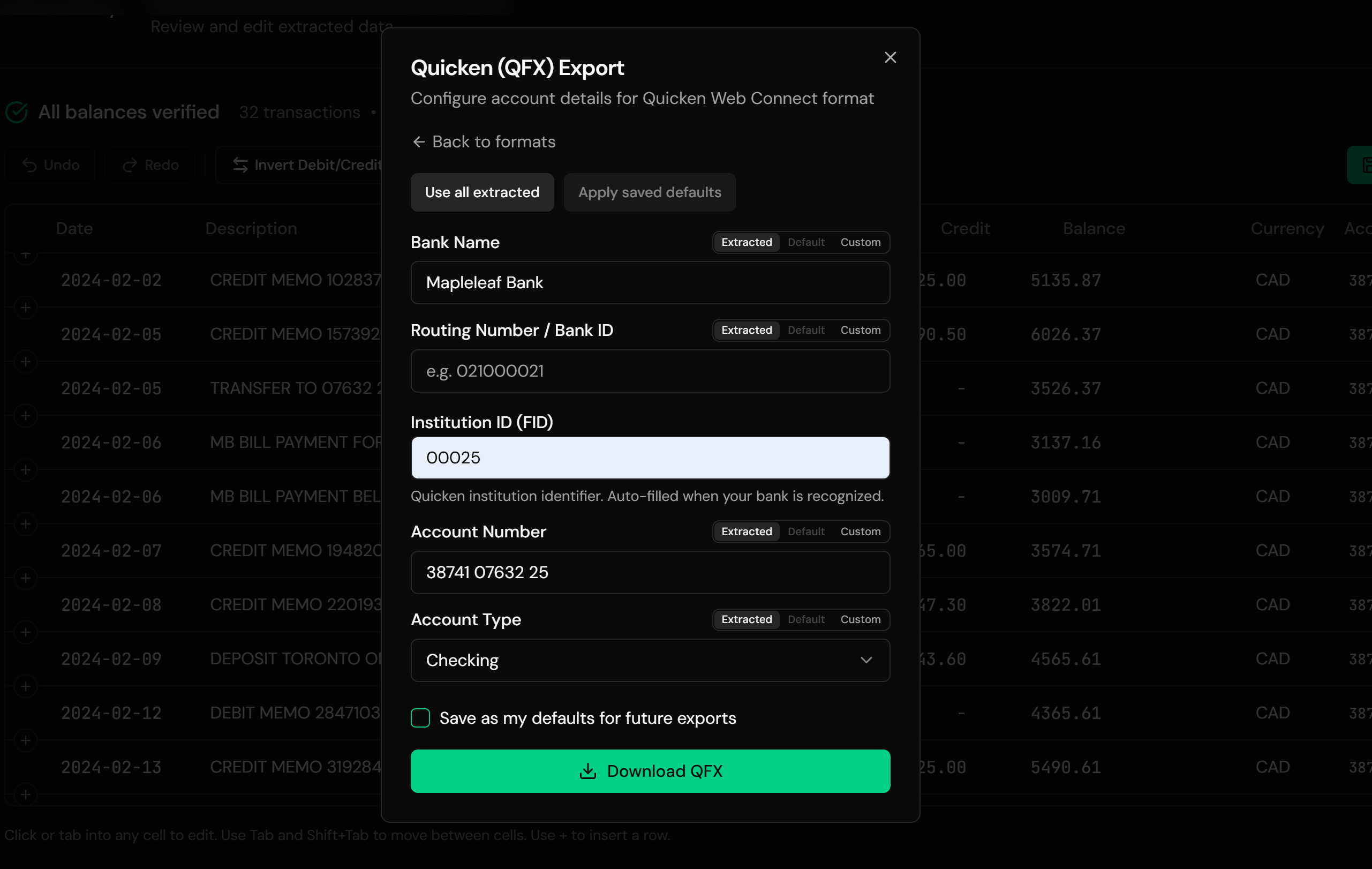
The output follows the Web Connect specification with unique FITIDs on every transaction, so re-importing the same file never duplicates your register.
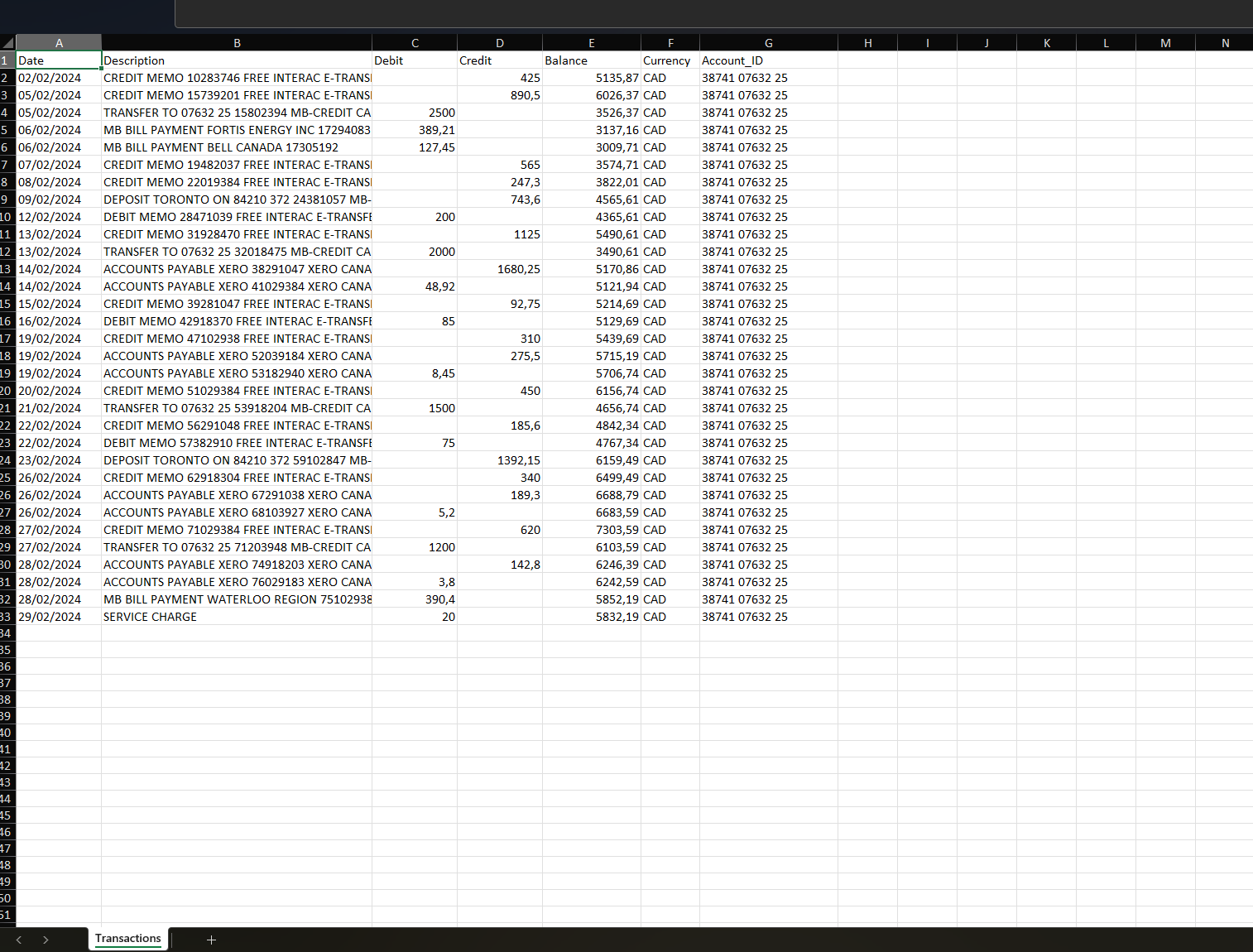
From Workbook to Quicken-Ready QFX
Before: Excel workbook
After: Structured QFX
Use Cases
Bank XLSX Exports
When the bank's export button produces Excel, not QFX or CSV.
Card Portal Downloads
Card transaction histories downloaded as spreadsheets, imported with correct signs.
Tracking Spreadsheets Coming Home
Accounts you tracked in Excel during a gap, folded back into Quicken.
Historical Backfill
Years of exported history loaded into the register beyond any download window.
Small Side Accounts
HSAs, store cards, and minor accounts that never had Quicken connectivity.
Rebuilding After a Feed Outage
Fill the missing weeks from an export instead of typing them.
Who It's For
Quicken Classic Users
Deluxe, Premier, and Home & Business on Windows or Mac.
Long-History Households
Decades-old Quicken files worth keeping complete.
Spreadsheet Trackers
People who kept some accounts in Excel and want one system again.
Users of Banks With Excel-Only Exports
When XLSX is the only download on offer.
Personal Finance Enthusiasts
Completing records for budgeting and reporting.
Anyone With Transactions in a Workbook
If it's rows of dates and amounts, it can be a QFX.
Related Converters
Ledger Tome supports multiple inputs and destinations. Choose the one that fits your workflow:
The CSV-input sibling of this page.
Starting from PDF statements instead.
Same spreadsheet, but Xero or Sage as the destination.
Same spreadsheet, QuickBooks Desktop as the destination.
The full Quicken import walkthrough.
What Ledger Tome Does Not Do
For clarity and transparency, Ledger Tome does not:
- Access bank accounts directly
- Initiate or modify transactions
- File taxes or submit reports
- Replace accounting software
- Categorize transactions automatically
It focuses solely on converting statement data into structured, accounting-ready formats.
Security & Privacy
Your Financial Data is Protected
We take statement security seriously. Here's how we protect your data:
-
Encrypted Transmission
All uploads use 256-bit SSL encryption (the same security banks use)
-
Secure Processing
Files are processed in isolated, secure environments with no human access
-
Automatic Deletion
All uploaded files are permanently deleted after 7 days (or immediately upon request)
-
No Training Data
Your statements are never used to train AI models or shared with third parties
-
No Account Access
We never access your bank account directly or store your banking credentials
-
GDPR Compliant
Full compliance with data protection regulations
-
No Permanent Storage
We don't maintain a database of your financial information
Privacy First: We process your data solely for conversion purposes. No marketing, no data selling, no third-party sharing.
Frequently Asked Questions
How do I import an Excel file into Quicken?
Does my spreadsheet need specific columns?
Can I convert my own tracking spreadsheet, not a bank export?
How are Excel dates handled?
My sheet has separate debit and credit columns. Is that a problem?
Will importing create duplicate transactions?
Does this work for credit card data?
Does this work with Quicken for Mac?
What if Quicken doesn't recognize my bank?
How much does it cost?
Troubleshooting Common Issues
Quicken rejects the file on import
Usually the bank identifier. Enter your institution's FID manually in the export dialog and re-download; if the problem persists, contact support.
Rows are missing in the preview
Title rows, subtotals, and blank separators are dropped by design. If a real transaction was dropped, check that its row has a readable date and amount.
Dates came out shifted
Day/month ambiguity in the source sheet. Re-check the date format choice and confirm in the preview.
Amounts have flipped signs
The workbook's convention was the reverse of the detection. Flip the convention in the preview before export.
Transactions went to the wrong account
Quicken links each file to an account on first import. Delete the imported transactions and re-import against the correct account.
Summary
Quicken imports bank transactions through Web Connect QFX files and nothing else, while a surprising amount of personal financial history lives in Excel. Manual entry doesn't scale and CSV detours lead nowhere. Converting the workbook to a validated QFX puts spreadsheet data into the register through Quicken's own supported path, with duplicate protection included.
If you have a workbook waiting to get into Quicken, Ledger Tome converts it in under a minute.
Ready to Get Your Spreadsheet Into Quicken?
Stop retyping rows into the register. Convert your first Excel file to QFX in minutes.
Used by Quicken users, spreadsheet trackers, and personal finance enthusiasts