Wave is more accommodating about statement files than most accounting software. It takes OFX, QBO, QFX, ASO, and CSV, and it will tell you itself that the structured formats work better than CSV. That is unusually generous. The catch is that your bank probably gave you a PDF, and a PDF is not on the list.
This is where most Wave users get stuck. The bank connection dropped, or was never available for your credit union, or you are three days from a tax deadline with a year of transactions that never made it in. Wave is ready to accept a good file. You just do not have one yet.
Ledger Tome reads the PDF statement, or the CSV export with the odd column layout, and gives you a file Wave imports properly. This page covers which of Wave's accepted formats to pick, why the structured ones are worth preferring, and how to upload the result.
What Wave Accepts, and What It Prefers
Wave takes five formats. They do not all behave the same:
OFX, QBO and QFX: the good ones
Structured statement files with proper dates, amounts, and a unique ID on every transaction. Wave recommends these over CSV, and so do we.
CSV: accepted, but plainer
Wave will take a CSV, and it works. It carries no transaction IDs and no account details, so there is more room for confusion if you upload an overlapping period.
PDF: not accepted
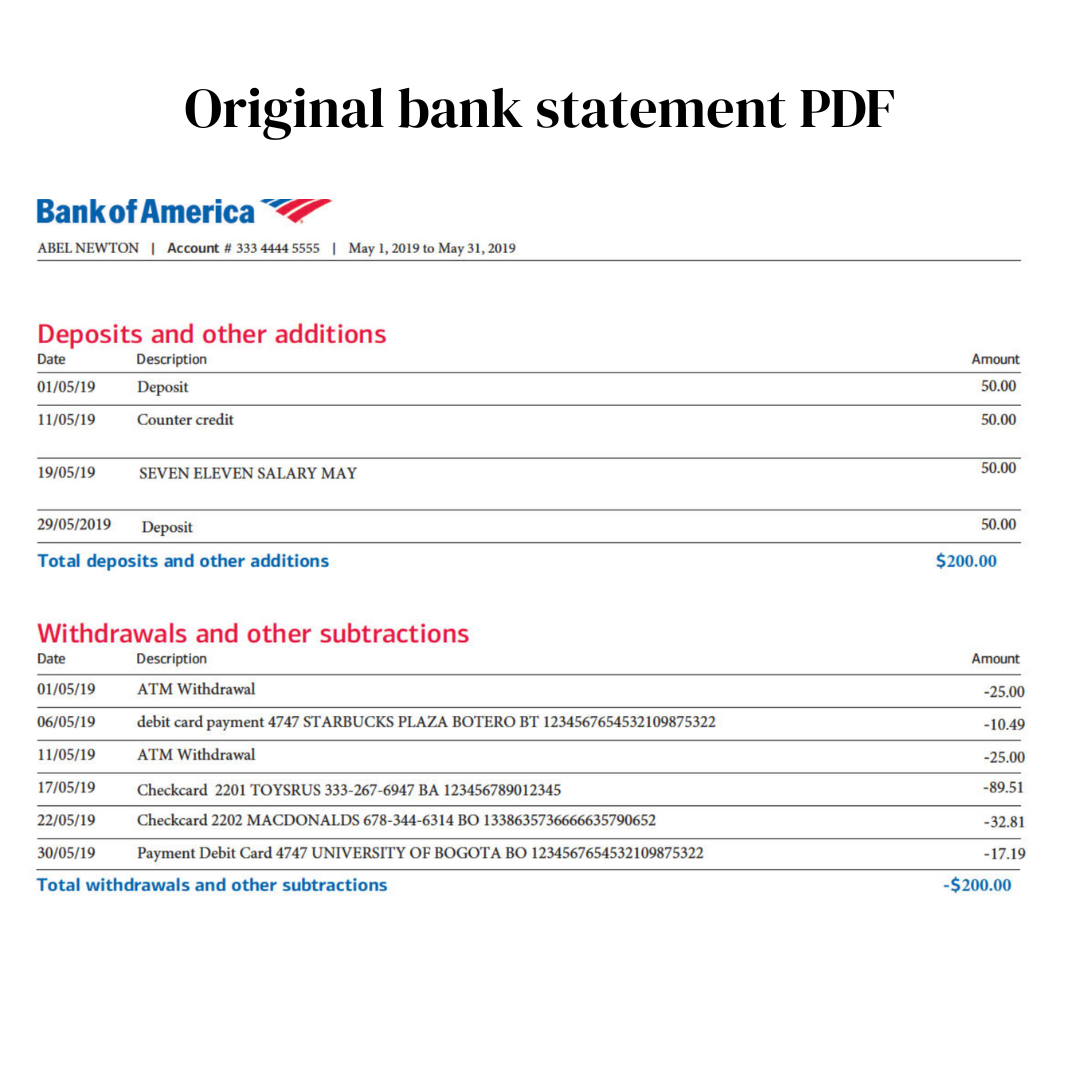
The format your bank is most likely to hand you, and the one Wave cannot read. This is the actual gap.
Bank connections don't cover everything
Connections drop, some banks were never supported, and history from before you set one up simply is not there.
So the job is turning the PDF or the awkward CSV you have into one of the formats Wave already accepts, ideally a structured one.
Works With US and Canadian Banks (and Everyone Else's)
Ledger Tome reads PDF statements and CSV/Excel exports from:
US Banks
Chase, Bank of America, Wells Fargo, Citi, Capital One, US Bank, PNC, and hundreds of credit unions
Canadian Banks
RBC, Scotiabank, BMO, CIBC, Tangerine, Desjardins
International
100+ banks worldwide
Don't see the bank? The AI adapts to any statement layout automatically, which matters most for smaller banks and credit unions that Wave's connections never covered.
Which Format Should You Upload to Wave?
OFX (recommended)
A proper statement file. Dates are encoded so they cannot be misread, the account and currency travel with the file, and every transaction has a unique identifier. If you accidentally upload an overlapping period, that identifier is what stops the same transaction being counted twice.
CSV (fine, simpler)
Just rows and columns. Wave accepts it and it will work. There are no transaction identifiers, so overlapping uploads need more care from you, and dates depend on being formatted the way Wave expects.
Wave also accepts QBO and QFX, which is unusual for software that is not made by Intuit. Ledger Tome can produce both. There is rarely a reason to prefer them over plain OFX for Wave, but if you are also feeding QuickBooks Desktop or Quicken from the same statements, exporting one format for everything can be simpler than remembering which is which.
Format deep dives: PDF to OFX and Bank Statement to CSV .
How to Upload the File Into Wave, Step by Step
Uploading a statement:
- Go to Banking and select the account you are adding transactions to
- Choose the option to upload a statement rather than connect a bank
- Upload the .ofx file you downloaded from Ledger Tome
- Review the imported transactions and categorize them as usual
If you are uploading CSV:
- Follow the same path, choosing the CSV upload option
- Match the columns to Wave's expected fields when prompted
- Check the first few rows carefully before confirming
- Review and categorize the imported transactions
A note on order: upload oldest first, one statement per file, and check the date range Wave reports back before confirming. If a period overlaps something already in Wave, the structured formats will handle it far more gracefully than CSV.
How Ledger Tome Prepares Statements for Wave
Ledger Tome turns PDF bank and credit card statements, CSVs, and Excel exports into files Wave accepts.
Upload
Upload the PDF statement or spreadsheet export
AI Extraction
Statement structure, columns, dates, and debit/credit logic detected automatically
Review & Edit
Check every transaction in an interactive preview before export
Download
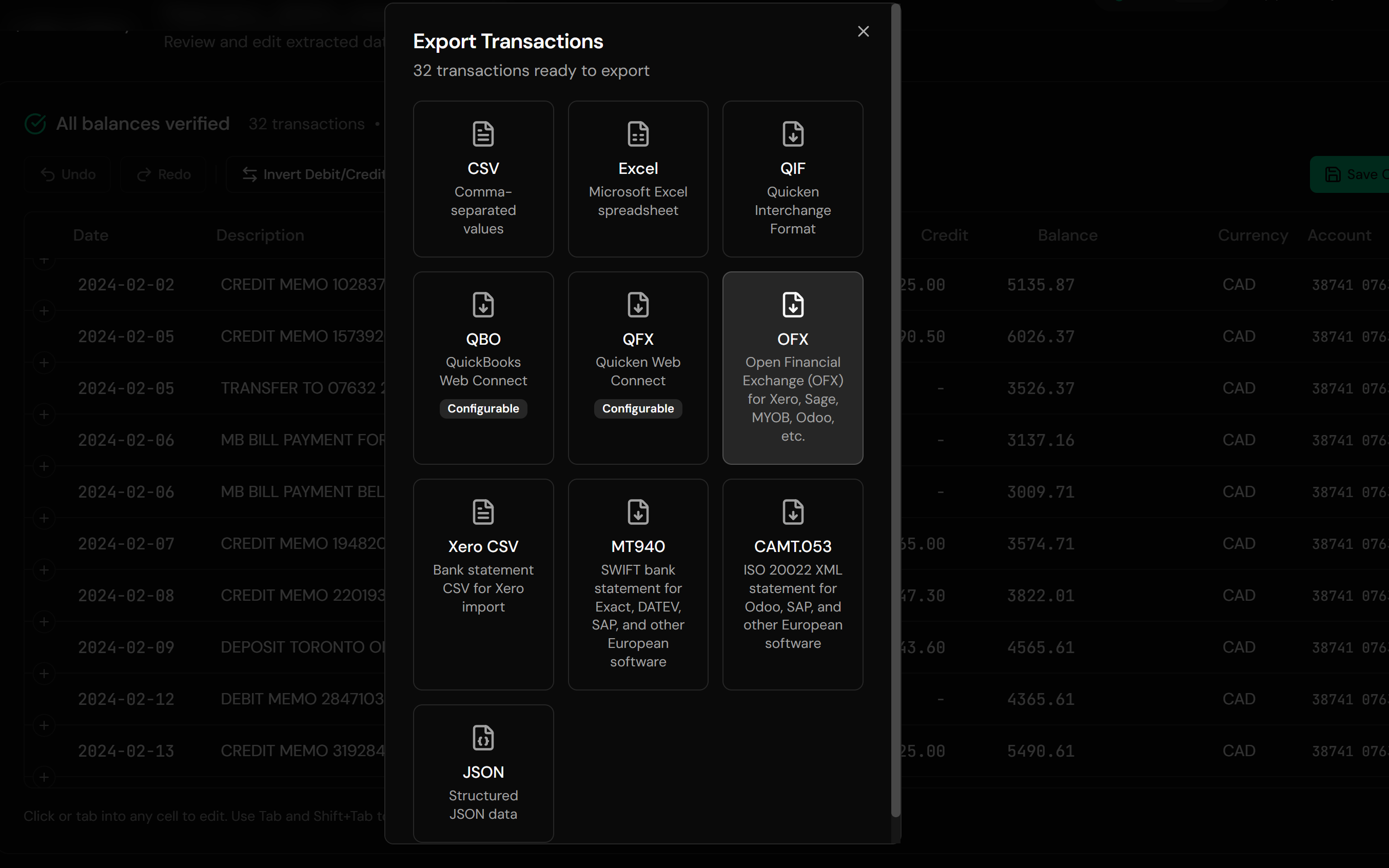
OFX, QFX, QBO, or CSV, ready to upload into Wave
The OFX output carries a unique identifier on every transaction, so an accidentally repeated upload does not double your books. Credit card statements are recognized and their signs handled correctly, which matters because a card statement uploaded with the wrong convention makes every expense look like income.
From Bank PDF to a File Wave Accepts
Before: the bank's PDF statement
After: a file Wave will take
Use Cases
Tax Season Catch-Up
A year of transactions that never made it into Wave, sorted before the deadline.
A Bank Connection That Broke
Fill the gap for the period the connection missed.
Banks Wave Can't Connect To
Smaller banks and credit unions where upload is the only route.
History From Before You Started
Earlier months that predate your Wave account.
Credit Cards and Business Cards
Card statements with the signs the right way around.
A Second Business Account
Accounts you never connected because it was only occasional.
Who It's For
Freelancers on Wave
Doing their own books between actual work.
Side Businesses
Where the accounting happens in bursts, usually late.
Very Small Businesses
No bookkeeper, no accounting software budget.
Contractors & Sole Traders
Tracking income and expenses for tax.
Anyone With an Unsupported Bank
Where connections were never an option.
People Catching Up at Deadline
The most common reason anyone searches this.
Related Converters
Ledger Tome supports multiple formats and destinations. Choose the one that fits your workflow:
The format-first page for PDF statements.
If you would rather upload CSV.
Card statements specifically.
Bank gave a CSV and you want the structured version.
On FreshBooks instead of Wave? The FreshBooks import guide.
What Ledger Tome Does Not Do
For clarity and transparency, Ledger Tome does not:
- Access bank accounts directly
- Initiate or modify transactions
- File taxes or submit reports
- Replace accounting software
- Categorize transactions automatically
It focuses solely on converting statement data into structured, accounting-ready formats.
Security & Privacy
Your Financial Data is Protected
We take statement security seriously. Here's how we protect your data:
-
Encrypted Transmission
All uploads use 256-bit SSL encryption (the same security banks use)
-
Secure Processing
Files are processed in isolated, secure environments with no human access
-
Automatic Deletion
All uploaded files are permanently deleted after 7 days (or immediately upon request)
-
No Training Data
Your statements are never used to train AI models or shared with third parties
-
No Account Access
We never access your bank account directly or store your banking credentials
-
GDPR Compliant
Full compliance with data protection regulations
-
No Permanent Storage
We don't maintain a database of your financial information
Privacy First: We process your data solely for conversion purposes. No marketing, no data selling, no third-party sharing.
Frequently Asked Questions
How do I import a bank statement into Wave?
Can Wave read PDF bank statements?
Which format should I upload?
Does Wave accept CSV?
Do I have to pay for this?
My bank isn't supported by Wave's connections.
Will uploading the same statement twice duplicate transactions?
Does this work for credit card statements?
How far back can I go?
Can I fix a wrong description before uploading?
Do I need an account with Ledger Tome?
How much does it cost?
Troubleshooting Common Issues
Wave rejected the file
Check the file extension survived the download. If a CSV upload is refused, try OFX instead, since it needs no column matching.
The columns didn't match on a CSV upload
Wave asks you to map columns for CSV. Either work through the mapping carefully or use OFX, which has no mapping step.
Every expense shows as income
The account type at export was wrong for a credit card statement. Re-export with credit card selected so the sign convention flips correctly.
Transactions uploaded twice
Most likely an overlapping CSV upload. Remove the duplicated batch in Wave and re-upload the period as OFX so the transaction IDs can do their job.
Some transactions are missing
Multi-page PDFs process automatically, but check the preview row count against the statement before exporting.
Summary
Wave accepts more statement formats than most accounting software and prefers the structured ones, which makes this an easy problem once you have a good file. The gap is that banks hand out PDFs, and no accounting software reads those. Converting the statement into OFX gives Wave the format it works best with, including the transaction IDs that keep an accidental double upload from turning into an afternoon of cleanup.
If you have statements waiting to get into Wave, Ledger Tome converts them in minutes each.
Ready to Get Statements Into Wave?
Stop typing a year of transactions in by hand at tax time. Convert your first statement into a file Wave accepts, in minutes.
Used by freelancers, contractors, and small business owners on Wave