Sage practices live on client statements, and client statements arrive however the client's bank felt like exporting them: PDFs from the branch portal, CSVs with every bank's own column order, the occasional paper scan. Sage's bank import, whether you're on Sage 50 or Sage Business Cloud, wants none of those. It wants a proper statement file, and OFX is the format both products import most cleanly. Ledger Tome converts whatever arrived into exactly that.
The two Sage products draw the import lines slightly differently, but the practical answer is the same: convert to OFX, import through the Bank module, reconcile. OFX needs no column mapping, carries unambiguous dates and amounts, and includes a unique ID on every transaction so a re-imported file doesn't double the books.
This page covers the format rules for both Sage products, the import steps, and the batch workflow for practices converting statements from many client banks at once.
What Sage Can and Can't Import
Both Sage products import bank transactions from files, with the same gaps in what they'll take:
OFX: the clean path
Sage 50 and Sage Business Cloud both import OFX statement files: no column mapping, no date ambiguity, duplicate-safe transaction IDs.
CSV: product-dependent
Sage's CSV import expects particular column layouts and formats that vary by product. Bank CSVs rarely arrive in them.
PDF: not accepted
The format clients actually send is the one no Sage product reads.
Feeds don't cover the backlog
Sage bank feeds handle current activity where supported; history, feed gaps, and unsupported banks all arrive as files or not at all.
The conversion step turns "whatever the client sent" into the one format both Sage products treat well.
Works With UK and Irish Banks (and Everyone Else's)
Ledger Tome reads PDF statements and CSV/Excel exports from:
UK Banks
HSBC, Barclays, Lloyds, NatWest, Santander, Nationwide, Monzo, Starling
Irish Banks
AIB, Bank of Ireland, Permanent TSB
International
100+ banks worldwide for clients with foreign accounts
Don't see the bank? The AI adapts to any statement layout automatically.
Which Sage Are You On? It Changes the Steps, Not the Format.
Sage 50 (desktop)
The long-standing desktop product. Bank transactions import through the Bank module's file import, and OFX is the dependable format across versions. Historical CSV import layouts vary by version; OFX sidesteps the variance.
Sage Business Cloud Accounting
The cloud product. Banking > the account > Import statement takes OFX (and CSV in Sage's expected layout). OFX again avoids the mapping and format pitfalls.
Either way, the working recipe for a practice is one conversion habit that fits both: statement in, OFX out, import, reconcile. Ledger Tome's OFX is standard OFX 1.02 with a unique FITID per transaction, which is what both products expect.
Format deep dives: PDF to OFX and CSV to OFX . On Xero for some clients too? See Import into Xero .
How to Import the File Into Sage, Step by Step
Sage Business Cloud Accounting:
- Go to Banking and select the bank account
- Choose Import statement (under the account's options)
- Upload the .ofx file you downloaded from Ledger Tome
- Review the imported transactions and reconcile as usual
Sage 50:
- Open the Bank module and select the account
- Choose the bank statement / transaction import option for your version
- Select the .ofx file and confirm the account match
- Review and reconcile the imported transactions
Batch tip for practices: convert statements client by client and import oldest-first per account. One statement per file keeps Sage's per-account imports clean, and OFX transaction IDs make accidental re-imports harmless.
How Ledger Tome Prepares Statements for Sage
Ledger Tome is an AI-powered tool that turns PDF bank and credit card statements, CSVs, and Excel exports into Sage-ready OFX files.
Upload
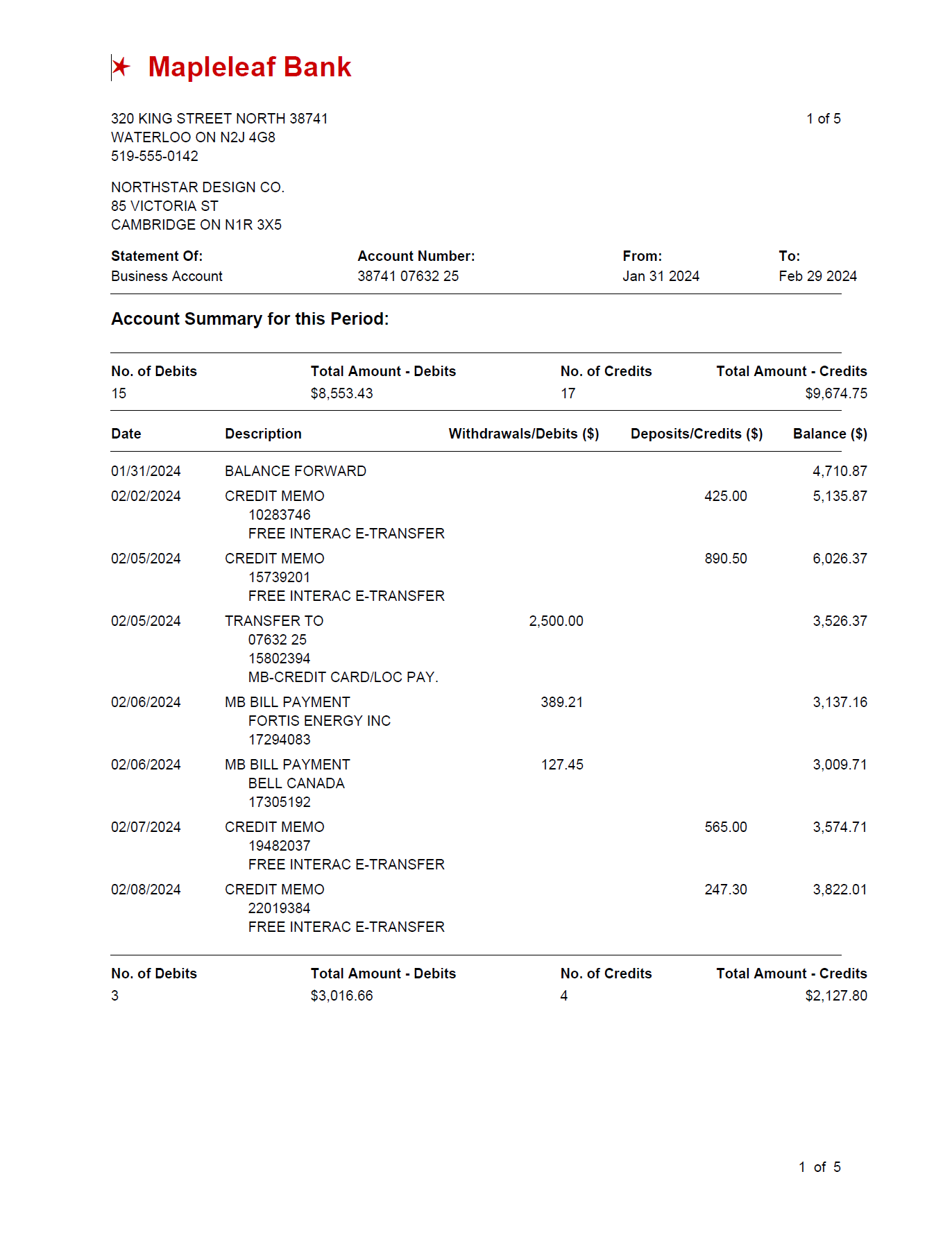
Upload the client's PDF statement or spreadsheet export
AI Extraction
Statement structure, columns, dates, and debit/credit logic detected automatically
Review & Edit
Check every transaction in an interactive preview before export
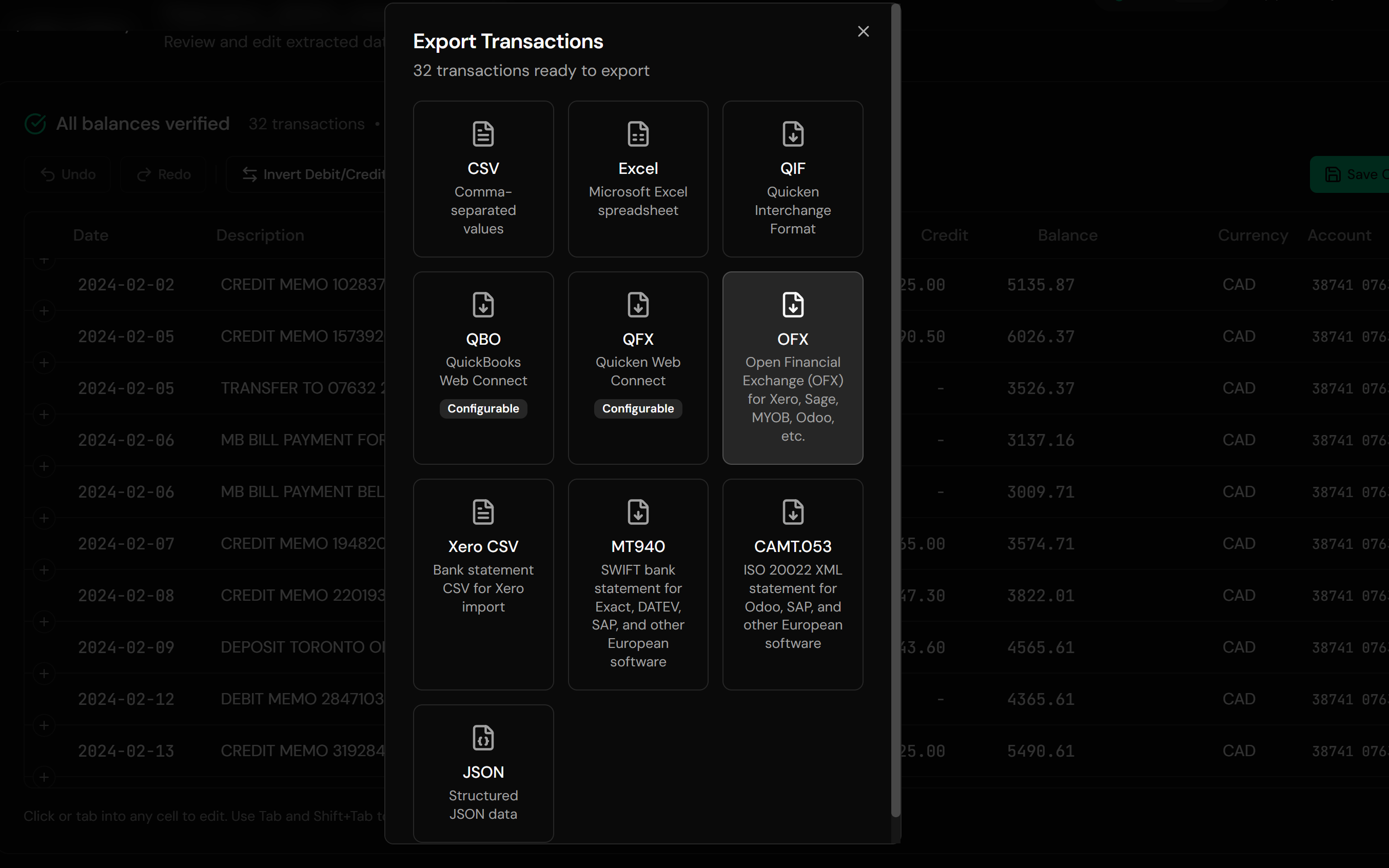
Download OFX
An import-ready statement file for either Sage product
The OFX output carries a unique FITID on every transaction, so re-importing a file into Sage never duplicates the books.
From Client Statement to Reconciliation-Ready
Before: client's PDF statement
After: Sage-ready OFX
Use Cases
Client Onboarding Backlogs
A new client, a year of PDF statements, one conversion habit.
Feed Gaps and Outages
Fill missing periods precisely from the statement covering them.
Banks Without Sage Feeds
Smaller institutions where file import is the standing workflow.
Year-End and VAT Work
Complete the records before returns, from whatever the client kept.
Credit Card Accounts
Card statements convert with correct signs for the card account in Sage.
Multi-Client Practices
Many banks, many layouts, one consistent OFX output.
Who It's For
Sage 50 Practices
Desktop stalwarts processing client statements at volume.
Sage Business Cloud Users
Cloud-side bookkeepers with the same file problem.
UK & Irish Bookkeepers
The market where Sage runs deepest.
Accountants in Practice
Catch-up, cleanup, and onboarding engagements.
Small Businesses on Sage
Owners doing their own books without retyping statements.
Anyone Feeding Sage From Files
If the feed can't reach it, conversion can.
Related Converters
Ledger Tome supports multiple formats and destinations. Choose the one that fits your workflow:
The format-first page for PDF statements.
Client sent a CSV export instead? Same destination.
Spreadsheet-kept records into statement imports.
The Xero equivalent of this guide.
Want to review in a spreadsheet before importing?
What Ledger Tome Does Not Do
For clarity and transparency, Ledger Tome does not:
- Access bank accounts directly
- Initiate or modify transactions
- File taxes or submit reports
- Replace accounting software
- Categorize transactions automatically
It focuses solely on converting statement data into structured, accounting-ready formats.
Security & Privacy
Your Financial Data is Protected
We take statement security seriously. Here's how we protect your data:
-
Encrypted Transmission
All uploads use 256-bit SSL encryption (the same security banks use)
-
Secure Processing
Files are processed in isolated, secure environments with no human access
-
Automatic Deletion
All uploaded files are permanently deleted after 7 days (or immediately upon request)
-
No Training Data
Your statements are never used to train AI models or shared with third parties
-
No Account Access
We never access your bank account directly or store your banking credentials
-
GDPR Compliant
Full compliance with data protection regulations
-
No Permanent Storage
We don't maintain a database of your financial information
Privacy First: We process your data solely for conversion purposes. No marketing, no data selling, no third-party sharing.
Frequently Asked Questions
How do I import a bank statement into Sage?
Can Sage read PDF bank statements?
What format is best for Sage bank imports?
Does this work for both Sage 50 and Sage Business Cloud?
The client's CSV doesn't match Sage's expected layout. What now?
Will importing the same file twice duplicate transactions?
Does this work for credit card statements?
How far back can I import?
Do Irish and international bank statements work?
How much does it cost?
Troubleshooting Common Issues
Sage rejects the file
Verify the file kept its .ofx extension and re-download. If a specific Sage version still refuses it, contact support with the version details.
Transactions doubled up
Usually an overlapping CSV import from earlier. Remove the duplicated batch in Sage and re-import the period as OFX so transaction IDs deduplicate.
Dates look wrong after import
A DD/MM versus MM/DD issue in the source. Ledger Tome asks you to confirm ambiguous formats before export; re-check that choice in the preview.
Amounts have flipped signs
Some banks export debits as positive. The preview shows the interpreted sign per transaction; flip the convention there before export.
Statement period incomplete
Multi-page PDFs process automatically; check the preview row count against the statement before export.
Summary
Sage imports bank transactions cleanly from OFX files, clients send PDFs and mismatched CSVs, and feeds don't reach history or every bank. One conversion habit closes the gap for both Sage 50 and Sage Business Cloud: statement in, OFX out, import, reconcile, with duplicate-safe IDs guarding every transaction.
If you have client statements waiting to get into Sage, Ledger Tome converts them in minutes each.
Ready to Get Statements Into Sage?
Stop retyping client statements. Convert your first statement into a Sage-ready OFX in minutes.
Used by Sage practices, bookkeepers, and small business owners