QIF has outlived most of the software that created it, and that's exactly why you need it: GnuCash, YNAB, Moneydance, older Quicken versions, and a long tail of finance tools all read it, decades on. What they don't read is the CSV file your bank exports. Our converter turns any bank's CSV into a properly formatted QIF file in minutes.
The classic trap in this conversion is dates. QIF files carry dates without declaring their format, so a file written as month/day imports into day/month software with January and December quietly swapped. Ledger Tome makes the convention explicit: you choose the date format your software expects at export, with a sensible default for your region.
This page explains what QIF is, which software still wants it, and how to automate the conversion. Ledger Tome also accepts Excel files and PDF statements as input.
Why CSV to QIF Isn't a Rename
Both are plain text, which fools people into thinking the conversion is trivial. It isn't:
Completely different structures
CSV is rows and columns; QIF is record-based, one field per line with type markers. No spreadsheet Save As produces it.
The date format trap
QIF dates don't declare their convention. Write them in the wrong order and imports silently transpose days and months.
Account types matter
Bank and credit card QIF files use different type headers, and software imports them into different account kinds.
Every bank's CSV is different
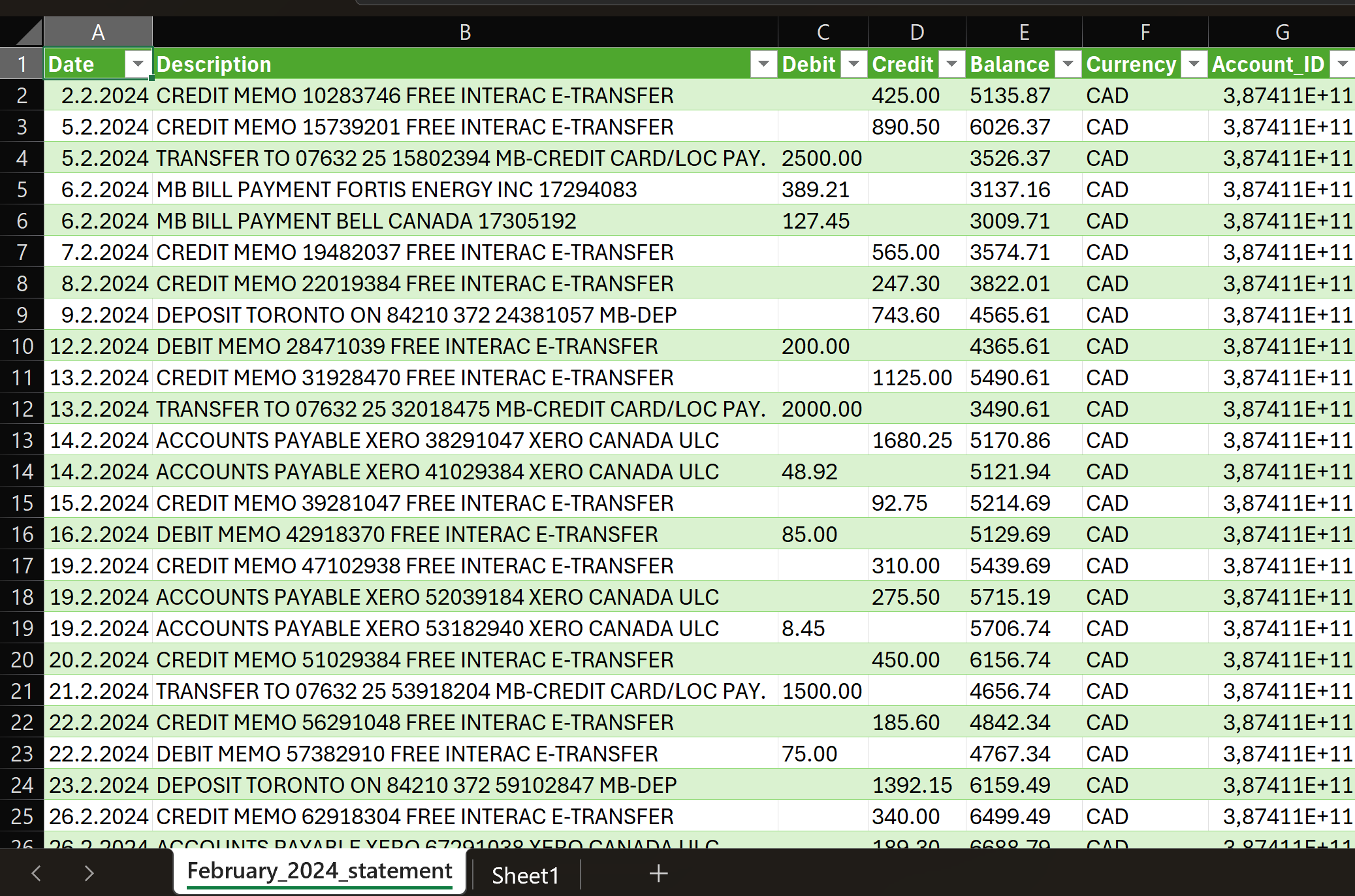
Column orders, date formats, split debit and credit columns, and sign conventions all vary by bank.
Old format, real rules. Getting them right by hand gets old fast.
Works With CSV Exports From Any Bank
Ledger Tome reads CSV and Excel exports from:
US Banks
Chase, Bank of America, Wells Fargo, Citibank, Capital One, US Bank, PNC Bank, Truist
UK Banks
HSBC, Barclays, Lloyds, NatWest, Santander, Monzo, Starling, Nationwide
Credit Unions, Building Societies & Regional Banks
Any CSV layout, no templates needed
Different column layout? The converter detects your file's structure automatically.
What Is a QIF File?
QIF (Quicken Interchange Format) is one of the oldest financial data formats still in daily use: a plain text, record-based format that a huge range of finance software imports.
QIF vs QFX: modern Quicken (2005 and later) dropped QIF imports for bank accounts in favor of QFX. If you're on a current Quicken Classic, you want our CSV to QFX converter instead. QIF remains the right format for GnuCash, YNAB, Moneydance, MS Money era tools, and older Quicken versions.
Key characteristics of a proper QIF file:
!Type:Bank
D01/15/2024
PCoffee Shop
T-4.50
^
D01/16/2024
PClient Payment
T900.00
^
Common Ways to Convert CSV to QIF
Manual Entry
Skip the file and type transactions into your software. The default that makes people give up on importing history at all.
Spreadsheet Formulas and Macros
Concatenating QIF records in Excel works until a date flips, an amount loses its sign, or a payee contains something unexpected. Debugging beats bookkeeping for your evening.
Old Freeware Converters
The classic CSV2QIF-style utilities still float around: unmaintained, Windows-only, and rigid about the exact CSV layout they accept.
Automated CSV to QIF Conversion
Reads any bank's CSV, detects the layout, and writes clean QIF records with the date convention you choose. Free to start.
CSV to QIF: Method Comparison
| Method | Time Required | Accuracy | Best For | Cost |
|---|---|---|---|---|
| Manual entry | 30-60 minutes per statement | 70-80% (error-prone) | A handful of transactions | Free |
| Spreadsheet macros | 30-60 minutes setup | Fragile (date and sign bugs) | Technical users, one bank | Free |
| Old freeware tools | Varies | Rigid layouts, unmaintained | Files matching their template | Free |
| Ledger Tome | Under a minute | 99%+ | Any CSV, any bank, any software | Free to start |
Why automated conversion wins: the format rules and the date convention are handled explicitly instead of hoped about.
How Ledger Tome Converts CSV to QIF
Ledger Tome turns bank CSV and Excel exports (and PDF statements) into clean QIF files.
Upload
Upload your bank or credit card CSV export
Automatic Mapping
Columns, date formats, and debit/credit logic detected automatically
Review & Edit
Check every transaction in an interactive preview before export
Download QIF
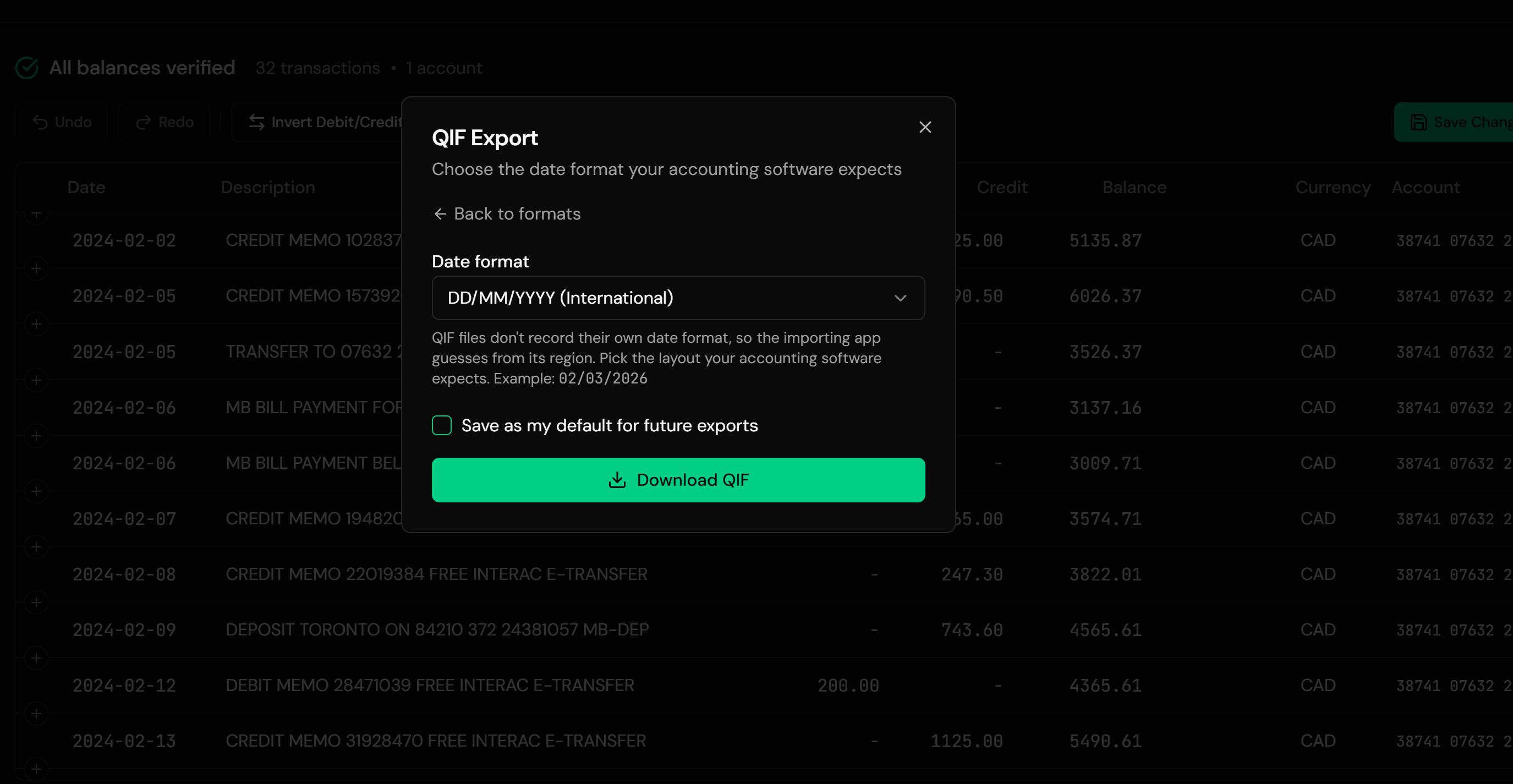
Pick the date format your software expects and download
The date-format choice defaults to your locale, so US and UK users each get the convention their software actually expects, and you can override it either way.
How to Import the QIF File Into Your Software
GnuCash:
- Go to File > Import > Import QIF
- Select the .qif file and follow the import assistant
- Map the file to the right account and review matched transactions
YNAB:
- Open the account and choose Import
- Select the .qif file
- Approve the imported transactions
Older Quicken (2004 and earlier):
- Go to File > Import > QIF File
- Choose the target account and import
Moneydance, AceMoney, HomeBank, and most other personal finance tools import QIF through their own File > Import path.
From Raw CSV to Clean QIF
Before: Raw CSV
After: Clean QIF
Use Cases for CSV to QIF Conversion
GnuCash Bookkeeping
Free software deserves free-flowing imports; convert any bank's CSV into GnuCash's oldest supported format.
YNAB History Loading
Bring past transactions into your budget instead of starting from today.
Keeping Old Quicken Alive
Pre-2005 Quicken still works fine; your bank's export options just left it behind.
Credit Card Accounts
Card CSVs converted with the correct credit card type header and signs.
Migrating Between Tools
QIF is the lingua franca when moving history between personal finance apps.
UK Banking Into US-Born Software
The date-format choice makes UK exports import correctly into tools that assume US dates.
Who CSV to QIF Conversion Is For
This type of conversion is commonly used by:
GnuCash Users
Open-source accounting with first-class QIF import.
YNAB Users
Budget history without manual entry.
Moneydance & Legacy Tool Users
The long tail of finance software that reads QIF.
Older Quicken Holdouts
Quicken 2004 and earlier, still running, still fed.
UK & US Personal Finance Users
Both date conventions handled explicitly.
Anyone With a CSV-Only Bank
If CSV is all you can download, QIF is one click away.
Related Converters
Ledger Tome supports multiple output formats. Choose the one that fits your workflow:
Working from PDF statements instead of CSV exports? Same QIF output.
On modern Quicken? QFX is your format, not QIF.
Using QuickBooks Desktop? Convert to its Web Connect format.
Using Xero, Sage, or QuickBooks Online? OFX is their preferred import.
Prefer a spreadsheet? Get clean XLSX from PDF statements.
What Ledger Tome Does Not Do
For clarity and transparency, Ledger Tome does not:
- Access bank accounts directly
- Initiate or modify transactions
- File taxes or submit reports
- Replace accounting software
- Categorize transactions automatically
It focuses solely on converting statement data into structured, accounting-ready formats.
Security & Privacy
Your Financial Data is Protected
We take statement security seriously. Here's how we protect your data:
-
Encrypted Transmission
All uploads use 256-bit SSL encryption (the same security banks use)
-
Secure Processing
Files are processed in isolated, secure environments with no human access
-
Automatic Deletion
All uploaded files are permanently deleted after 7 days (or immediately upon request)
-
No Training Data
Your statements are never used to train AI models or shared with third parties
-
No Account Access
We never access your bank account directly or store your banking credentials
-
GDPR Compliant
Full compliance with data protection regulations
-
No Permanent Storage
We don't maintain a database of your financial information
Privacy First: We process your data solely for conversion purposes. No marketing, no data selling, no third-party sharing.
Frequently Asked Questions
How do I convert a CSV file to QIF?
What is a QIF file?
Does modern Quicken import QIF?
Why do QIF dates cause problems?
My bank's CSV has separate debit and credit columns. Is that a problem?
Can I convert credit card CSV exports?
Can I convert an Excel file to QIF?
Which software imports QIF files?
Does this work with UK bank exports?
Can I review the data before downloading the QIF file?
How much does it cost?
Troubleshooting Common Issues
Dates imported with day and month swapped
The QIF date convention didn't match the software. Re-export with the other date format selected; the picker is on the export step.
Transactions went into the wrong account type
Bank and credit card QIF files use different type headers. Select the matching account type before export.
Amounts have flipped signs
Some banks export debits as positive numbers. The preview shows the interpreted sign for every transaction, so flip the convention there if needed.
CSV contains summary rows or balances
Upload the file as-is. The converter identifies transaction rows and ignores headers, footers, and running-balance columns.
Software rejects the file
Confirm the file has a .qif extension and that your software version still imports QIF for that account type; modern Quicken doesn't (see CSV to QFX).
Summary
QIF remains the most widely readable personal finance format ever shipped, and banks stopped exporting it years ago. The conversion from CSV is simple in concept and fiddly in practice, with the undeclared date convention as the classic silent failure. Automated conversion handles the format rules and makes the date choice explicit, so any bank's CSV becomes a QIF file your software imports correctly.
If you have a CSV export and software that speaks QIF, Ledger Tome connects them in under a minute.
Ready to Convert Your CSV to QIF?
Stop fighting spreadsheet macros and abandoned freeware. Convert your first CSV to QIF in minutes.
Used by GnuCash users, YNAB budgeters, and long-time Quicken holdouts