Quicken and third-party files
Quicken states that it does not support third-party conversion-generated QFX files for support purposes, which means their support team will not troubleshoot one with you. Whether a given Quicken release opens it is a question about that release, so import a short statement and confirm the result before you convert a year of them.
QFX is Quicken's Web Connect format
Quicken's own documentation describes QFX as the Web Connect format for downloading checking, savings and credit-card transactions, and documents the import path as File, then File Import, then Web Connect (.QFX) File. That is the mechanism this export targets.
Sources: Quicken: Web Connect troubleshooting · Quicken: Importing files from your bank
The format itself is documented and stable, which is why a converted file is worth trying at all. What is not on offer is Quicken's help if something goes wrong with one, so the rest of this page is about what goes into the file and how to check it yourself.
Renaming an OFX file will not do it
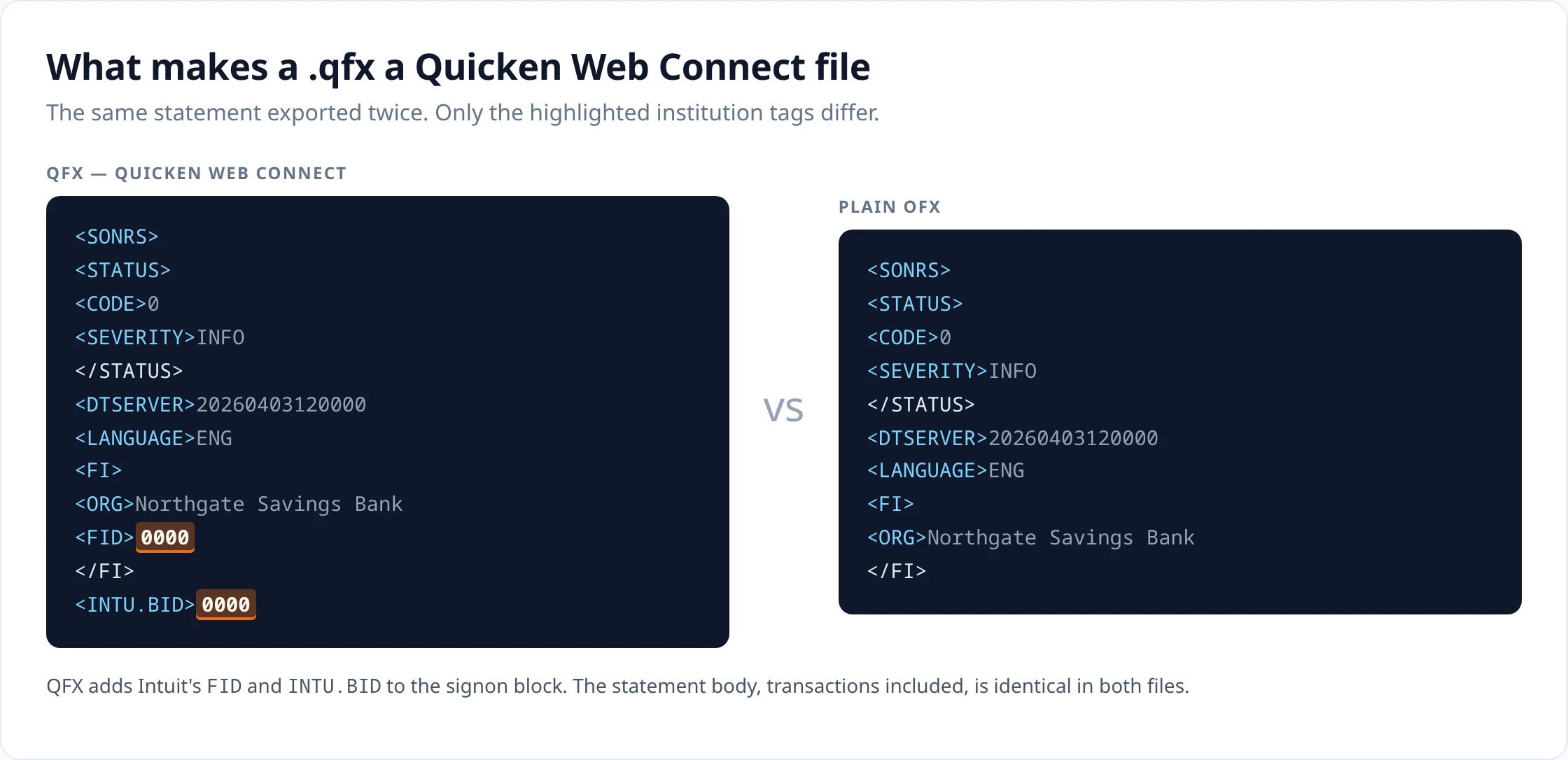
The two exports differ in the signon block, and only there. Here is that block from a QFX and from a plain OFX file, both generated from the same statement.
<SONRS>
<STATUS>
<CODE>0
<SEVERITY>INFO
</STATUS>
<DTSERVER>20260403120000
<LANGUAGE>ENG
<FI>
<ORG>Northgate Savings Bank
<FID>0000
</FI>
<INTU.BID>0000
<SONRS>
<STATUS>
<CODE>0
<SEVERITY>INFO
</STATUS>
<DTSERVER>20260403120000
<LANGUAGE>ENG
<FI>
<ORG>Northgate Savings Bank
</FI>
The QFX file carries FID inside the institution block and a top-level INTU.BID, both holding the Intuit institution identifier resolved from the bank name on your statement. The plain OFX file names the institution and stops there. Everything after the signon block, the account details, every transaction, the closing balance, is byte-for-byte identical in the two files.
So the conversion that matters is not the extension. It is resolving your bank to an identifier and writing the two tags that carry it. Changing a file's extension leaves those tags absent.
The fields Quicken reads
Worth a look before you import, because these are the fields anything goes wrong in.
-
Header.
OFXHEADER:100,VERSION:102, SGML rather than XML. This is OFX 1.02, the version the Web Connect formats are built on. -
Institution.
ORGrepeats the bank name as printed.FIDandINTU.BIDboth hold the numeric identifier Quicken uses to recognise the institution, and both are editable at export if you know the one your Quicken file already expects. A name we cannot place leaves them at0000, which is a visible placeholder rather than a guess at somebody else's institution. -
Account. A bank account writes
BANKID,ACCTIDandACCTTYPE; a card writes only the card number, because a card has no routing number. -
Transactions. One
STMTTRNeach, withDTPOSTEDasYYYYMMDD, a signedTRNAMT, aFITID, aNAMEcapped at 32 characters and aMEMOholding the full description when it is longer than that. -
Balance.
LEDGERBALwith the closing balance and its date, andDTSTARTandDTENDspanning the transactions in the file.
What happens if you import twice
Quicken remembers a FITID for every transaction it has taken in, and skips anything carrying one it has seen before. Ours is assembled from two facts about the row: the day it posted, and where it sits in the file. Three things follow, and the third is the one that bites:
- Two exports of the same reviewed rows are the same file, byte for byte apart from the server timestamp in the header.
- Correcting a payee or a figure changes nothing, since neither feeds the identifier.
- Removing a row shifts the numbering below it. Quicken then sees identifiers it has never met, attached to transactions it already has, and takes them for new ones.
Which is an argument for doing the review properly the first time. Deleting one row after an import is not the small correction it looks like; it is a different file as far as Quicken is concerned.
If the import does not go through
- Quicken declines to open the file. Web Connect availability depends on your Quicken product and the status of its online services; an expired or unsupported release can block the import path regardless of what the file contains.
-
Quicken offers the wrong institution, or none. Quicken keys on the identifier in the file. If yours came out as the
0000placeholder, override it in the export dialog with the value Quicken already associates with that account, which you can read from an earlier download from the bank itself. - Nothing appears after an apparently successful import. Check which account you imported into, and whether those transactions were already present from an earlier import of the same rows.
- Quicken support declines to help. Expected, given their stated position on converter-generated files. Reproduce the problem with a short file and check the fields above before spending long on it.
The same statement for something other than Quicken
Upload
Add the statement PDF, or several at once.
Review
Check the extracted rows against the statement and fix anything that looks wrong.
Export
Download in the format you need.
How it works covers extraction, validation and combining statements in detail.
Questions about this format
- What is a QFX file?
-
A Quicken Web Connect file. Structurally it is an OFX document with Intuit institution tags added to the signon block, and Quicken documents QFX as the Web Connect format for downloading checking, savings and credit-card transactions.
- How do I import a QFX file into Quicken?
-
Quicken documents File, then File Import, then Web Connect (.QFX) File. You then choose which Quicken account the transactions belong to.
- Does Quicken officially support QFX files produced by a converter?
-
No. Quicken states in its Web Connect troubleshooting guidance that it does not support third-party conversion-generated QFX files for support purposes. That is a statement about what Quicken support will help you with, not a claim that such files fail to open, but it means Quicken will not troubleshoot a converted file with you.
- What does Ledger Tome put in INTU.BID?
-
The financial institution identifier resolved from the bank name printed on your statement, matched against a directory of Intuit institution identifiers plus a set of manual aliases. When the name cannot be matched, the tag is written as 0000 rather than guessed at.
- Are FITIDs stable between exports?
-
Yes for the same reviewed statement: each identifier is the transaction posting date plus its position in the file, so exporting twice produces the same file. Editing a description or amount does not change them. Deleting or inserting a row shifts the identifier of every row after it.
- Can credit-card statements become QFX?
-
Yes. A card statement is written with the credit-card message set and an account block carrying only the card number, and the amounts are signed the way an issuer download signs them: charges negative, payments positive.
- QFX or QIF?
-
QFX for downloading bank and credit-card transactions into Quicken, which is the job Quicken documents it for. QIF is a separate, much older import path whose supported account types differ between Quicken help pages, and it carries no transaction identifiers, no account details and no balance.
General questions about scans, languages, page counts, editing and pricing are answered on the FAQ .
Uploads and generated files are encrypted at rest, deleted automatically after seven days, and can be deleted from your history whenever you want. Documents sent to AI providers are not used to train their or our models.
Security sets out storage, retention and provider handling; Privacy is the full policy.
Related converters
- Bank statement to QBO — the QuickBooks Desktop Web Connect equivalent.
- PDF to OFX — the same statement without Intuit institution tags.
- PDF to QIF — the older Quicken import path, and its caveats.
- Bank statement to CSV — when you need the rows rather than a bank feed.
Convert a statement and export a Web Connect file for Quicken.
The free plan includes 10 tokens on signup plus 3 a week. Pricing