You have the statement. QuickBooks Desktop has the import menu. And nothing connects: no CSV option, no PDF option, no paste. This isn't a missing feature you can toggle; QuickBooks Desktop imports bank transactions one way only, through Web Connect .QBO files. Ledger Tome converts PDF statements, CSVs, and Excel exports into exactly that file.
The reason this trips up so many people is that banks have been moving in the opposite direction: retiring Direct Connect and Web Connect downloads and leaving CSV or PDF as the only exports. The data is all there. It's just in formats Desktop was never built to read.
This page walks through Desktop's actual import options, the Web Connect import steps, and how to convert any statement into a valid QBO file, whichever format your bank hands you.
What QuickBooks Desktop Can and Can't Import
Desktop's bank import options are narrower than most users expect:
Web Connect (.QBO): the supported path
The one import Desktop is built around. A valid QBO file lands in the Bank Feeds Center for review and matching, with duplicate protection built in.
CSV and Excel: not accepted
There is no CSV import for bank transactions in any Desktop edition. The menu option simply does not exist.
PDF statements: not accepted
Desktop cannot read statements. For anything older than your bank's download window, PDF is often all you have.
IIF: the trap
Desktop's legacy IIF import bypasses validation and writes straight into your company file. Intuit itself warns against it for bank data.
Every road that works leads through a QBO file. The question is how to make one from what you have.
Works With Statements From Any Bank
Ledger Tome reads PDF statements and CSV/Excel exports from:
US Banks
Chase, Bank of America, Wells Fargo, Citibank, Capital One, US Bank, PNC Bank, Truist, Fifth Third Bank
Canadian Banks
RBC, Scotiabank, BMO, CIBC, National Bank, Desjardins
Credit Unions & Regional Banks
Often the first to drop QuickBooks connectivity; any statement or CSV layout works
Different layout? The converter detects your file's structure automatically.
Start From Whatever Your Bank Gives You
PDF statement
The AI reads the statement layout directly, including scanned statements via OCR.
Deep dive: Bank Statement to QuickBooks .
CSV export
Columns, date formats, and debit/credit conventions detected automatically.
Deep dive: CSV to QBO .
Excel export
XLSX and XLS work the same way as CSV, including manually maintained transaction spreadsheets.
Deep dive: Excel to QBO .
All three inputs end in the same place: a valid Web Connect file with your bank's identifier and a unique ID on every transaction.
How to Import the QBO File Into QuickBooks Desktop, Step by Step
QuickBooks Desktop (Pro, Premier, Enterprise):
- In QuickBooks, go to File > Utilities > Import > Web Connect Files
- Select the .qbo file you downloaded from Ledger Tome
- When prompted, link the file to the matching QuickBooks bank or credit card account
- Open the Bank Feeds Center (Banking > Bank Feeds > Bank Feeds Center)
- Review, match, and add the imported transactions to your register
First import for an account? QuickBooks asks whether to link to an existing account or create a new one. Pick the existing register the statement belongs to; the linking is remembered for next time.
How Ledger Tome Builds Your QBO File
Ledger Tome is an AI-powered tool that turns bank statements in any format into valid Web Connect files.
Upload
Upload your PDF statement, CSV, or Excel export
AI Extraction
Statement structure, columns, dates, and debit/credit logic detected automatically
Review & Edit
Check every transaction in an interactive preview before export
Download QBO
Get a Web Connect file with your bank's identifier resolved
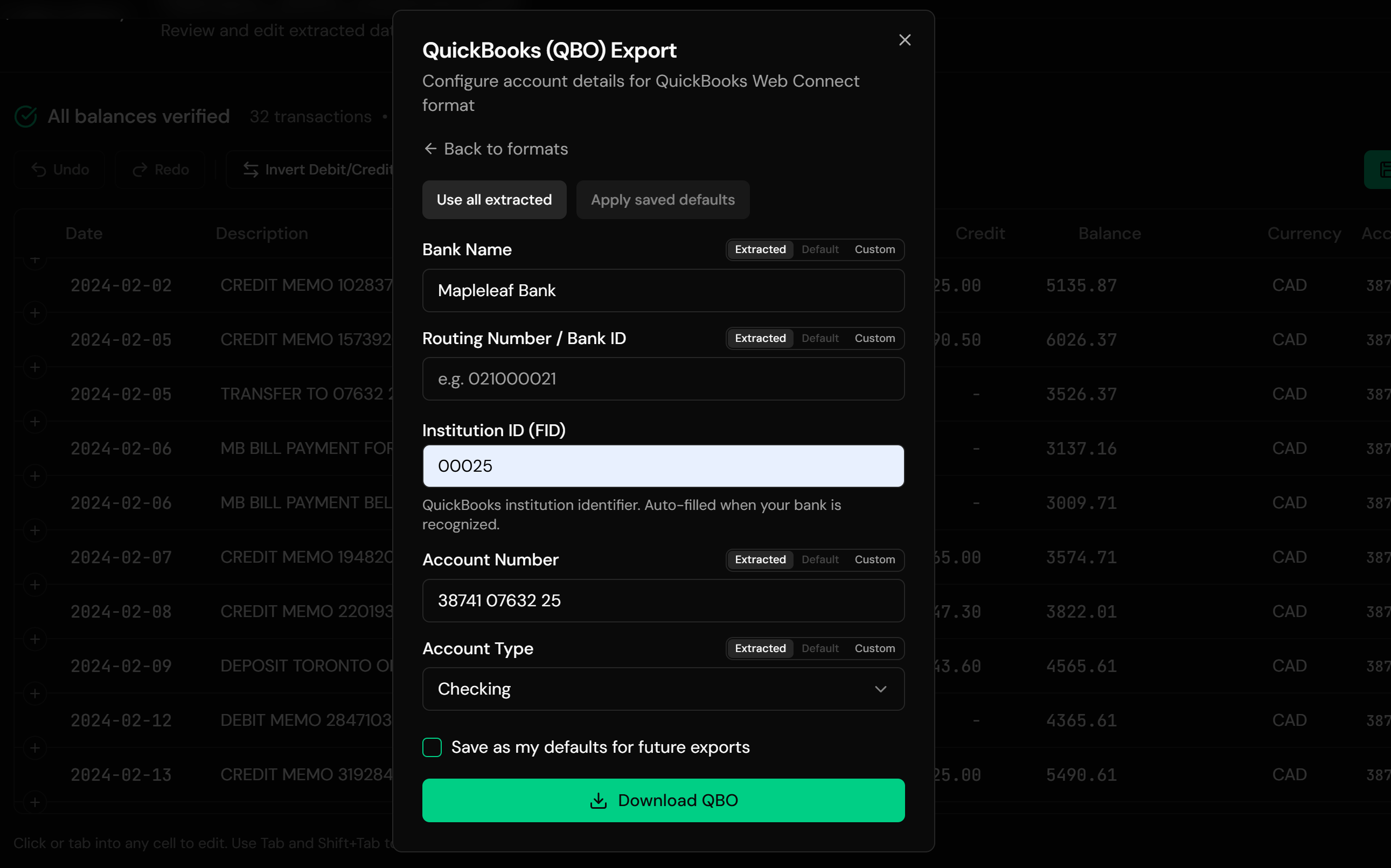
The output carries your bank's FI/FID and INTU.BID identifiers, resolved from the bank's name with a manual override in the export dialog, plus a unique FITID per transaction so re-imports never duplicate your register.
From Bank Statement to Bank Feeds Center
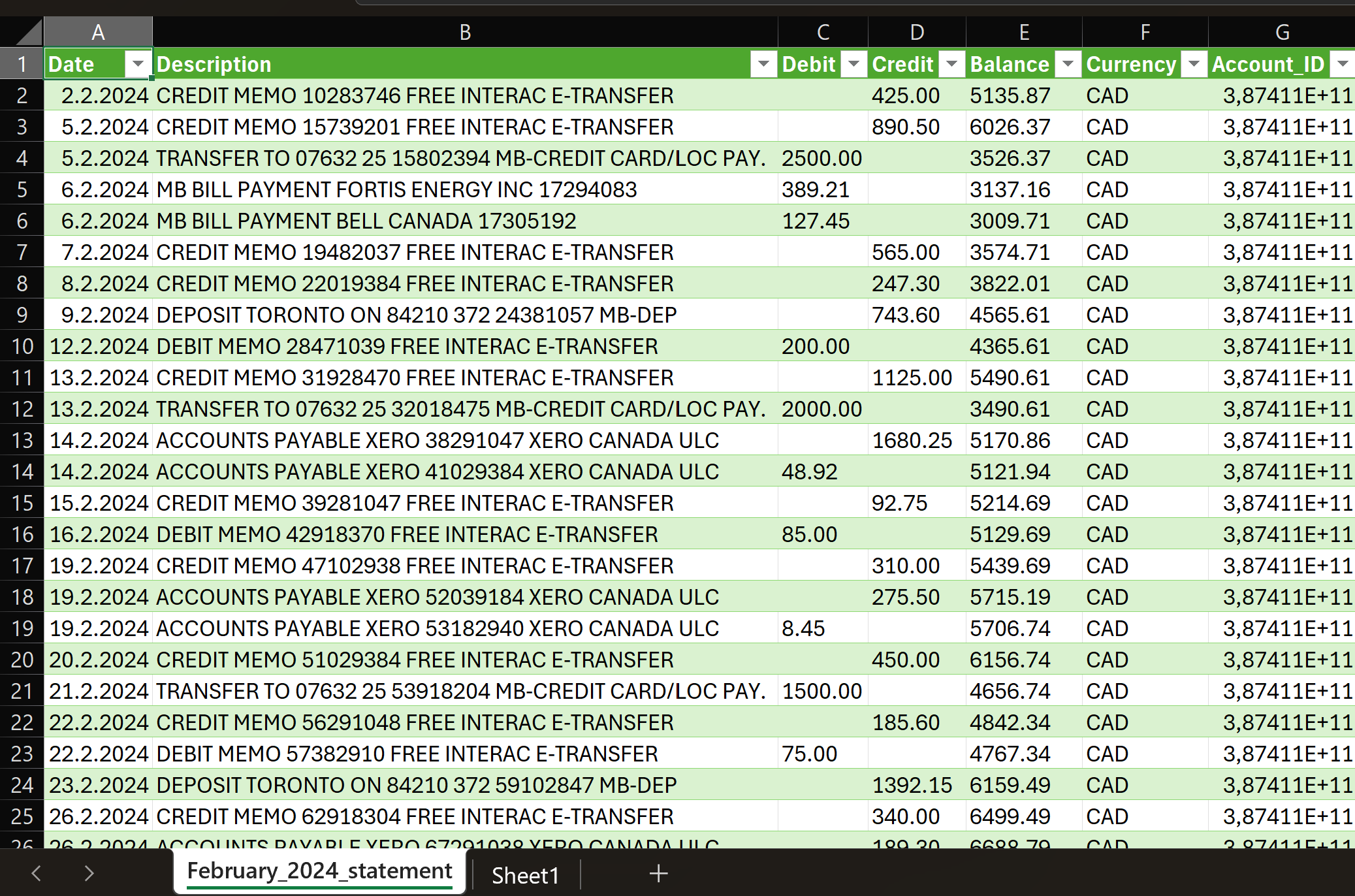
Before: statement file
After: QuickBooks-ready QBO
Use Cases
Bank Dropped QuickBooks Support
Web Connect downloads retired? Convert the bank's remaining exports and keep the same import workflow.
Catch-Up Bookkeeping
Months of statements in a folder. Convert them and bring the company file current.
Historical Data Beyond the Download Window
Bank downloads reach back 90 days; your books need two years.
Credit Card Accounts
Card statements convert with the credit card message structure and correct signs.
Client Work
Bookkeepers normalizing statements from many client banks into one import format.
Year-End and Tax Prep
Complete the year's registers for clean reconciliation and reporting.
Who It's For
QuickBooks Desktop Users
Pro, Premier, and Enterprise on any recent version.
Bookkeepers & Accountants
Serving clients whose banks lack Web Connect downloads.
Small Business Owners
Doing their own books without retyping statements.
Credit Union Members
Where QBO downloads were never on offer.
Firms Doing Cleanup Work
Rebuilding registers from archived statements.
Anyone Staring at the Import Menu
If Desktop won't take your file, this is the bridge.
Related Converters
Ledger Tome supports multiple formats and destinations. Choose the one that fits your workflow:
The PDF-first format page.
The CSV-first format page.
Spreadsheets, including hand-kept ones, into QBO.
Going the other way: read Web Connect files as spreadsheets, no QuickBooks needed.
Using Xero instead? The Xero import guide.
Personal finance in Quicken? The Quicken guide.
What Ledger Tome Does Not Do
For clarity and transparency, Ledger Tome does not:
- Access bank accounts directly
- Initiate or modify transactions
- File taxes or submit reports
- Replace accounting software
- Categorize transactions automatically
It focuses solely on converting statement data into structured, accounting-ready formats.
Security & Privacy
Your Financial Data is Protected
We take statement security seriously. Here's how we protect your data:
-
Encrypted Transmission
All uploads use 256-bit SSL encryption (the same security banks use)
-
Secure Processing
Files are processed in isolated, secure environments with no human access
-
Automatic Deletion
All uploaded files are permanently deleted after 7 days (or immediately upon request)
-
No Training Data
Your statements are never used to train AI models or shared with third parties
-
No Account Access
We never access your bank account directly or store your banking credentials
-
GDPR Compliant
Full compliance with data protection regulations
-
No Permanent Storage
We don't maintain a database of your financial information
Privacy First: We process your data solely for conversion purposes. No marketing, no data selling, no third-party sharing.
Frequently Asked Questions
How do I import a bank statement into QuickBooks Desktop?
Can QuickBooks Desktop import CSV bank transactions?
Can QuickBooks Desktop import PDF statements?
What is a Web Connect file?
Should I use IIF import instead?
Will importing create duplicates?
Does this work for credit card statements?
Which Desktop versions does this work with?
QuickBooks says it can't verify the financial institution. What now?
Does this work for QuickBooks Online too?
How much does it cost?
Troubleshooting Common Issues
"QuickBooks found an error in your file"
Usually an unrecognized bank identifier. Enter your institution's FID manually in the export dialog and re-download.
Transactions went to the wrong account
The Web Connect link points at the wrong register. Delete the imported transactions, then re-import and link to the correct account when prompted.
Nothing appears after import
Check the Bank Feeds Center rather than the register; Web Connect imports land there for review before posting.
Amounts have flipped signs
For credit cards, confirm credit card was selected as the account type at export. For bank CSVs with unusual sign conventions, fix the convention in the preview.
Dates look wrong
Usually a DD/MM versus MM/DD source issue. Ledger Tome asks you to confirm ambiguous date formats before export; re-check that choice.
Summary
QuickBooks Desktop imports bank transactions through Web Connect QBO files and nothing else, while banks increasingly offer only CSV or PDF. IIF is risky, manual entry doesn't scale, and renaming files fools nothing. Converting the statement to a valid QBO restores the workflow: any input format in, one supported import path out.
If you have statements waiting to get into QuickBooks Desktop, Ledger Tome converts them in under a minute each.
Ready to Get Your Statements Into QuickBooks?
Stop retyping transactions into the register. Convert your first statement to a Web Connect file in minutes.
Used by QuickBooks Desktop users, bookkeepers, and small business owners