Convert PDF bank statements to OFX
Your software takes OFX and your bank handed you a PDF. Ledger Tome bridges the two, and the file arrives with its fields already named so there is no column mapping to get wrong.
- No column mapping at the other end
- OFX 1.02, the generation importers actually accept
Named fields instead of columns to map
An OFX file is tagged text rather than rows and columns: every value sits inside a named tag, so an importer reads fields rather than guessing at column positions. Here is the header of a file generated from a sample checking-account statement.
OFXHEADER:100
DATA:OFXSGML
VERSION:102
SECURITY:NONE
ENCODING:USASCII
CHARSET:1252
COMPRESSION:NONE
OLDFILEUID:NONE
NEWFILEUID:NONE
Then the statement's own context: currency, the account it belongs to, and the date range the transactions cover.
<CURDEF>USD
<BANKACCTFROM>
<BANKID>021000021
<ACCTID>****4821
<ACCTTYPE>CHECKING
</BANKACCTFROM>
<BANKTRANLIST>
<DTSTART>20260301
<DTEND>20260328
-
CURDEFis the statement currency, taken from the account or, for an imported file that did not record one, from the transactions themselves. -
BANKACCTFROMholds the routing number, the account number and the account type (CHECKING or SAVINGS). A credit card usesCCACCTFROMwith just the card number. -
DTSTARTandDTENDare derived from the earliest and latest transaction dates in the file, not from the statement period printed on the page. -
LEDGERBAL, at the end of the statement body, states what the account stood at and when. An importer can compare that figure against its own register after loading, which a CSV of the same rows gives it no way to do.
What one transaction looks like
Each transaction is a STMTTRN. Six tags, and every one of them means something specific.
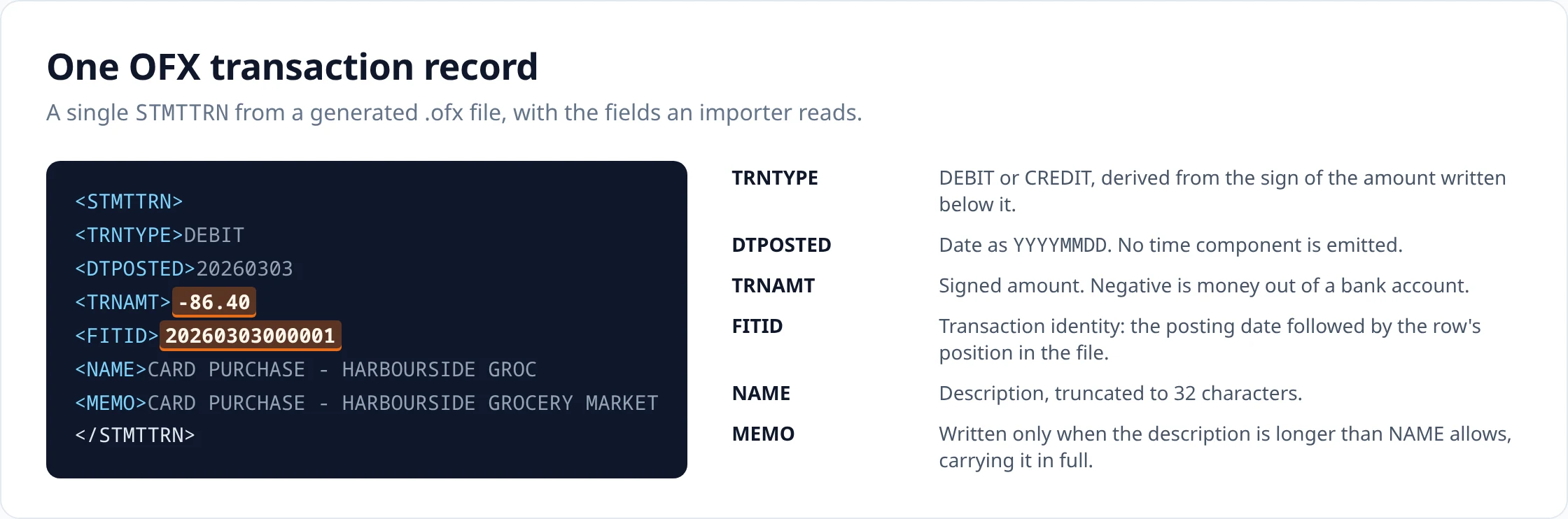
TRNTYPE follows the sign of the amount written beneath it. DTPOSTED is a date with no time component. TRNAMT is signed, negative for money out of a bank account. NAME is capped at 32 characters by the format, so a longer description is repeated in full in MEMO rather than being lost.
What that buys you over a CSV
A CSV row is a sequence of values whose meaning lives in a header you agree on separately. An OFX record names each value in the file itself. Three things follow from that.
First, no column mapping. An importer reading OFX already knows which value is the date and which is the amount, so there is no wizard step where you tell it, and no chance of a mapping that silently swaps two columns.
Second, account context travels with the data. The file states its currency, its account and its closing balance. A CSV of the same rows states none of that unless you add columns for it.
Third, each transaction has an identity. That is what the next section is about, and it is the field most often described inaccurately.
What FITID carries, and what the importer decides
Every transaction in an OFX-family file carries a FITID. It is an identifier, and an importer may use it to recognise a transaction it already holds. Whether it does, and what it does when it matches, is entirely the importer's behaviour. Xero, for instance, documents its own duplicate handling on import; other products handle it differently or not at all.
Source: Xero: Import an OFX bank statement
What is under our control is what goes into the field. The value is built from two things only: the date the row posted, and where the row sits in the file. So the second row of the March sample is 20260303000001. Re-exporting an unchanged review reproduces every value exactly; changing a description or a figure touches none of them; and removing or adding a row renumbers everything below it, because position is half the identifier.
In practice: re-import a file you have not touched and any importer that checks identifiers will recognise it. Change which rows are in the file and you are relying on that importer's own matching instead.
The one row that sometimes surprises people
Worth knowing before your first import. Where a statement prints an opening balance, that line is kept as a row so the running balance in the extraction can be checked from the start. It has a date and a balance but no amount, and in an OFX file it comes out like this:
<STMTTRN>
<TRNTYPE>CREDIT
<DTPOSTED>20260301
<TRNAMT>0.00
<FITID>20260301000000
<NAME>Opening Balance
</STMTTRN>
Most importers ignore a zero-amount transaction or post it harmlessly. Some list it as a transaction you then have to reconcile against nothing. If yours is the second kind, delete that row in the review step before exporting; it exists to make the balance check possible, and the check has already happened by then.
Who documents reading OFX
A short list of destinations whose current documentation names OFX, rather than a long list of logos.
-
Xero documents importing OFX bank statements and recommends OFX over its other supported formats where the bank offers it. A statement PDF is not one of the file types that workflow takes.
Sources: Xero: Import an OFX bank statement · Xero: About manually importing bank transactions
-
QuickBooks Online accepts OFX in its transaction-list upload, though it can also take a statement PDF directly.
Source: Intuit: Manually upload transactions into QuickBooks Online
- GnuCash documents OFX and QFX among its file import formats.
-
Sage documents OFX for bank statement import in more than one product, though the accepted format list differs by product; check the one you use.
Sources: Sage Accounting: Import a bank statement · Sage Sole Trader: Import bank statements
Every line above links to the vendor's own page, because this is the part of a converter page most likely to go stale: import formats are the vendor's to change, and they do. If your software is not here, look for OFX in its own import documentation rather than assuming either way. It is a widely read format, and this list is short on purpose.
Upload
Add the statement PDF, or several at once.
Review
Check the extracted rows against the statement and fix anything that looks wrong.
Export
Download in the format you need.
How it works covers extraction, validation and combining statements in detail.
Questions about this format
- What OFX version does Ledger Tome generate?
-
OFX 1.02 in SGML form: the file opens with OFXHEADER:100 and VERSION:102. This is the OFX generation the Web Connect formats are built on and the one bank statement importers most widely accept, rather than the later XML-based OFX 2.x.
- Does the file include a FITID for each transaction?
-
Yes, one per transaction, built from the posting date and the row position in the file. What an importer does with it is the importer's decision, not the file's.
- Does Xero import OFX?
-
Yes. Xero documents importing OFX bank statements and recommends OFX over the other supported formats where the bank offers it. A statement PDF is not one of the file types that import workflow takes: the PDF route Xero documents runs through Hubdoc bank statement extraction, which Xero limits to the US and Canada, to supported banks, and to digital PDFs rather than scans, and which produces a CSV you then upload yourself.
- Does QuickBooks Online import OFX?
-
Yes, OFX is one of the file types its transaction-list upload documents. Worth knowing before you convert anything, though: QuickBooks Online also documents uploading a statement as a PDF or an image directly, so for that product specifically you may not need a converted file at all.
- Which Sage product accepts OFX?
-
Sage documents OFX for bank statement import in more than one product, but the accepted formats differ between them: Sage Accounting documents OFX/ASO, QIF, CSV and XLS, while Sage Sole Trader documentation lists a wider set including BAI2, CAMT.053, OFX, ASO, QIF, CSV and XLS/XLSX. Check the format list for the exact Sage product you use rather than for Sage generally.
- OFX or QFX?
-
QFX if the destination is Quicken, which reads the Intuit institution tags QFX adds. OFX for everything else. The two files are otherwise identical here: same header, same account block, same transactions, same balance.
- OFX or CSV?
-
OFX when the destination documents OFX import, because the fields are named and no column mapping is involved. CSV when you need to inspect, filter or reshape the data, or when the destination only takes tabular input.
- Can credit-card statements become OFX?
-
Yes. A card statement is written with the credit-card message set, an account block holding only the card number, and amounts signed so charges are negative and payments positive.
General questions about scans, languages, page counts, editing and pricing are answered on the FAQ .
Uploads and generated files are encrypted at rest, deleted automatically after seven days, and can be deleted from your history whenever you want. Documents sent to AI providers are not used to train their or our models.
Security sets out storage, retention and provider handling; Privacy is the full policy.
Related converters
- PDF to QFX — the same file plus Intuit institution tags, for Quicken.
- Bank statement to QBO — the QuickBooks Desktop Web Connect variant.
- Bank statement to CSV — tabular rows when a structured file is not wanted.
- PDF to QIF — the older format, and what it leaves out.
Convert a statement and export a structured OFX file.
The free plan includes 10 tokens on signup plus 3 a week. Pricing