A lot of financial data lives its whole life in Excel. Banks export XLSX. Bookkeepers keep cash logs, petty cash books, and client workbooks in spreadsheets. And then the data needs to get into Xero, Sage, or QuickBooks Online as a bank statement import, and none of them treat a workbook as a statement. Our converter turns Excel transaction data into a proper OFX file in minutes.
Why OFX rather than saving as CSV? Because OFX is what statement importers prefer: no column mapping wizard, unambiguous dates and amounts, and a unique ID on every transaction so an accidental double import doesn't double your data. Converting Excel to OFX skips the whole class of CSV import problems in one step.
This page covers what your spreadsheet needs to contain, how the conversion works, and how to handle the workbook quirks (merged headers, running balance columns, mixed date formats) that spreadsheets accumulate.
Why Spreadsheets Don't Import as Statements
Excel is where the data is, and exactly what statement importers can't read:
No accounting tool imports XLSX as a statement
Xero, Sage, and QuickBooks Online take OFX or CSV for statement import. A workbook has to be converted either way; OFX is the conversion worth making.
Workbooks accumulate structure
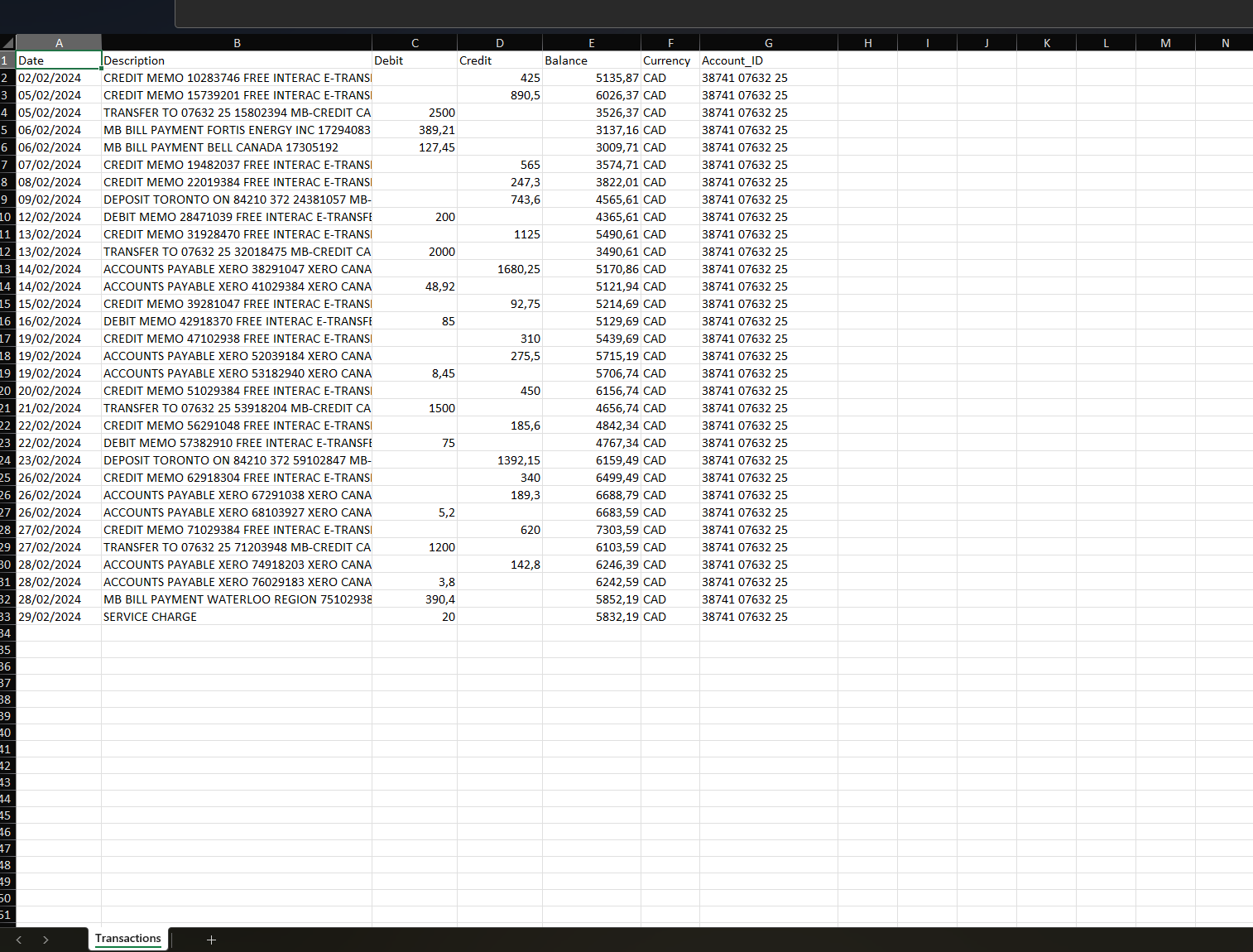
Title rows, merged headers, subtotals, running balance columns, multiple sheets. Human-friendly, importer-hostile.
Dates that look right and aren't
Excel date cells, text dates, and regional formats mix freely in one file. An importer has to resolve them to real dates, unambiguously.
Sign conventions vary
Separate debit and credit columns, negative-means-out, negative-means-in: every workbook has its own convention, and the OFX has to get it right.
The conversion is mechanical once the structure is understood. Understanding the structure is the actual work.
What Your Spreadsheet Needs
Ledger Tome detects most layouts automatically. A workable sheet has:
Hand-maintained workbooks work as well as bank exports. If a human can read the sheet as a transaction list, the converter usually can too, and you verify the result in the preview before anything is exported.
What Is an OFX File?
OFX (Open Financial Exchange) is the open standard for bank transaction data, in use since 1997, and the statement import format Xero and Sage prefer.
Key characteristics of a proper OFX file:
Starting from a CSV instead? See our CSV to OFX converter . From a PDF statement? See PDF to OFX . Full Xero walkthrough: Import into Xero .
Common Ways to Get Excel Data Into Accounting Software
Manual Entry
Retype the workbook into the software. Every row is a chance for a typo, and there's no statement to reconcile against afterwards.
Save As CSV, Then Map Columns
Excel's CSV export plus the software's import wizard. Works until date formats shift, mapping is wrong, or the same file gets imported twice with no duplicate protection.
Copy Into a Bank Template
Some tools publish CSV templates. Reshaping a workbook to a template by hand is exactly the busywork you're trying to escape.
Automated Excel to OFX Conversion
Reads the workbook, detects the structure, and produces a duplicate-safe OFX that imports with no mapping at all. Free to start.
Excel to OFX: Method Comparison
| Method | Time Required | Accuracy | Best For | Cost |
|---|---|---|---|---|
| Manual entry | 30-60 minutes per sheet | 70-80% (error-prone) | A handful of rows | Free |
| Save as CSV + mapping | 15-30 minutes per file | Fragile (mapping, dates, duplicates) | One-off imports | Free |
| Template reshaping | 20-40 minutes per file | Depends on care | Tools with strict templates | Free |
| Ledger Tome | Under a minute | 99%+ | Any workbook, any layout | Free to start |
Why automated conversion wins: the spreadsheet's structure gets detected once, correctly, instead of hand-managed on every import.
How Ledger Tome Converts Excel to OFX
Ledger Tome turns XLSX and XLS transaction data (and CSVs and PDF statements) into valid OFX files.
Upload
Upload your Excel workbook
Automatic Mapping
Columns, date formats, and debit/credit logic detected automatically
Review & Edit
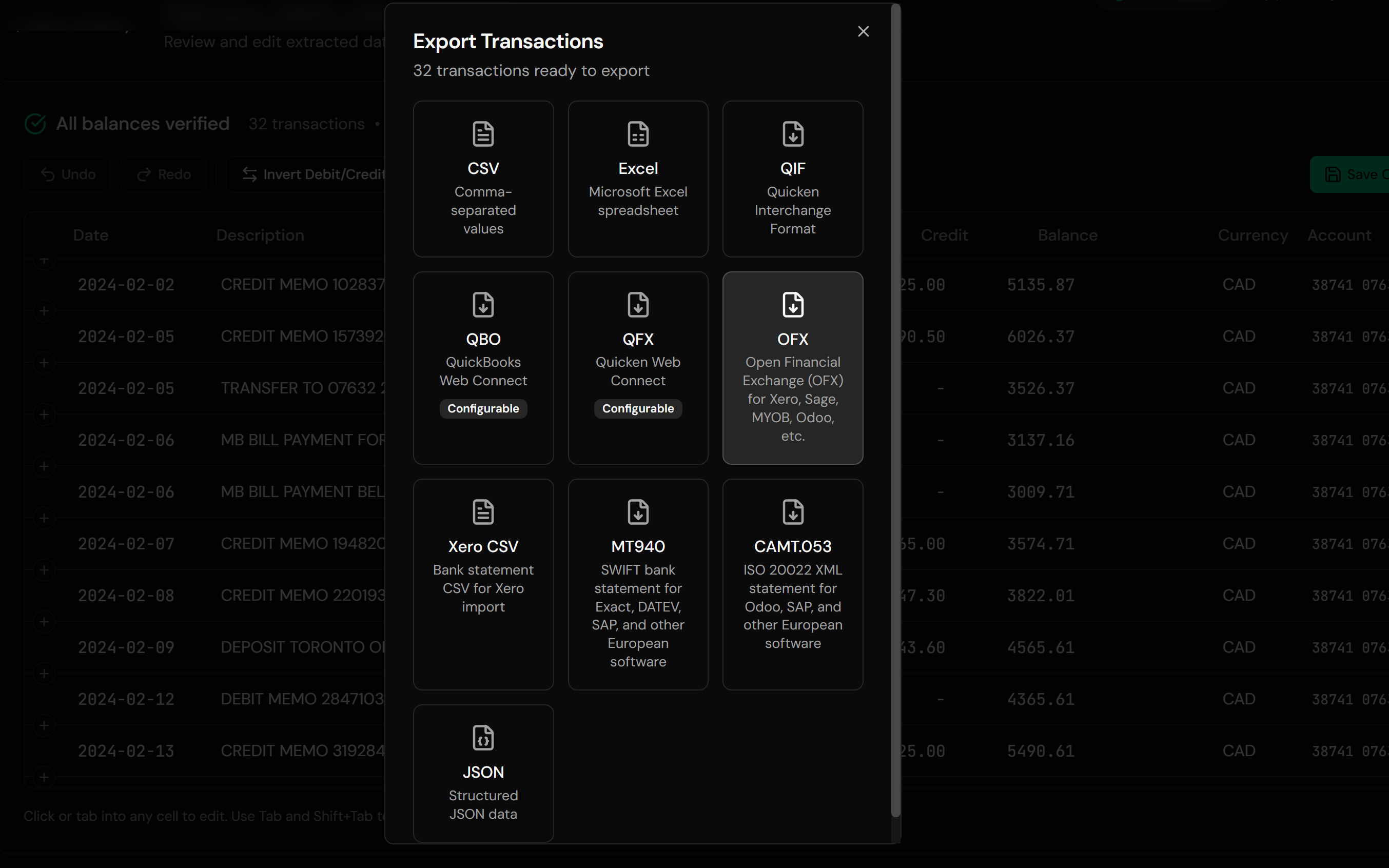
Check every transaction in an interactive preview before export
Download OFX
Get an import-ready OFX file
The output follows the OFX specification with unique FITIDs on every transaction, so re-importing the same file never duplicates data in Xero or Sage.
From Workbook to Import-Ready OFX
Before: Excel workbook
After: Structured OFX
Use Cases
Bank XLSX Exports
Some banks export Excel, not CSV. Convert it directly instead of resaving and mapping.
Feed-Less Accounts
Cash books, director's loans, and foreign accounts kept in spreadsheets, imported as proper statements.
Client-Supplied Workbooks
Whatever format the client kept their records in, it can reach the software as a statement.
Petty Cash and Till Logs
Hand-kept logs converted into reconcilable statement imports.
Historical Migrations
Years of spreadsheet records into a new Xero or Sage organisation.
Cleanup Engagements
Normalize a mess of workbooks into one consistent import format.
Who It's For
Bookkeepers & Accountants
The profession that runs on client spreadsheets.
Xero & Sage Users
OFX is the cleanest statement import both accept.
Small Business Owners
Keeping some accounts in Excel and needing them in the books.
Practices Doing Catch-Up Work
Spreadsheet archives into reconcilable history.
Treasurers of Clubs & Nonprofits
Where the "bank feed" was always a volunteer with a workbook.
Anyone With Transactions in Excel
If it's rows of dates and amounts, it can be an OFX file.
Related Converters
Ledger Tome supports multiple inputs and destinations. Choose the one that fits your workflow:
The CSV-input sibling of this page.
Starting from PDF statements instead.
Same spreadsheet, but QuickBooks Desktop as the destination.
Same spreadsheet, Quicken as the destination.
The full Xero import walkthrough.
What Ledger Tome Does Not Do
For clarity and transparency, Ledger Tome does not:
- Access bank accounts directly
- Initiate or modify transactions
- File taxes or submit reports
- Replace accounting software
- Categorize transactions automatically
It focuses solely on converting statement data into structured, accounting-ready formats.
Security & Privacy
Your Financial Data is Protected
We take statement security seriously. Here's how we protect your data:
-
Encrypted Transmission
All uploads use 256-bit SSL encryption (the same security banks use)
-
Secure Processing
Files are processed in isolated, secure environments with no human access
-
Automatic Deletion
All uploaded files are permanently deleted after 7 days (or immediately upon request)
-
No Training Data
Your statements are never used to train AI models or shared with third parties
-
No Account Access
We never access your bank account directly or store your banking credentials
-
GDPR Compliant
Full compliance with data protection regulations
-
No Permanent Storage
We don't maintain a database of your financial information
Privacy First: We process your data solely for conversion purposes. No marketing, no data selling, no third-party sharing.
Frequently Asked Questions
How do I convert an Excel file to OFX?
Does my spreadsheet need specific columns?
Can I convert a hand-maintained spreadsheet, not a bank export?
My workbook has multiple sheets. What happens?
How are Excel date quirks handled?
My sheet has separate debit and credit columns. Is that a problem?
Will importing the OFX twice duplicate transactions?
Which software imports the resulting OFX?
Does this work for credit card data?
How much does it cost?
Troubleshooting Common Issues
Rows are missing in the preview
Title rows, subtotals, and blank separators are dropped by design. If a real transaction was dropped, check that its row has a readable date and amount.
Dates came out shifted
Day/month ambiguity in the source. Re-check the date format choice the converter asked for, and confirm in the preview.
Amounts have flipped signs
The workbook's sign convention was the reverse of the detection. Flip the convention in the preview before export.
The importer rejected the file
Verify the file kept its .ofx extension and re-download. If the problem persists, contact support.
Balance column disagrees with the output
Running balance columns are used as a cross-check, not exported into OFX (the format carries transactions, not per-row balances). Check for missing rows in the source if totals look off.
Summary
Spreadsheets are where transaction data accumulates, and statement importers can't read them. Saving as CSV trades one import problem for three more: mapping, date formats, and duplicates. Converting Excel straight to OFX produces the file Xero and Sage actually prefer, with structure detected automatically and a unique ID guarding every transaction.
If you have a workbook that needs to become a bank statement import, Ledger Tome converts it in under a minute.
Ready to Convert Your Excel File to OFX?
Stop reshaping workbooks for import wizards. Convert your first spreadsheet to OFX in minutes.
Used by bookkeepers, accountants, and small business owners