Your transactions are in Excel. Maybe the bank exported them as XLSX, maybe you or a client have been keeping the books in a spreadsheet all along. Either way, QuickBooks Desktop will not import them: its bank transaction import accepts exactly one thing, a Web Connect (.QBO) file. Our converter turns any transaction spreadsheet into a QuickBooks-ready QBO file in minutes.
Spreadsheets are where small business bookkeeping actually happens before QuickBooks enters the picture. That history is valuable, and retyping it into the register row by row is how it usually gets lost. Conversion preserves it: every date, payee, and amount, moved into QuickBooks through its own supported import path.
This page explains what a QBO file is, what your spreadsheet needs to contain, and how to automate the conversion. Ledger Tome also accepts CSV files and PDF statements as input.
Why QuickBooks Desktop Won't Import Your Spreadsheet
The gap between a spreadsheet and a QuickBooks import is wider than it looks:
No spreadsheet import for bank transactions
QuickBooks Desktop imports bank transactions only through Web Connect files. There is no XLSX or CSV path into the bank feed.
Spreadsheets are free-form
Merged headers, multiple sheets, notes columns, subtotal rows: everything that makes a spreadsheet readable makes it unimportable.
Strict QBO structure
QBO is a tagged, OFX-based format with headers, a bank identifier, and per-transaction IDs. Hand-building one in a text editor is not realistic.
Dates and signs need interpreting
Text dates, mixed formats, and debit/credit conventions vary between files, and QuickBooks has zero tolerance for getting them wrong.
The fix is not reformatting your spreadsheet by hand. It's converting it.
What Your Spreadsheet Needs
Ledger Tome reads bank XLSX exports as-is. If you're converting a hand-kept spreadsheet, all it needs is one row per transaction with:
- A date column (real Excel dates or text dates both work)
- A description or payee column
- An amount column, either one signed column or separate debit and credit columns
- Optional: a balance column (used for cross-checking, not required)
Column order doesn't matter and neither do your header names; the converter detects the layout. Extra columns, notes, and summary rows are ignored automatically. Multi-sheet workbooks are fine: bank exports with a cover sheet, or a workbook with one sheet per month.
What Is a QBO File?
A QBO file is a Web Connect file: the format QuickBooks Desktop uses to receive bank transactions. It is based on the OFX standard with Intuit-specific additions.
One naming trap: a .QBO file is not QuickBooks Online. QuickBooks Online is Intuit's cloud product; a QBO file is a Web Connect data file. Confusingly, QuickBooks Online can also import .QBO files, and QuickBooks Desktop requires them.
Working from a CSV export instead? See our CSV to QBO converter . Starting from a PDF statement? Use our PDF to QuickBooks converter .
Key characteristics of a proper QBO file:
OFXHEADER:100
DATA:OFXSGML
VERSION:102

<OFX>
<BANKMSGSRSV1><STMTTRNRS><STMTRS>
<CURDEF>USD
<BANKTRANLIST>
<STMTTRN>
<TRNTYPE>DEBIT
<DTPOSTED>20260115
<TRNAMT>-4.50
<FITID>2026011500001
<NAME>Coffee Shop
</STMTTRN>
</BANKTRANLIST>
Common Ways to Get Excel Data Into QuickBooks Desktop
Manual Entry
Retype the spreadsheet into the QuickBooks register. The default, and the reason spreadsheet history so often just gets abandoned.
Excel-to-IIF Templates
Spreadsheet templates that generate IIF files exist, but IIF imports skip QuickBooks' validation, so formatting mistakes write bad data straight into your company file.
Save As CSV, Then Convert Twice
Flattening to CSV first loses Excel's native dates and adds a step. There's no need; the workbook converts directly.
Automated Excel to QBO Conversion
Reads the workbook directly, detects the layout, and generates a valid Web Connect file that imports through QuickBooks' supported path. Free to start.
Excel to QBO: Method Comparison
| Method | Time Required | Accuracy | Best For | Cost |
|---|---|---|---|---|
| Manual entry | 30-60 minutes per sheet | 70-80% (error-prone) | A handful of transactions | Free |
| Excel-to-IIF templates | 30-60 minutes setup | Risky (no validation) | Technical users who accept the risk | Free |
| Save as CSV first | Extra steps, same wall | Depends | Nothing; convert the workbook directly | Free |
| Ledger Tome | Under a minute | 99%+ | Any spreadsheet, any layout | Free to start |
Why automated conversion wins: it uses QuickBooks' own supported import path and keeps Excel's native dates intact along the way.
How Ledger Tome Converts Excel to QBO
Ledger Tome turns XLSX and XLS transaction files (and CSV and PDF statements) into valid QBO files.
Upload
Upload your Excel workbook
Automatic Mapping
Columns, date formats, and debit/credit logic detected automatically; native Excel dates are read exactly
Review & Edit
Check every transaction in an interactive preview before export
Download QBO
Get a Web Connect file ready for QuickBooks Desktop
The output follows the Web Connect specification, with unique FITIDs on every transaction so re-importing the same file never duplicates your register.
How to Import the QBO File Into QuickBooks
QuickBooks Desktop (Pro, Premier, Enterprise):
- Go to File > Utilities > Import > Web Connect Files
- Select the .qbo file you downloaded from Ledger Tome
- Choose the QuickBooks bank account the transactions belong to
- Review and match transactions in the Bank Feeds Center
Using QuickBooks Online instead? Go to Transactions > Bank transactions > Upload from file. QuickBooks Online accepts both QBO and CSV uploads.
From Spreadsheet to QuickBooks-Ready QBO
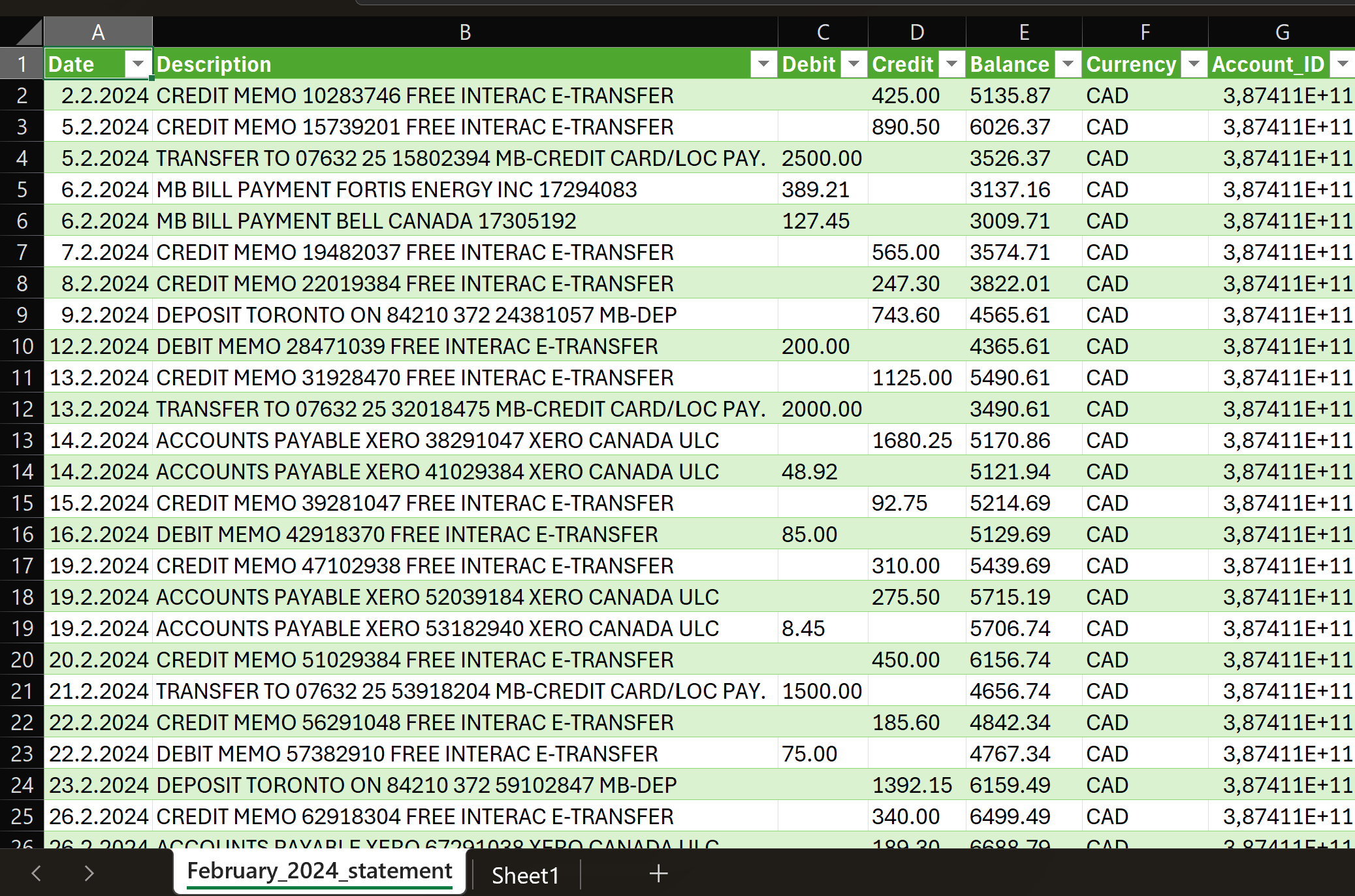
Before: Transaction spreadsheet
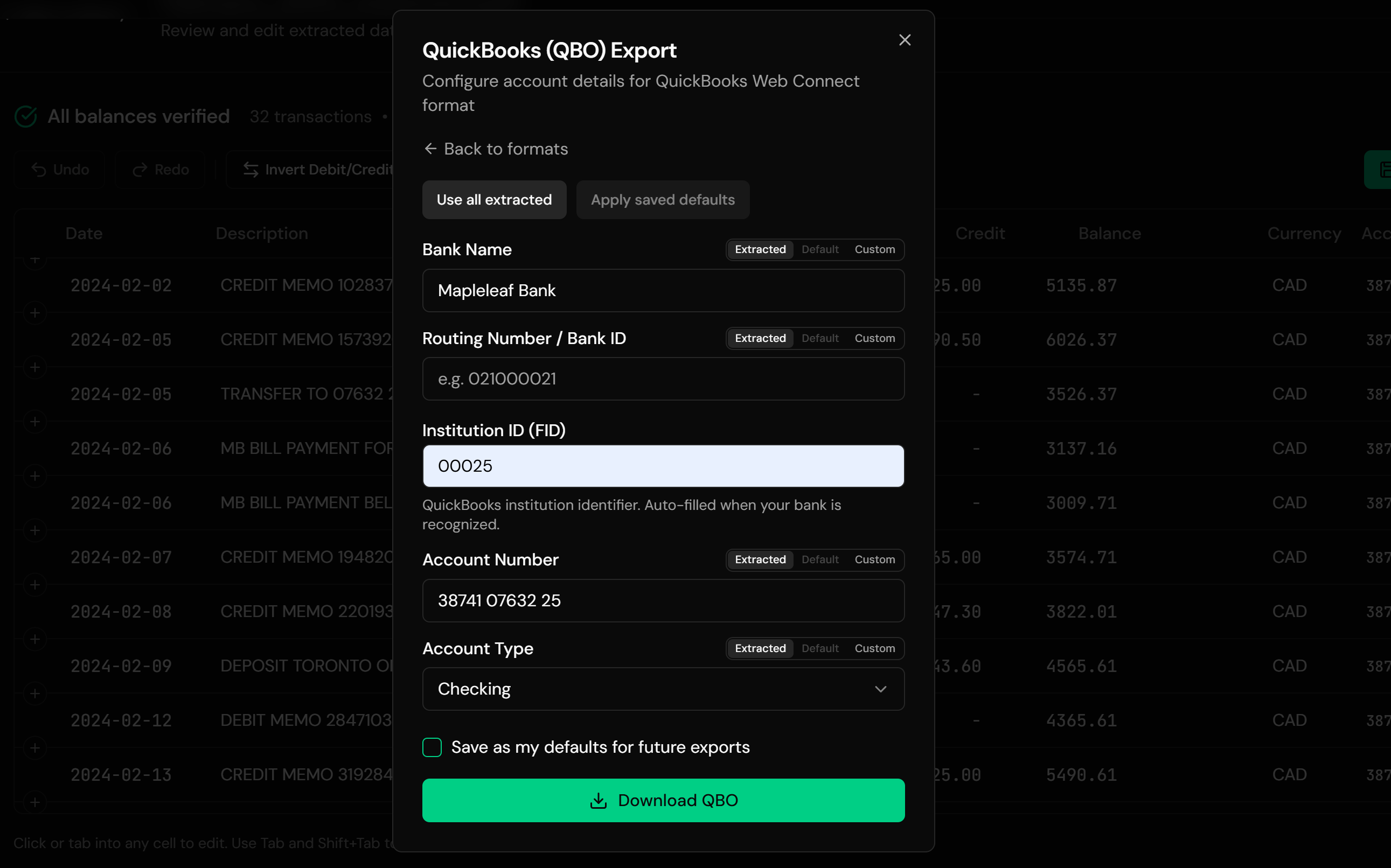
After: Structured QBO
Use Cases for Excel to QBO Conversion
Bank XLSX Exports
Some banks export Excel instead of CSV. Convert those files directly, no resaving needed.
Graduating From Spreadsheet Bookkeeping
Moving a business from Excel-kept books into QuickBooks without abandoning the history.
Client Spreadsheets
Bookkeepers onboarding clients who arrive with years of transactions in workbooks.
Cleaned-Up Data
You already fixed descriptions and categories in Excel; convert the polished sheet instead of re-doing the work in QuickBooks.
Credit Card Worksheets
Card transactions tracked in Excel, converted with correct debit and credit handling.
Multi-Sheet Workbooks
A workbook with one sheet per month or account, converted without splitting files.
Who Excel to QBO Conversion Is For
This type of conversion is commonly used by:
QuickBooks Desktop Users
Pro, Premier, and Enterprise users who need transactions in their bank feed.
Businesses Leaving Spreadsheets
Moving from Excel bookkeeping to QuickBooks with history intact.
Bookkeepers & Accountants
Onboarding spreadsheet-kept clients without weeks of data entry.
Users of Banks That Export XLSX
When the download button gives you Excel, not CSV.
Detail-Oriented Record Keepers
People whose cleaned-up spreadsheet is better than any bank export.
Anyone With Transactions in Excel
If it's in a spreadsheet, it can be in QuickBooks.
Related Converters
Ledger Tome supports multiple output formats. Choose the one that fits your workflow:
Working from a CSV export instead? Same QuickBooks-ready output.
Starting from a PDF statement? Convert it straight to QBO.
Going the other direction? Turn PDF statements into clean Excel files.
Using Quicken instead of QuickBooks? Convert to QFX.
Using Xero or Sage? Convert to OFX.
What Ledger Tome Does Not Do
For clarity and transparency, Ledger Tome does not:
- Access bank accounts directly
- Initiate or modify transactions
- File taxes or submit reports
- Replace accounting software
- Categorize transactions automatically
It focuses solely on converting statement and spreadsheet data into structured, accounting-ready formats.
Security & Privacy
Your Financial Data is Protected
We take statement security seriously. Here's how we protect your data:
-
Encrypted Transmission
All uploads use 256-bit SSL encryption (the same security banks use)
-
Secure Processing
Files are processed in isolated, secure environments with no human access
-
Automatic Deletion
All uploaded files are permanently deleted after 7 days (or immediately upon request)
-
No Training Data
Your statements are never used to train AI models or shared with third parties
-
No Account Access
We never access your bank account directly or store your banking credentials
-
GDPR Compliant
Full compliance with data protection regulations
-
No Permanent Storage
We don't maintain a database of your financial information
Privacy First: We process your data solely for conversion purposes. No marketing, no data selling, no third-party sharing.
Frequently Asked Questions
How do I import an Excel file into QuickBooks Desktop?
Does this work with .xls files or only .xlsx?
My workbook has multiple sheets. Is that a problem?
Do I need specific column names or a template?
What happens to Excel date cells?
Is a QBO file the same as QuickBooks Online?
Will importing create duplicate transactions?
Can I convert a hand-kept bookkeeping spreadsheet, not a bank export?
My spreadsheet has notes columns and subtotal rows. Do I need to clean it first?
Can I convert credit card transactions?
How much does it cost?
Troubleshooting Common Issues
"QuickBooks found an error in your file"
Usually an unrecognized bank identifier. Ledger Tome resolves it from your bank's name automatically; if your institution isn't recognized (or the data isn't from a bank at all), set the FID manually in the export dialog before downloading.
The wrong sheet was converted
Check which sheet holds your transactions and confirm the rows shown in the preview match it before export.
Text dates came out wrong
Real Excel dates import exactly; ambiguous text dates prompt you to confirm the format. Double-check the choice if imported dates look off.
Amounts have flipped signs
Spreadsheets kept by hand use every convention imaginable. The preview shows the interpreted sign for every transaction, so flip the convention there if needed.
Formulas in the amount column
Cell values are read as computed, so formula-driven sheets convert fine. If a cell shows an error value in Excel, fix it there first.
Summary
QuickBooks Desktop imports bank transactions only through Web Connect QBO files, and spreadsheets, however clean, don't qualify. Whether your Excel file came from the bank's download button or from years of hand-kept bookkeeping, retyping it is the expensive option. Automated conversion moves the whole sheet into QuickBooks through its own supported import path, native dates and all.
If you have transactions in Excel waiting to get into QuickBooks, Ledger Tome converts them in under a minute.
Ready to Get Your Spreadsheet Into QuickBooks?
Stop retyping rows into the register. Convert your first Excel file to QBO in minutes.
Used by QuickBooks Desktop users, bookkeepers, and small business owners