The bank's export page offered OFX, QuickBooks Desktop's import wanted a Web Connect file, and renaming .ofx to .qbo got you an error instead of transactions. That's Web Connect working as designed: QuickBooks validates Intuit's identification tags inside the file, and generic OFX doesn't carry them. No rename adds a missing tag. Our converter reads your OFX and produces a proper QBO with the identifiers QuickBooks checks.
It's a close conversion because the formats are close: QBO is OFX plus an Intuit identification block. Your transactions, dates, amounts, and account details are already in the right shape; the conversion re-packages them with a resolved bank identifier and per-transaction IDs, and the import path that refused the file accepts it.
This page explains what QuickBooks actually validates, why banks ship OFX without the Intuit tags, and how to convert, including when your institution isn't in Intuit's directory at all.
Why QuickBooks Desktop Rejects Your OFX File
The formats are siblings, but the import check is real:
The identifier check
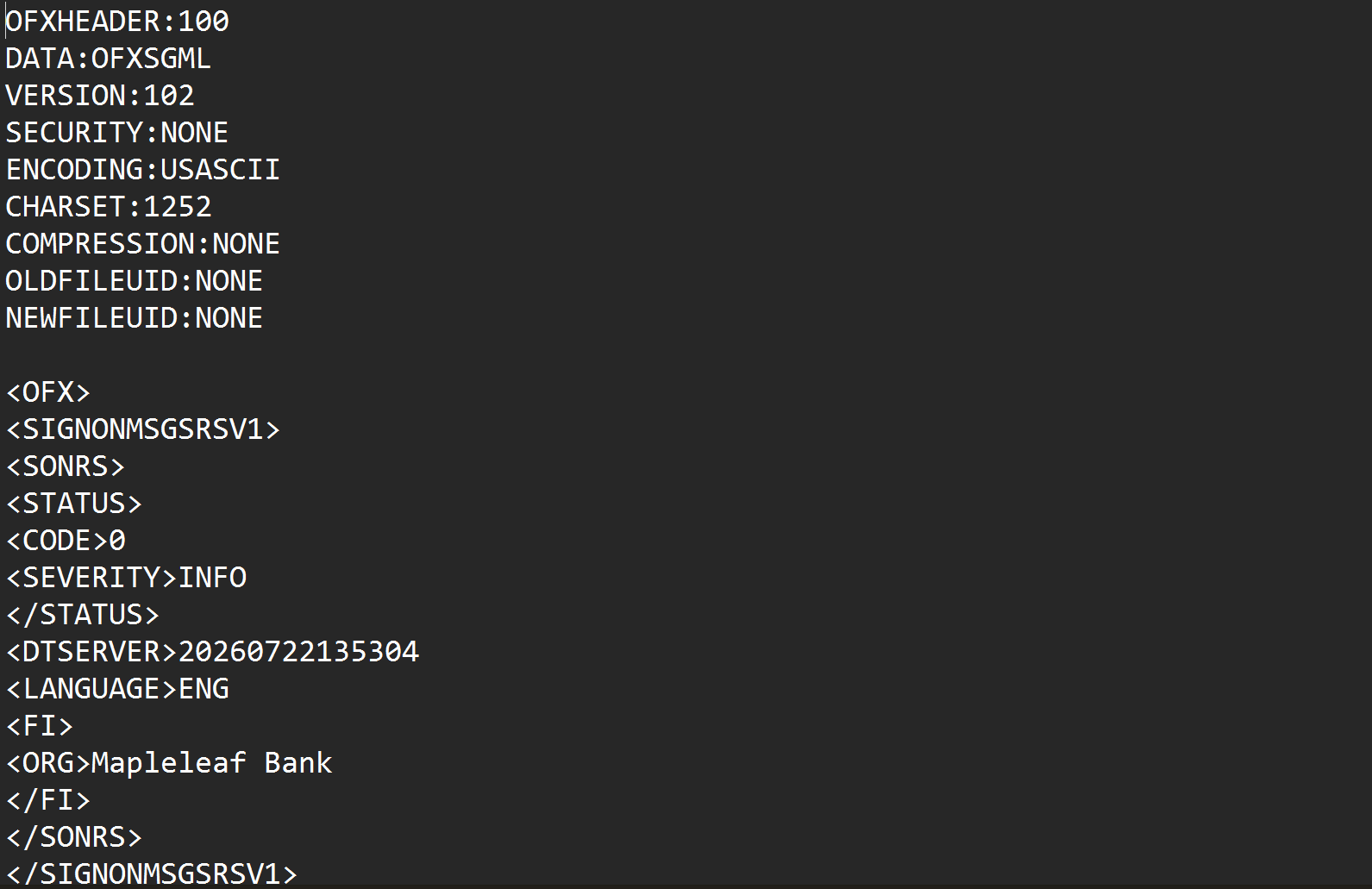
Web Connect import validates Intuit's FI/FID and INTU.BID tags inside the file. Generic OFX has none, so the import fails regardless of extension.
Renaming changes nothing
The .qbo extension reaches the import dialog; the missing tags stop it there. The forum trick died with older QuickBooks versions.
Banks ship OFX for everyone else
OFX serves Xero, Sage, and the rest of the world. The Intuit-branded variant requires a relationship many banks skip, especially foreign banks and credit unions.
Hand-editing is brittle
Splicing tags into SGML by hand can work once, and breaks quietly on the next file with a different header.
The fix is mechanical: the same statement, re-issued with the identification block Web Connect expects.
OFX vs QBO: The Actual Difference
Inside, the two formats share the transaction blocks, dates, amounts, and account structure. QBO adds an identification layer:
What QBO has that your OFX doesn't:
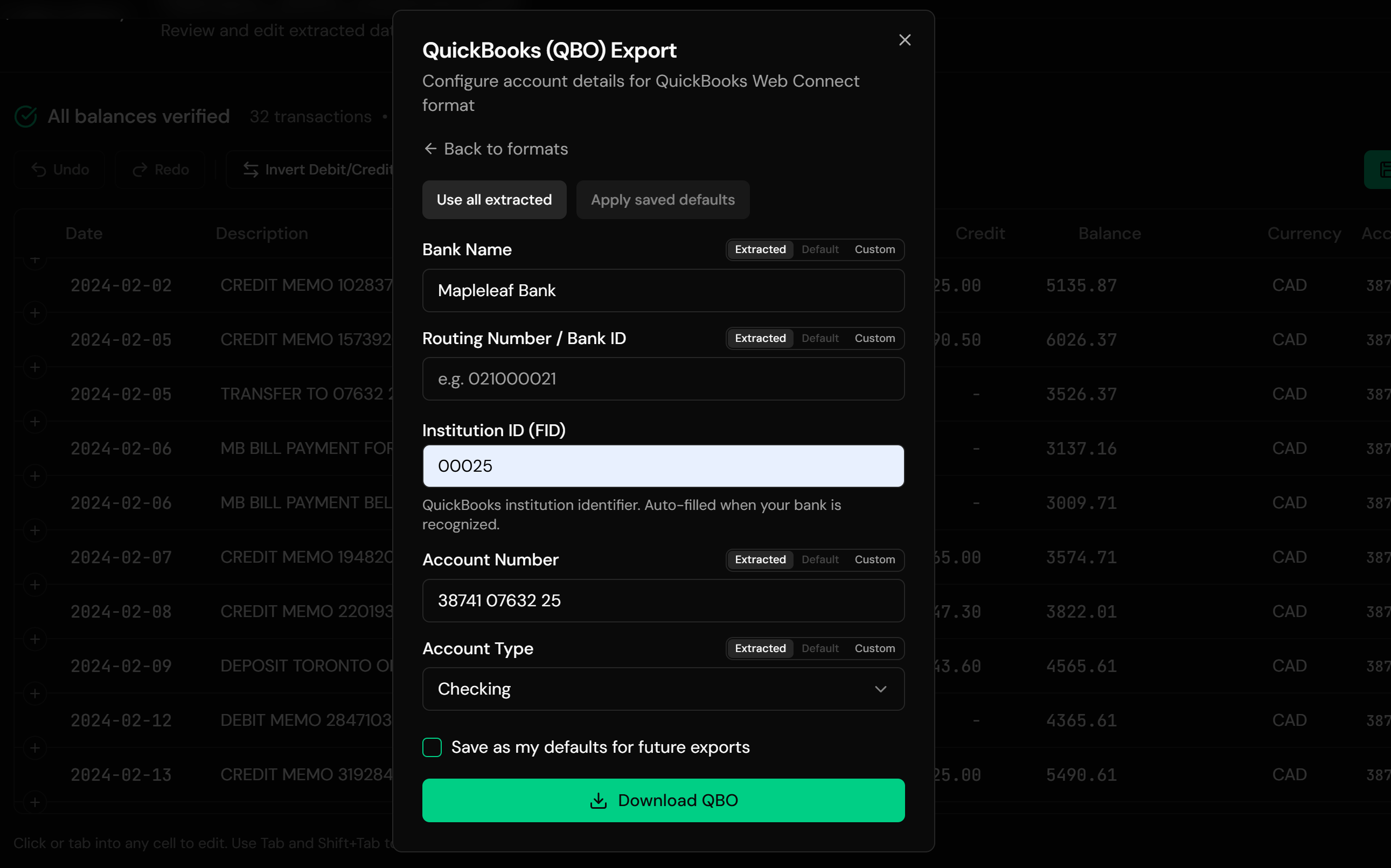
Ledger Tome resolves the identifier from your bank's name using a lookup table, with a manual override in the export dialog for institutions the lookup doesn't know: credit unions and foreign banks most often. Everything else carries over untouched: account and routing numbers, currency, the ledger balance, and every transaction.
Starting from CSV or PDF instead? See CSV to QBO and Bank Statement to QuickBooks . Full walkthrough: Import into QuickBooks Desktop .
Common Ways People Try to Get OFX Into QuickBooks
Rename .ofx to .qbo
The classic advice, and it fails: QuickBooks validates the tags inside, not the filename.
Hand-Edit the File
Add the FI block and INTU.BID in a text editor. Possible for the technical, repeated for every download, broken by the first unusual header.
Retype From the OFX
Reading tags and typing into the register: the worst of both worlds.
Automated OFX to QBO Conversion
Parses the OFX, carries everything over, and generates a valid Web Connect file with resolved identifiers. Repeatable for every future download. Free to start.
OFX to QBO: Method Comparison
| Method | Time Required | Accuracy | Best For | Cost |
|---|---|---|---|---|
| Rename the file | Seconds | Fails on import | Nothing on modern QuickBooks | Free |
| Hand-edit tags | 15-30 minutes per file | Brittle | One-off technical rescues | Free |
| Manual re-entry | 30-60 minutes per file | Error-prone | Nobody | Free |
| Ledger Tome | Under a minute | Valid Web Connect output | Every OFX download, every time | Free to start |
Why automated conversion wins: the identifier problem gets solved once, then every future download takes a minute.
How Ledger Tome Converts OFX to QBO
Ledger Tome parses OFX natively and re-issues it as a valid QuickBooks Web Connect file.
Upload
Upload your .ofx file; both OFX dialects parse natively
Carry-Over
Account details, currency, balance, and every transaction read from the file
Identify
Your bank's Intuit identifier resolved from its name, with a manual override at export
Download QBO
A valid Web Connect file, ready for File > Utilities > Import
Each transaction gets a unique FITID, so re-importing the same file never duplicates the register, and credit card statements keep their correct sign convention through the conversion.
Same Data, Right Wrapper
Before: Generic OFX
After: Valid QBO
Use Cases for OFX to QBO Conversion
Foreign Bank Accounts
Overseas banks export OFX for their local software; the US company file wants QBO.
Credit Union Accounts
Institutions outside Intuit's program; the manual FID override covers them.
The Bank Left Intuit's Program
QBO downloads disappeared, OFX remained. Restore the workflow.
Accounting Tool Exports
Software that exports OFX statements, headed for a QuickBooks company file.
Bookkeeper Intake
Clients send OFX from wherever they bank; the practice imports QBO everywhere.
Archived OFX Files
Old downloads converted into importable history.
Who OFX to QBO Conversion Is For
This type of conversion is commonly used by:
QuickBooks Desktop Users
Pro, Premier, and Enterprise, wherever the bank stops at OFX.
Bookkeepers & Accountants
Normalizing client bank files into one import format.
Businesses With Foreign Accounts
The commonest OFX-but-no-QBO situation.
Credit Union Members
Structured exports without the Intuit relationship.
The Rename-Trick Veterans
Everyone who tried the forum advice and got the error.
Anyone With OFX and a Company File
Two compatible things, one missing tag between them.
Related Converters
Ledger Tome supports multiple input and output formats. Choose the one that fits your workflow:
Starting from a CSV export instead.
Starting from a PDF statement.
The full Desktop import walkthrough.
The same fix for Quicken users.
Reading OFX files as spreadsheets instead.
What Ledger Tome Does Not Do
For clarity and transparency, Ledger Tome does not:
- Access bank accounts directly
- Initiate or modify transactions
- File taxes or submit reports
- Replace accounting software
- Categorize transactions automatically
It focuses solely on converting statement data into structured, accounting-ready formats.
Security & Privacy
Your Financial Data is Protected
We take statement security seriously. Here's how we protect your data:
-
Encrypted Transmission
All uploads use 256-bit SSL encryption (the same security banks use)
-
Secure Processing
Files are processed in isolated, secure environments with no human access
-
Automatic Deletion
All uploaded files are permanently deleted after 7 days (or immediately upon request)
-
No Training Data
Your statements are never used to train AI models or shared with third parties
-
No Account Access
We never access your bank account directly or store your banking credentials
-
GDPR Compliant
Full compliance with data protection regulations
-
No Permanent Storage
We don't maintain a database of your financial information
Privacy First: We process your data solely for conversion purposes. No marketing, no data selling, no third-party sharing.
Frequently Asked Questions
Why won't QuickBooks Desktop import my OFX file?
Can I just rename .ofx to .qbo?
What does the conversion actually change?
What if my bank isn't in the identifier lookup?
Does this work with OFX 2.x XML files?
Will importing create duplicates in QuickBooks?
Does this work for credit card OFX files?
Does QuickBooks Online need this too?
Can I review the data before downloading?
How much does it cost?
Troubleshooting Common Issues
"QuickBooks found an error in your file" persists
The resolved identifier may not match your institution. Look up your bank's FID and enter it manually in the export dialog; contact support if it continues.
File isn't recognized on upload
Confirm it is actually OFX: OFXHEADER or an OFX tag near the top. Some banks label CSV exports as "OFX" loosely; those convert via the CSV path.
Transactions went to the wrong account
The Web Connect link points at the wrong register. Delete the imported transactions and re-import, linking to the correct account when prompted.
Amounts look reversed
Bank and credit card files use opposite sign conventions, decoded from the file type. Verify in the preview before export.
Some transactions were skipped
Entries without a posted date are skipped with a warning stating how many. Check the source file if the count surprises you.
Summary
QBO is OFX with Intuit's identification tags, and QuickBooks Desktop enforces the difference: no valid identifiers, no import, whatever the file is named. Hand-editing is brittle and banks outside Intuit's program won't start shipping QBO on request. Automated conversion re-issues your OFX as a valid Web Connect file with resolved identifiers, turning a recurring dead end into a one-minute step.
If QuickBooks keeps rejecting your bank's OFX downloads, Ledger Tome converts them properly.
Ready to Make QuickBooks Accept Your Bank's Files?
Stop fighting the rename trick. Convert your first OFX to a valid QBO in minutes.
Used by QuickBooks Desktop users, bookkeepers, and businesses with foreign accounts