Your bank stopped offering Quicken downloads, or never offered them, and now all you can export is a CSV file that Quicken will not open. This is an increasingly common situation: banks keep dropping Quicken connectivity, but Quicken itself still only imports transactions through Web Connect, which means a .QFX file. Our converter turns any bank's CSV export into a Quicken-ready QFX file in minutes.
The frustrating part is that CSV and QFX contain the same information. The difference is packaging: QFX is a tagged format with transaction IDs and a bank identifier that Quicken validates on import. That packaging is exactly what a converter automates.
This page explains what a QFX file is, why Quicken refuses both CSV and generic OFX files, and how to automate the conversion. Ledger Tome also accepts Excel files and PDF statements as input.
Why Quicken Won't Import Your CSV
Quicken's import path is narrow by design. The obstacles:
No CSV import in Quicken Classic
Quicken Classic for Windows and Mac imports bank transactions through Web Connect (.QFX) files. There is no built-in CSV import for bank accounts.
Generic OFX gets rejected
QFX is Intuit's branded variant of OFX. Quicken checks the Intuit bank identifier inside the file, so renaming an .ofx file to .qfx almost never works.
Banks keep dropping Quicken support
Direct Connect and QFX downloads cost banks money, and more of them retire these options every year, leaving CSV as the only export.
Every bank's CSV is different
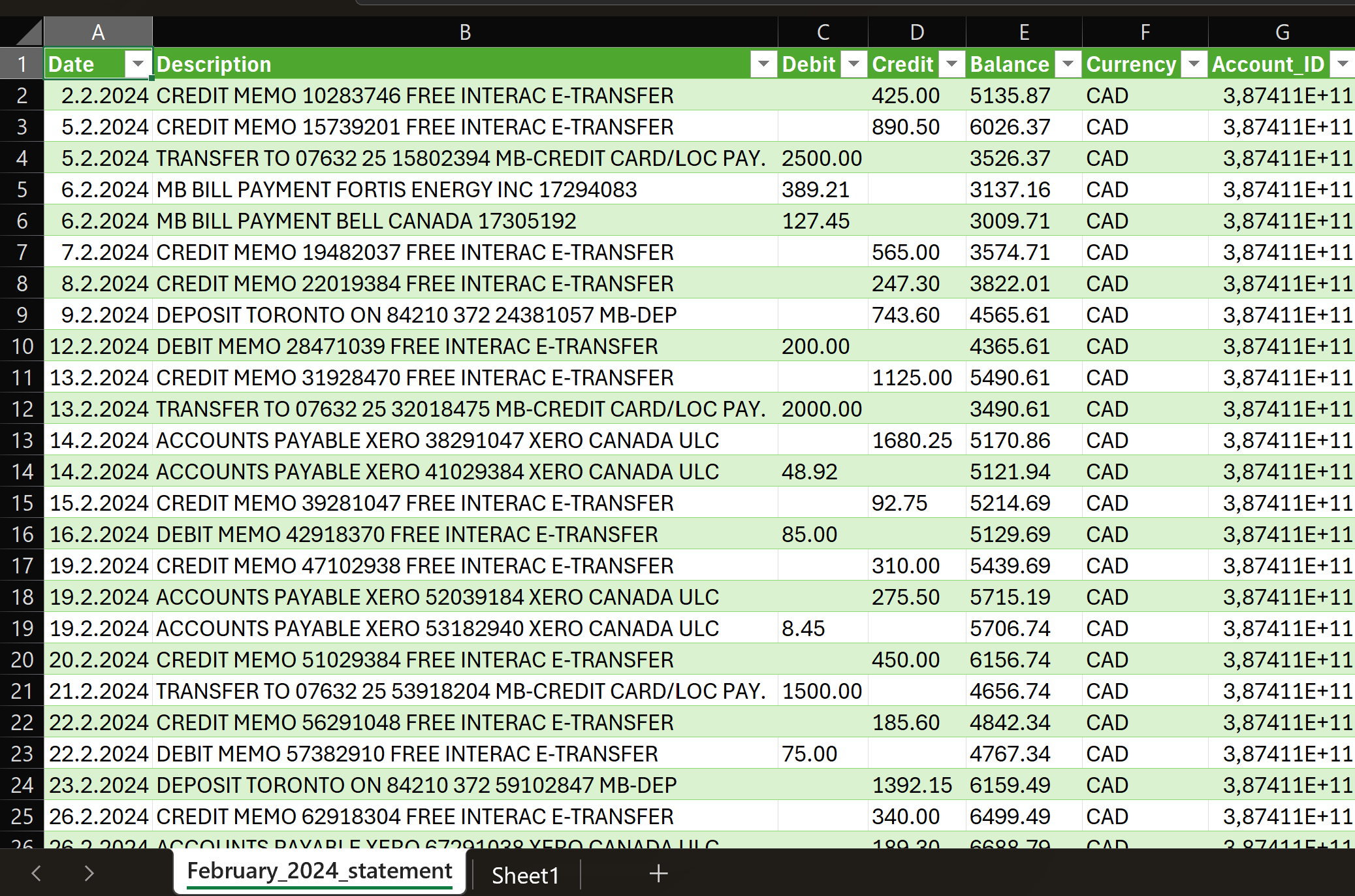
Column orders, date formats, split debit and credit columns, and sign conventions all vary. A converter has to understand the CSV before it can build a valid QFX.
The result: your data is right there in the CSV, and Quicken cannot touch it without conversion.
Works With CSV Exports From Any Bank
Ledger Tome reads CSV and Excel exports from:
US Banks
Chase, Bank of America, Wells Fargo, Citibank, Capital One, US Bank, PNC Bank, Truist, Ally, Discover
Credit Unions & Regional Banks
Often the first to drop Quicken connectivity; any CSV layout works, no templates needed
Credit Cards
Card issuer CSV exports convert with correct debit and credit handling
Different column layout? The converter detects your file's structure automatically.
What Is a QFX File?
A QFX file is Quicken's Web Connect format: Intuit's branded variant of the open OFX standard. It is the only file type modern Quicken imports for bank transactions.
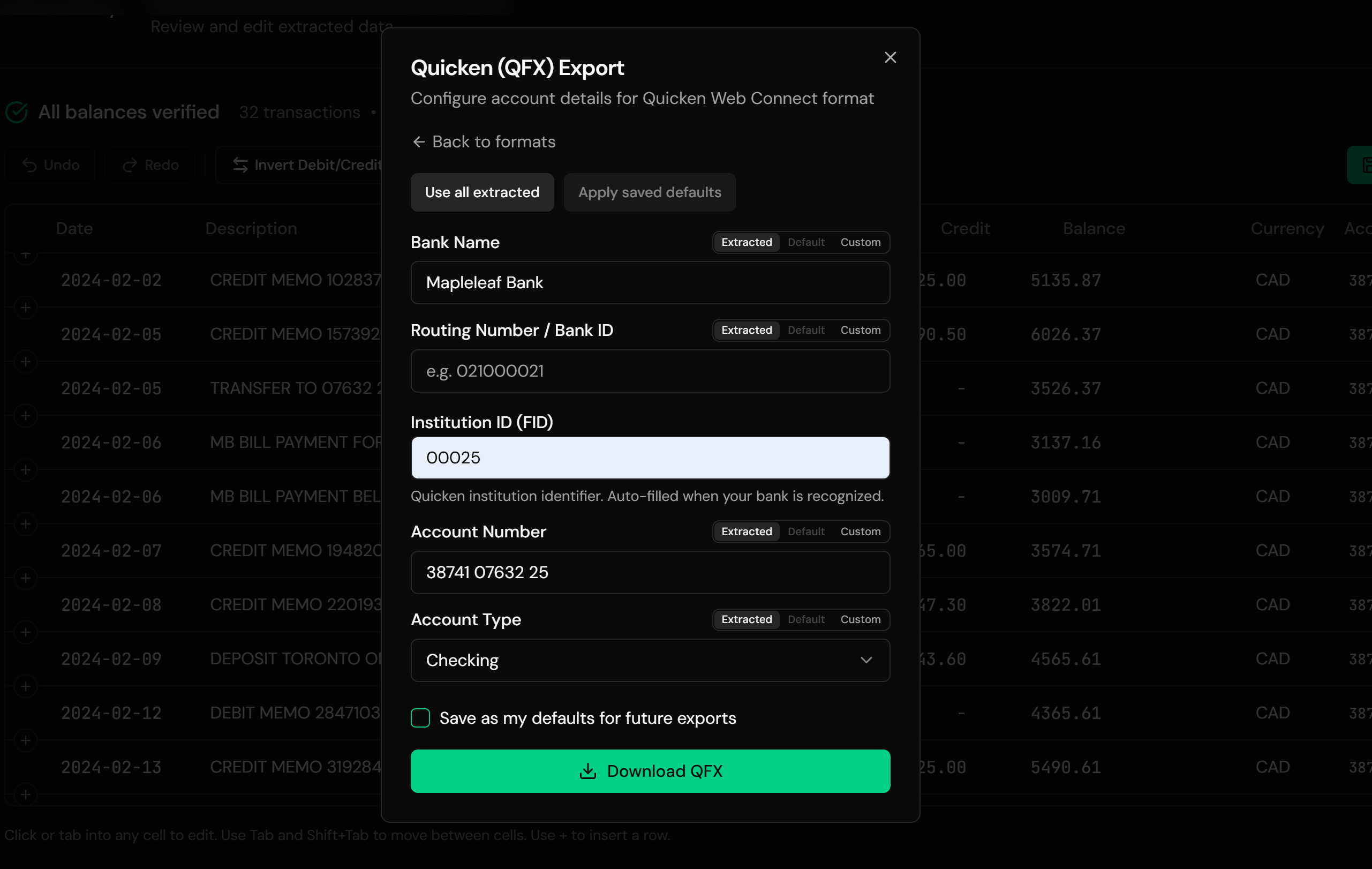
QFX vs OFX: the two formats are nearly identical inside. The difference is that QFX carries an Intuit bank identifier (INTU.BID) that Quicken validates on import. A generic OFX file without a recognized identifier gets rejected, which is why so many people searching for this conversion have already tried renaming the file and failed.
Using QuickBooks instead of Quicken? You want a QBO file: see our CSV to QBO converter . Need OFX for Xero or Sage? See our PDF to OFX converter .
Key characteristics of a proper QFX file:
OFXHEADER:100
DATA:OFXSGML
VERSION:102

<OFX>
<SIGNONMSGSRSV1><SONRS>
<INTU.BID>02100
</SONRS></SIGNONMSGSRSV1>
<BANKMSGSRSV1><STMTTRNRS><STMTRS>
<CURDEF>USD
<BANKTRANLIST>
<STMTTRN>
<TRNTYPE>DEBIT
<DTPOSTED>20260115
<TRNAMT>-4.50
<FITID>2026011500001
<NAME>Coffee Shop
</STMTTRN>
</BANKTRANLIST>
Common Ways to Get CSV Data Into Quicken
Manual Entry
Retype each transaction into the Quicken register. Fine for five transactions, hopeless for five statements.
Hope the Bank Still Offers QFX
Some banks still provide Web Connect downloads, but the list shrinks every year, and downloads rarely reach past recent months.
Rename OFX to QFX
The classic forum advice. It fails on modern Quicken because the file lacks a valid Intuit bank identifier.
Automated CSV to QFX Conversion
Reads your CSV, maps columns automatically, and generates a valid Web Connect file that Quicken imports through its supported path. Free to start.
CSV to QFX: Method Comparison
| Method | Time Required | Accuracy | Best For | Cost |
|---|---|---|---|---|
| Manual entry | 30-60 minutes per statement | 70-80% (error-prone) | A handful of transactions | Free |
| Bank QFX download | Minutes | High | Recent periods at supporting banks | Free (if available) |
| Rename OFX to QFX | Minutes | Usually fails | Nothing reliable | Free |
| Ledger Tome | Under a minute | 99%+ | Any CSV, any bank, any period | Free to start |
Why automated conversion wins: it produces the exact file type Quicken is built to import, from the export your bank actually gives you.
How Ledger Tome Converts CSV to QFX
Ledger Tome is an AI-powered tool that turns bank CSV and Excel exports (and PDF statements) into valid QFX files.
Upload
Upload your bank or credit card CSV export
Automatic Mapping
Columns, date formats, and debit/credit logic detected automatically
Review & Edit
Check every transaction in an interactive preview before export
Download QFX
Get a Web Connect file ready for Quicken
The output follows the Web Connect specification with unique FITIDs on every transaction, so re-importing the same file never duplicates your register.
How to Import the QFX File Into Quicken
Quicken Classic (Windows and Mac):
- Go to File > Import > Web Connect File (Windows) or File > Import > Bank or Brokerage File (Mac)
- Select the .qfx file you downloaded from Ledger Tome
- Choose the Quicken account the transactions belong to
- Review the imported transactions in your register
Credit card exports work the same way. Select credit card as the account type at export and Ledger Tome builds the QFX with the credit card statement structure and correct debit and credit signs, so payments and purchases land the right way around.
From Raw CSV to Quicken-Ready QFX
Before: Raw bank CSV
After: Structured QFX
Use Cases for CSV to QFX Conversion
Your Bank Dropped Quicken Support
The single most common reason people need this conversion. CSV plus conversion restores your import workflow.
Credit Union Accounts
Smaller institutions frequently offer CSV export only.
Historical Data Import
Load months or years of past transactions beyond what any bank download reaches.
Credit Card Accounts
Convert card issuer CSVs with correct debit and credit logic.
Consolidating Accounts in Quicken
Bring every account into Quicken even when only some banks offer direct connectivity.
Year-End Review and Taxes
Complete your Quicken records for reporting, budgeting, and tax preparation.
Who CSV to QFX Conversion Is For
This type of conversion is commonly used by:
Quicken Classic Users
Deluxe, Premier, and Home & Business users on Windows or Mac.
Users of Banks That Dropped Quicken
Restore imports after your bank retires Direct Connect or Web Connect.
Credit Union Members
Where CSV is often the only export on offer.
Personal Finance Enthusiasts
Keeping complete, long-running records in Quicken.
Bookkeepers for Individuals
Managing personal or household books in Quicken for clients.
Anyone With a CSV-Only Bank
If CSV is all you can download, this is the bridge to Quicken.
Related Converters
Ledger Tome supports multiple output formats. Choose the one that fits your workflow:
Using QuickBooks instead of Quicken? Same CSV problem, different target format.
Running an older Quicken version or GnuCash or YNAB? QIF may be the format you need.
Need the open OFX standard for Xero, Sage, or QuickBooks Online?
Prefer a spreadsheet? Get clean XLSX output from PDF statements.
Universal spreadsheet format for any workflow.
What Ledger Tome Does Not Do
For clarity and transparency, Ledger Tome does not:
- Access bank accounts directly
- Initiate or modify transactions
- File taxes or submit reports
- Replace accounting software
- Categorize transactions automatically
It focuses solely on converting PDF statement data into structured, accounting-ready formats.
Security & Privacy
Your Financial Data is Protected
We take statement security seriously. Here's how we protect your data:
-
Encrypted Transmission
All uploads use 256-bit SSL encryption (the same security banks use)
-
Secure Processing
Files are processed in isolated, secure environments with no human access
-
Automatic Deletion
All uploaded files are permanently deleted after 7 days (or immediately upon request)
-
No Training Data
Your statements are never used to train AI models or shared with third parties
-
No Account Access
We never access your bank account directly or store your banking credentials
-
GDPR Compliant
Full compliance with data protection regulations
-
No Permanent Storage
We don't maintain a database of your financial information
Privacy First: We process your data solely for conversion purposes. No marketing, no data selling, no third-party sharing.
Frequently Asked Questions
How do I import a CSV file into Quicken?
What is a QFX file?
What is the difference between QFX and OFX?
Can I just rename my OFX file to .qfx?
My bank stopped offering Quicken downloads. Is this the fix?
Will importing create duplicate transactions?
Can I convert an Excel file to QFX?
Does this work with credit card CSV exports?
Does this work with Quicken for Mac?
My bank's CSV has separate debit and credit columns. Is that a problem?
How much does it cost?
Troubleshooting Common Issues
Quicken rejects the file on import
Usually an unrecognized bank identifier. Ledger Tome resolves it from your bank's name automatically; if your institution isn't recognized, enter its FID manually in the export dialog before downloading. If the problem persists, contact support.
Transactions went to the wrong account
Quicken asks which account to link on first import. If you picked the wrong one, delete the imported transactions and re-import against the correct account.
Dates look wrong after import
Usually a DD/MM versus MM/DD interpretation issue in the source CSV. When dates are ambiguous, Ledger Tome asks you to confirm the format before export; double-check the choice if imported dates look off.
Amounts have flipped signs
Some banks export debits as positive numbers. The preview shows the interpreted sign for every transaction, so flip the convention there if needed.
CSV contains summary rows or balances
Upload the file as-is. The converter identifies transaction rows and ignores headers, footers, and running-balance columns. Review the preview to confirm.
Summary
Quicken only imports bank transactions through Web Connect QFX files, and the list of banks providing those files shrinks every year. CSV exports contain the same data in a package Quicken cannot read, and renaming files does not get around Quicken's bank identifier check. Automated conversion produces a valid QFX from any bank's CSV, restoring the import workflow banks keep taking away.
If you have a CSV export waiting to get into Quicken, Ledger Tome converts it in under a minute.
Ready to Get Your CSV Into Quicken?
Stop retyping transactions into the register. Convert your first CSV to QFX in minutes.
Used by Quicken users, credit union members, and personal finance enthusiasts