Import Bank Statements Into Xero
OFX or Xero-formatted CSV output, ready for Accounting > Bank accounts > Import a Statement
What Xero accepts, which format reconciles best, and how to convert whatever your bank gave you
Xero's bank feeds are great until they aren't: a feed breaks for a month, a new client arrives with two years of history, or the bank simply isn't supported. Then you're holding PDF statements or CSV exports, and Xero's importer wants an OFX file or a correctly formatted CSV. Ledger Tome converts what you have into what Xero wants, in minutes.
The format choice matters more than most guides admit. OFX imports into Xero with no column mapping and a unique ID on every transaction, so importing the same file twice never duplicates data. CSV works too, but you'll walk Xero's mapping wizard and carry the duplicate risk yourself. Ledger Tome outputs both: standard OFX, and a CSV already shaped to Xero's statement import.
This page covers what Xero accepts, the exact import steps, and the quirks that trip up statement imports (date formats, signed amounts, balance rows), so the transactions land ready to reconcile.
Which File Formats Does Xero Accept?
Xero's manual statement import takes OFX and CSV. What your bank gives you is usually neither, in usable form:
OFX: the clean path
Xero's preferred statement format. No column mapping, unambiguous dates and amounts, and a unique ID per transaction so re-imports never duplicate.
CSV: works, with a wizard
Xero accepts CSV but asks you to map columns and confirm the date format on import. Bank CSVs with split debit/credit columns or summary rows need cleanup first.
PDF: not accepted
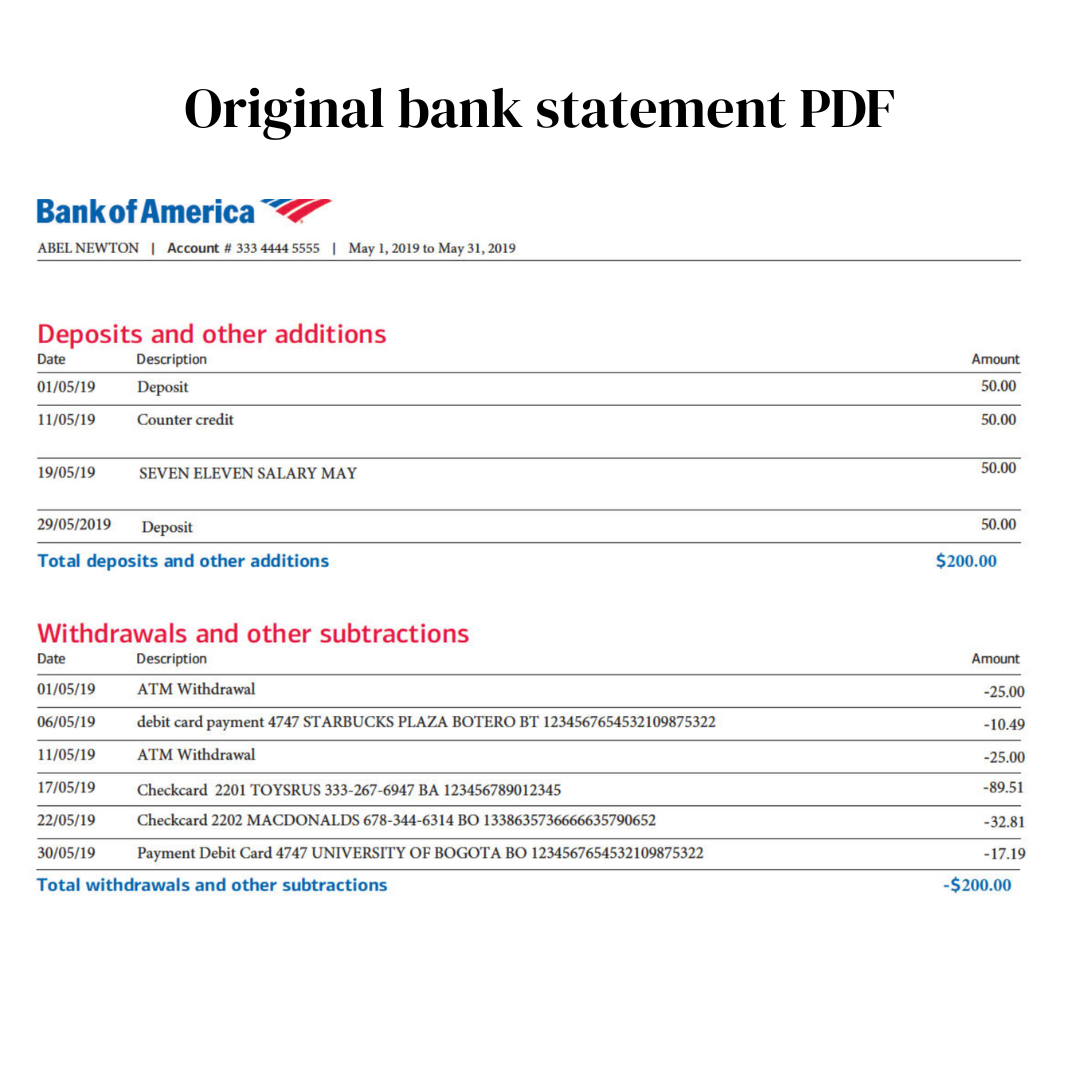
Xero cannot read PDF statements at all, and PDFs are exactly what banks provide for anything older than the recent export window.
The feed gap problem
Bank feeds only go back so far, break silently, and don't exist for every bank. The missing periods have to come in as files.
The job, then, is converting the statement you actually have into the file Xero actually takes.
Works With Statements From Any Bank
Ledger Tome reads PDF statements and CSV/Excel exports from:
Australia & New Zealand
ANZ, Westpac, Commonwealth Bank, NAB, ASB, BNZ, Kiwibank
UK Banks
HSBC, Barclays, Lloyds, NatWest, Santander, Monzo, Starling
US & International
Chase, Bank of America, Wells Fargo, and 100+ banks worldwide, including South African banks (FNB, Standard Bank, Absa, Nedbank)
Don't see your bank? The AI adapts to any statement layout automatically.
OFX or CSV: Which Should You Import Into Xero?
OFX (recommended)
No mapping wizard, built-in duplicate protection via per-transaction IDs, unambiguous dates. Best when you'll import more than once or ever re-run a period. Ledger Tome's OFX output follows the standard Xero expects, with a unique FITID on every transaction.
Xero CSV
Ledger Tome also exports a CSV pre-shaped to Xero's statement import: Date, Amount, Payee, Description, Reference columns, ISO dates that pass Xero's date confirmation cleanly, and signed amounts (money in positive, money out negative). Zero-amount placeholder rows are removed because Xero can't reconcile them. Choose this if you prefer to eyeball the file in a spreadsheet before importing.
Format-first instead of software-first? See our PDF to OFX converter and CSV to OFX converter pages for the deep dive on the OFX format itself.
How to Import the File Into Xero, Step by Step
Importing a statement file into Xero:
- In Xero, go to Accounting > Bank accounts
- Select the bank account the statement belongs to
- Click Manage Account > Import a Statement
- Upload the .ofx or .csv file you downloaded from Ledger Tome
- For CSV: confirm the column mapping and date format Xero proposes (Ledger Tome's Xero CSV maps cleanly; dates are ISO format)
- Review the imported statement lines, then reconcile as usual
Import order tip: import older periods first so your running reconciliation stays chronological, and keep each file to one account. Ledger Tome converts one statement per file, which maps naturally onto Xero's per-account imports.
How Ledger Tome Prepares Your Statements for Xero
Ledger Tome is an AI-powered tool that turns PDF bank and credit card statements, CSVs, and Excel exports into Xero-ready import files.
Upload
Upload your PDF statement or spreadsheet export
AI Extraction
Statement structure, columns, dates, and debit/credit logic detected automatically
Review & Edit
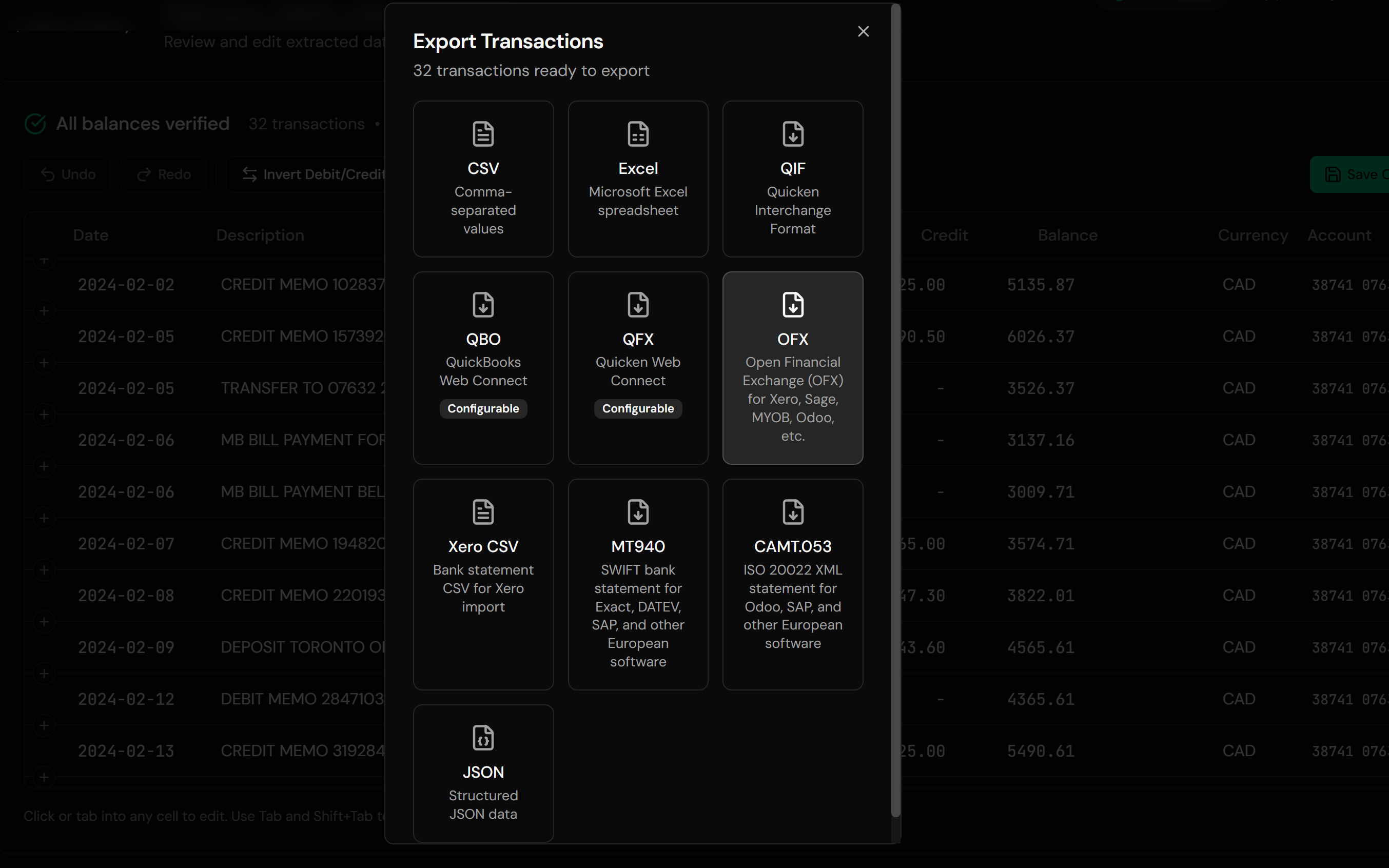
Check every transaction in an interactive preview before export
Download for Xero
Export OFX or Xero-formatted CSV, ready to import
The OFX output carries a unique FITID on every transaction, so importing the same file into Xero twice never creates duplicates.
From Bank Statement to Reconciliation-Ready
Before: PDF statement
After: Xero-ready file
Use Cases
New Client Catch-Up
A new Xero organisation and a shoebox of PDF statements. Convert the backlog and import it period by period.
Feed Gaps
The bank feed missed a month. Convert that month's statement and fill the hole without touching the rest.
Unsupported Banks
No feed available for the institution at all. File imports become the routine, so make them fast.
Historical Rebuilds
Rebuilding prior years for tax, audits, or a switch of accountant.
Credit Card Accounts
Card statements convert with correct debit and credit handling, ready for the card account in Xero.
Multi-Bank Practices
Bookkeepers converting statements from many client banks into one consistent import format.
Who It's For
Xero Bookkeepers & Accountants
Practices doing catch-up and multi-client statement work.
Small Business Owners
Doing their own reconciliation without retyping statements.
Businesses With Feed-Less Banks
Where manual import is the permanent workflow.
Firms Migrating to Xero
Bringing history into a new organisation.
Franchise & Multi-Entity Operators
Many accounts, many statements, one process.
Anyone Mid-Reconciliation
If Xero is asking for a file and the bank gave you a PDF, this is the bridge.
Related Converters
Ledger Tome supports multiple formats and destinations. Choose the one that fits your workflow:
The format-first page: everything about OFX conversion from PDF statements.
Already have a CSV export? Convert it to OFX for Xero.
Transactions in a workbook instead of a CSV? Convert XLSX straight to OFX.
Prefer to review in a spreadsheet first?
Using QuickBooks instead? The Desktop import guide.
What Ledger Tome Does Not Do
For clarity and transparency, Ledger Tome does not:
- Access bank accounts directly
- Initiate or modify transactions
- File taxes or submit reports
- Replace accounting software
- Categorize transactions automatically
It focuses solely on converting statement data into structured, accounting-ready formats.
Security & Privacy
Your Financial Data is Protected
We take statement security seriously. Here's how we protect your data:
-
Encrypted Transmission
All uploads use 256-bit SSL encryption (the same security banks use)
-
Secure Processing
Files are processed in isolated, secure environments with no human access
-
Automatic Deletion
All uploaded files are permanently deleted after 7 days (or immediately upon request)
-
No Training Data
Your statements are never used to train AI models or shared with third parties
-
No Account Access
We never access your bank account directly or store your banking credentials
-
GDPR Compliant
Full compliance with data protection regulations
-
No Permanent Storage
We don't maintain a database of your financial information
Privacy First: We process your data solely for conversion purposes. No marketing, no data selling, no third-party sharing.
Frequently Asked Questions
How do I import a bank statement into Xero?
Can Xero import PDF bank statements?
What is the best format to import bank statements into Xero?
What CSV format does Xero need?
Why are my imported amounts backwards?
Will importing the same file twice duplicate transactions?
Can I import credit card statements into Xero?
How far back can I import?
My bank feed missed some days. Can I import just those?
How much does it cost?
Troubleshooting Common Issues
Xero rejects the CSV
Usually a date format or column issue with hand-made CSVs. Use Ledger Tome's Xero CSV export, which ships ISO dates and the columns Xero's wizard expects.
Statement lines doubled up
Happens when the same period arrives via feed and CSV import. Delete the imported statement in Xero, then re-import as OFX so transaction IDs deduplicate.
Amounts imported with flipped signs
Check the preview's sign convention before export; money out should be negative. Re-export and re-import.
Wrong account
Xero imports statements per account. If a file landed in the wrong one, delete the imported statement from that account and import into the correct one.
Balances don't match the bank
Confirm no period is missing or imported twice. Ledger Tome converts one statement per file, so gaps mean a missing statement rather than missing rows.
Summary
Xero only takes statement files in OFX or CSV, banks mostly hand out PDFs, and feeds don't cover history or every institution. Converting is the standard fix: OFX for clean, duplicate-safe imports, or Xero-shaped CSV when you want to inspect the file first. Ledger Tome produces both from any bank's PDF, CSV, or Excel statement.
If you have statements waiting to get into Xero, Ledger Tome converts them in minutes.
Ready to Get Your Statements Into Xero?
Stop retyping statement lines. Convert your first bank statement into a Xero-ready file in minutes.
Used by Xero bookkeepers, accountants, and small business owners