Zoho Books is unusually generous about statement formats. It imports CSV, XLS, TSV, OFX, QIF, MT940, CAMT.053, and CAMT.054, and it will even take a PDF directly. Compared with QuickBooks Desktop refusing anything but its own file type, or MYOB turning away CSVs, that is a short and welcome list of problems.
Which changes the question. When your software accepts the file, the issue is no longer whether the transactions can get in. It is whether the ones that got in are correct. A direct PDF import is a single step with no checkpoint: it either read your statement properly or it merged two columns, dropped a page, or decided that 03/04 was March. You find out later, during reconciliation, when the numbers do not agree and the cause is twenty rows back.
Ledger Tome puts a review screen between the statement and the books. It extracts the transactions, shows you every row, lets you correct anything that looks wrong, and then exports whichever of Zoho's formats you prefer. This page covers what Zoho accepts, when the direct import is fine, and when it is worth converting first.
Zoho Books Takes Almost Anything. That's Not the Whole Story.
The format list is long, and the formats are not equally reliable in practice:
Structured files: dependable
OFX, MT940, and CAMT.053 arrive with dates, amounts, and account details already unambiguous. Nothing has to be interpreted, so nothing can be misinterpreted.
CSV and Excel: depends on the file
Zoho maps your columns to its fields. That works well when the export is tidy and gets fiddly when the bank's layout is unusual or the dates are ambiguous.
PDF: accepted, but unreviewed
Zoho can read a PDF statement. On a clean, simple statement that is genuinely convenient. On a scanned, multi-column, or unusual one, whatever it gets is what lands in your books.
Feeds don't cover everything
Connections drop, some banks were never supported, and history from before you connected is not there at all.
For an easy statement, use Zoho's import and move on. For a difficult one, the value of a checkpoint before the data reaches the books is hard to overstate.
Works With Indian Banks (and Everyone Else's)
Ledger Tome reads PDF statements and CSV/Excel exports from:
Indian Banks
HDFC, ICICI, SBI, Axis, Kotak Mahindra, Yes Bank, IndusInd, Punjab National Bank
US & Middle East
Chase, Bank of America, Wells Fargo, Emirates NBD, Mashreq
International
100+ banks worldwide
Don't see the bank? The AI adapts to any statement layout automatically, including scanned statements and the dense multi-column layouts common in Indian banking.
When Should You Convert Instead of Importing Directly?
Import directly into Zoho when
The statement is a clean, text-based PDF or a tidy CSV from a major bank, the layout is simple, dates are unambiguous, and the period is short. Zoho's import handles this case perfectly well and adding a step gains you nothing.
Convert first when
The statement is scanned or photographed, the layout is dense or multi-column, the dates could be read two ways, the period is long, or the account matters enough that a silent error would be expensive. Also whenever you want the same data in a spreadsheet as well as in the books.
The difference is not extraction quality alone, it is the checkpoint. Converting gives you a table of every transaction before anything is committed, where a merged description or a misread amount is obvious and fixable in a few seconds. Importing directly means the first time you see the data is after it is already in your books, and correcting it there is slower and messier than correcting it beforehand.
Once you have converted, any of Zoho's formats will do. CSV is the most common choice and Ledger Tome lets you set the date format, decimal separator, and column layout so it matches what Zoho expects on the first try. If you would rather skip column mapping entirely, export OFX. If your business runs on European banking formats, Zoho takes MT940 and CAMT.053 too.
Format deep dives: Bank Statement to Excel , PDF to OFX , and PDF to MT940 .
How to Import the File Into Zoho Books, Step by Step
Importing a converted file:
- Go to Banking and select the bank or credit card account
- Choose the option to import or upload a statement
- Upload the file you downloaded from Ledger Tome
- Map columns if you chose CSV, then review and categorize the transactions
If you are using OFX or MT940:
- Follow the same path, selecting the structured file
- No column mapping step is needed, since the format carries its own field definitions
- Confirm the account match
- Review and categorize the imported transactions
Import oldest first, one statement per file, and check the transaction count Zoho reports against the count shown in the Ledger Tome preview. Those two numbers agreeing is the fastest confirmation that nothing was dropped along the way.
How Ledger Tome Prepares Statements for Zoho Books
Ledger Tome turns PDF bank and credit card statements, CSVs, and Excel exports into clean, reviewed files in whichever format Zoho Books should receive.
Upload
Upload the PDF statement or spreadsheet export
AI Extraction
Statement structure, columns, dates, and debit/credit logic detected automatically, including on scanned statements
Review & Edit
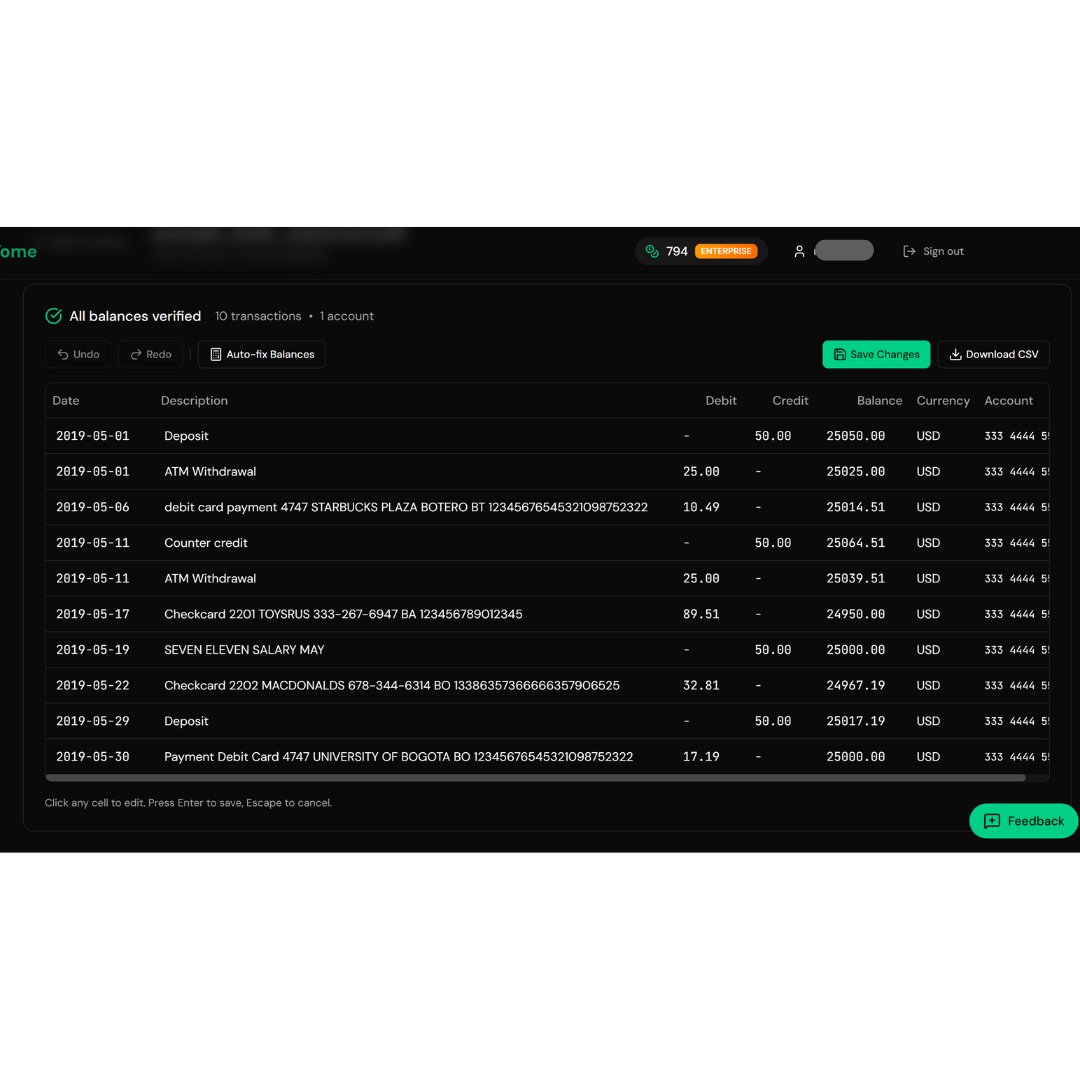
Check and correct every transaction before anything is exported
Download
CSV, Excel, OFX, QIF, MT940, or CAMT.053
The review step is the point of the exercise. Where a date column could be read two ways you are asked to choose rather than having a guess made for you, and every row is visible and editable before export. Credit card statements are recognized and their sign convention handled, so charges and payments land the right way around.
From Bank PDF to Reviewed, Import-Ready Data
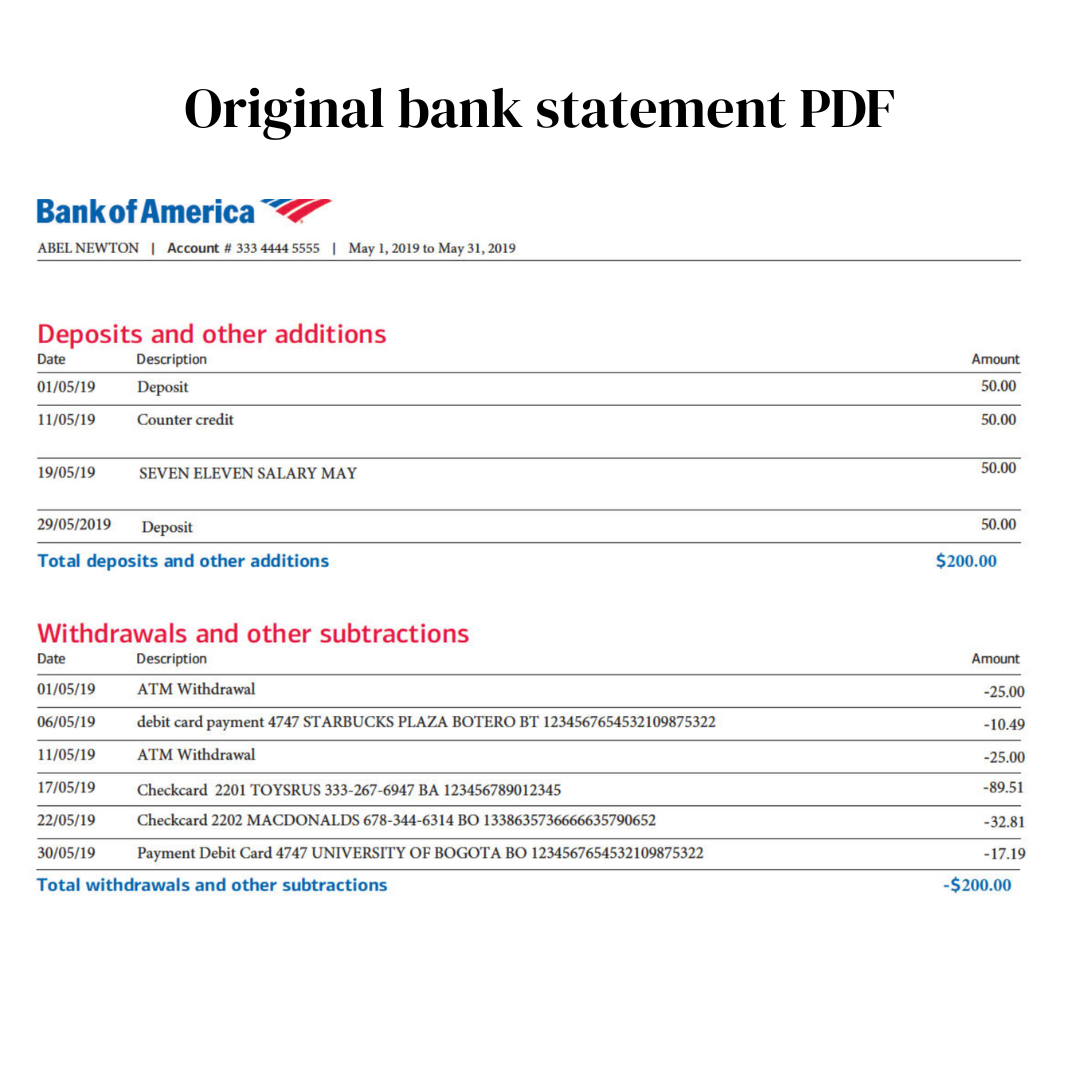
Before: the bank's PDF statement
After: checked row by row
Use Cases
Scanned and Photographed Statements
Where direct import struggles most and OCR plus review helps most.
Dense Multi-Column Layouts
Common in Indian banking, and the layouts most likely to be misread.
Accounts Without a Feed
Smaller banks and account types Zoho's connections never covered.
Long Historical Periods
A year of statements where a silent error would be buried.
The Data in Two Places
Books in Zoho and a copy in Excel, from one conversion.
Credit Card Accounts
Card statements with the sign convention handled correctly.
Who It's For
Zoho Books Users in India
Zoho's deepest market, and the one with the most challenging statement layouts.
Small Businesses Worldwide
On Zoho Books with accounts feeds cannot reach.
Accountants & CAs
Handling client statements across many banks.
Businesses With Scanned Records
Where the only copy is a photograph or a scan.
Anyone Who Has Been Burned by a Bad Import
Once is usually enough.
Multi-Currency Businesses
Where getting the details right matters more.
Related Converters
Ledger Tome supports multiple formats and destinations. Choose the one that fits your workflow:
The most common output for review and import.
Skip column mapping entirely.
For businesses on European banking formats.
Zoho's most common import format.
The Xero equivalent of this guide.
What Ledger Tome Does Not Do
For clarity and transparency, Ledger Tome does not:
- Access bank accounts directly
- Initiate or modify transactions
- File taxes or submit reports
- Replace accounting software
- Categorize transactions automatically
It focuses solely on converting statement data into structured, accounting-ready formats.
Security & Privacy
Your Financial Data is Protected
We take statement security seriously. Here's how we protect your data:
-
Encrypted Transmission
All uploads use 256-bit SSL encryption (the same security banks use)
-
Secure Processing
Files are processed in isolated, secure environments with no human access
-
Automatic Deletion
All uploaded files are permanently deleted after 7 days (or immediately upon request)
-
No Training Data
Your statements are never used to train AI models or shared with third parties
-
No Account Access
We never access your bank account directly or store your banking credentials
-
GDPR Compliant
Full compliance with data protection regulations
-
No Permanent Storage
We don't maintain a database of your financial information
Privacy First: We process your data solely for conversion purposes. No marketing, no data selling, no third-party sharing.
Frequently Asked Questions
How do I import a bank statement into Zoho Books?
Can Zoho Books import PDF bank statements?
Why convert if Zoho accepts my file already?
Which format should I import?
My statement is a scan or a photo.
Does this work with Indian bank statements?
Can I get the data in Excel as well as in Zoho?
Does this work for credit card statements?
What about MT940 and CAMT.053?
How far back can I import?
Will importing the same statement twice duplicate transactions?
How much does it cost?
Troubleshooting Common Issues
Zoho rejected the file
Check the extension survived the download. If a CSV is refused, confirm the date format and delimiter match what Zoho expects, both of which are adjustable at export.
The columns mapped incorrectly
Set the column layout at export so the file arrives in the arrangement Zoho expects, rather than correcting the mapping on every import.
Dates imported wrong
A DD/MM versus MM/DD issue. Ledger Tome asks you to confirm ambiguous formats before export; re-check that choice and set the date format explicitly for the CSV export.
Transaction count doesn't match the statement
Compare against the count shown in the Ledger Tome preview. If they agree, the loss happened at Zoho's end; if not, check the preview for skipped rows.
Amounts have flipped signs
Some banks export debits as positive. The preview shows the interpreted sign per transaction; correct the convention there before export.
Summary
Zoho Books accepts nearly every statement format there is, including PDF, so the question is not whether a statement can be imported but whether what lands in the books is right. On a clean statement, Zoho's own import is perfectly good. On a scanned, dense, or ambiguous one, a conversion step with a review screen turns a silent risk into a visible, fixable table.
If you have difficult statements heading into Zoho Books, Ledger Tome converts and shows you every row in minutes.
Ready to Get Statements Into Zoho Books?
Check every transaction before it reaches your books. Convert your first statement in minutes.
Used by Zoho Books users, accountants, and small businesses worldwide