At some point a lot of businesses discover they have been run out of Quicken. It started as personal finance software, the side income went through it because that was where the accounts already were, and now there is a real business with real tax obligations sitting in a program built for household budgets. The move to QuickBooks is the obvious next step. Getting the history to come along is the part nobody mentions.
Quicken holds transactions in .qfx Web Connect files and QuickBooks Desktop reads .qbo Web Connect files. The two are closer than they look. Both are OFX underneath, and the practical difference is which set of Intuit identification tags the file carries. That is why the conversion is quick and reliable, and why retyping a year of transactions to cross a gap this narrow is such a waste.
This page covers what transfers, what genuinely does not, and how to get the transaction history into QuickBooks Desktop without rebuilding it by hand.
Why QuickBooks Won't Read Your Quicken Files
Two Intuit products, two Web Connect flavors, and no path between them:
Same family, different wrapper
QFX and QBO are both OFX. They carry different Intuit identification tags, and each product only accepts its own.
No built-in migration for transactions
Moving between the products is not a supported one-click path. The account structure comes across manually or not at all.
QuickBooks Desktop won't take CSV
The obvious workaround is closed. Desktop wants a Web Connect file, which is the whole reason QBO conversion exists as a category.
Year boundaries create urgency
The switch usually happens at a period start, with a backlog of history that needs to be in place before the books can be trusted.
The transactions are already in a format one Intuit product wrote and another almost understands. Closing that gap is a file conversion, not a data-entry project.
QFX and QBO: What Actually Differs
Both are Web Connect files built on OFX 1.x. The difference is identification, not structure.
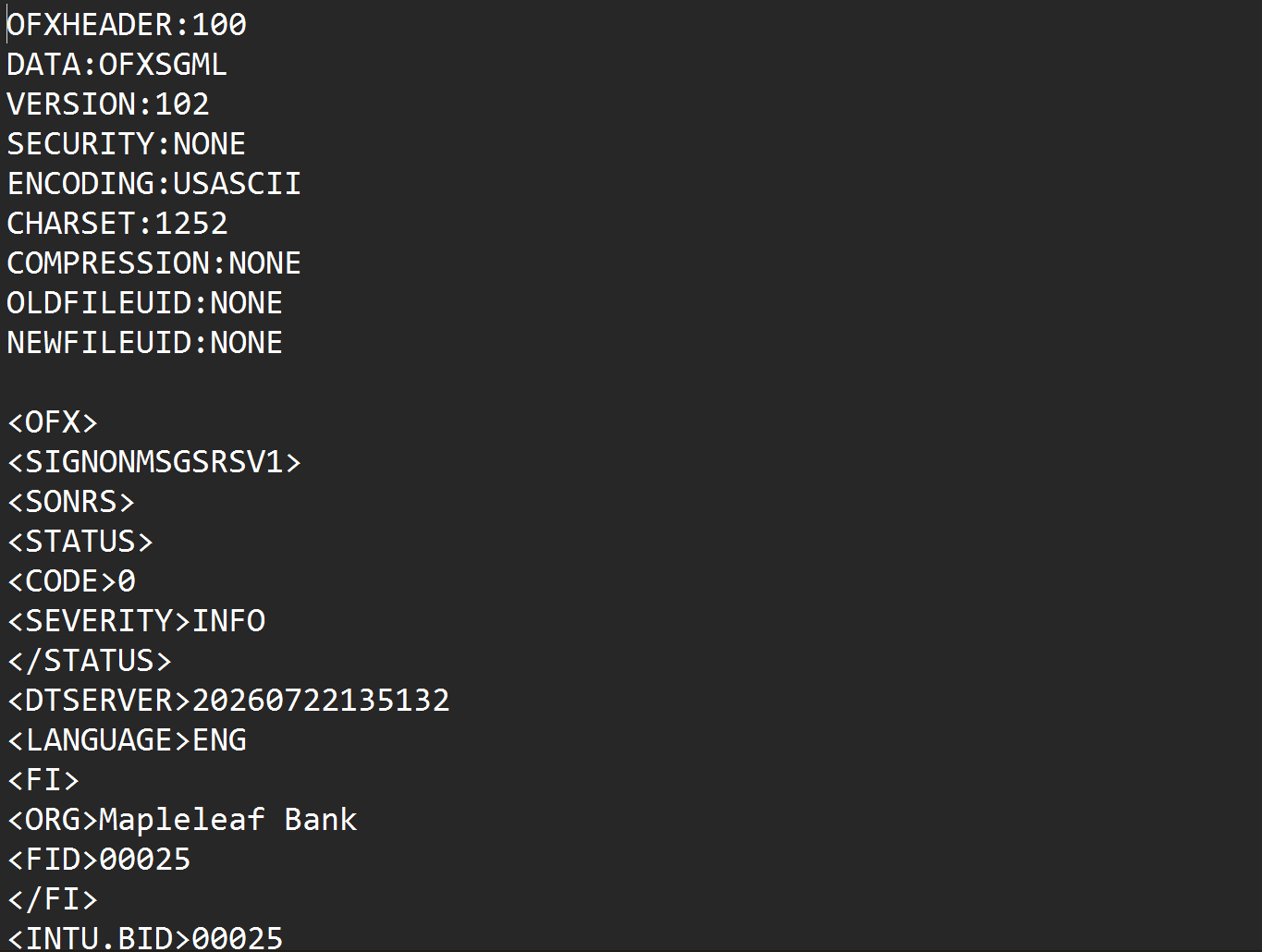
A QFX file identifies itself to Quicken using Intuit's institution fields. A QBO file does the same for QuickBooks, including the INTU.BID branding identifier that QuickBooks Desktop checks on import. The transaction records inside, the dates, amounts, payees, and memos, follow the same OFX conventions in both. Converting means reading the statement and writing it back out with the identification QuickBooks expects.
QBO the file format is not QuickBooks Online the product
Worth clearing up: a .qbo file is a Web Connect statement for QuickBooks Desktop. If you are heading for QuickBooks Online instead, it accepts CSV and OFX directly and this conversion is not the one you need.
This moves transactions, and only transactions. Your chart of accounts, category assignments, memorized transactions, budgets, attachments, and investment lot detail do not travel in a Web Connect file, because that format was never designed to carry them. Expect to set up the account structure in QuickBooks and let it categorize the imported history. For most businesses making this move, the transaction record is the part that matters and the part that would otherwise be retyped.
Heading for QuickBooks Online instead? See Import into QuickBooks Online . Older QIF archives rather than QFX files? See QIF to QBO .
Common Ways to Move Quicken Data Into QuickBooks
Retype the History
Guaranteed to work, and for a year or more of transactions it is days of work with a fresh error rate.
Export CSV From Quicken
Quicken can produce a CSV, and QuickBooks Desktop will not import one. The path ends there.
Re-download From the Bank
Works for recent periods where the bank still offers QBO downloads, but most banks only expose a limited window of history.
Automated QFX to QBO Conversion
Reads the Quicken file directly and writes the Web Connect file QuickBooks Desktop accepts, for any period the files cover. Free to start.
QFX to QBO: Method Comparison
| Method | Time Required | Accuracy | Best For | Cost |
|---|---|---|---|---|
| Retyping | Days for a year of history | Human error rate | Very small histories | Your time |
| Quicken CSV export | Blocked | Not accepted | Nothing | Free |
| Bank re-download | Minutes, limited range | Native | Recent periods only | Free |
| Ledger Tome | Under a minute per file | Field-faithful, duplicate-safe | Any period your files cover | Free to start |
Why automated conversion wins: it reaches the history the bank no longer offers, which is usually exactly the history you are trying to preserve.
How Ledger Tome Converts QFX to QBO
Ledger Tome parses Web Connect files natively and rewrites them in the flavor QuickBooks Desktop expects.
Upload
Upload your .qfx file
Native Parsing
The OFX structure decoded; dates, amounts, and split descriptions normalized
Review & Set Institution
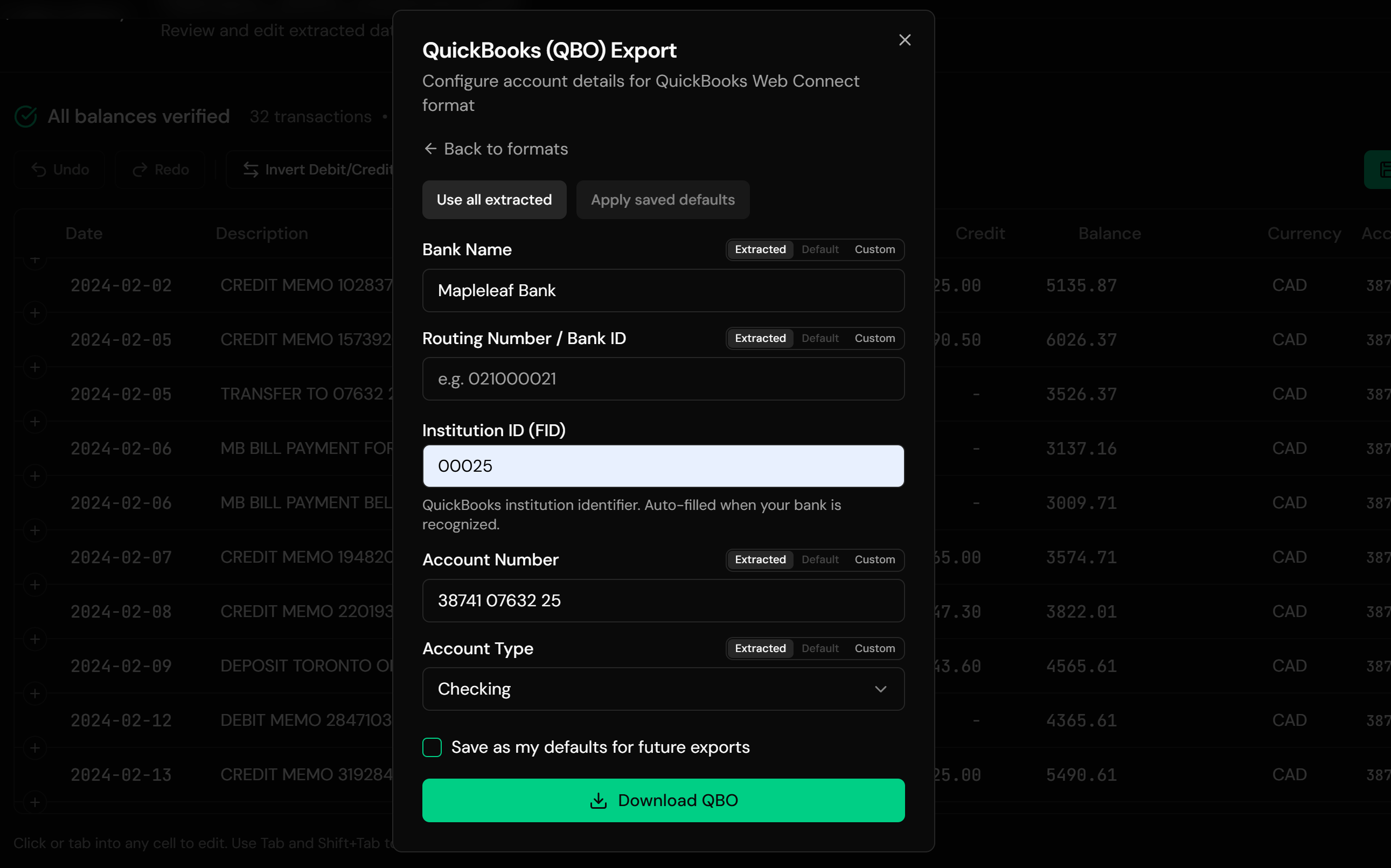
Check the transactions and confirm the bank identification
Download QBO
A Web Connect file ready for QuickBooks Desktop
The QBO carries the Intuit institution identification QuickBooks checks, filled from the bank name where it can be resolved and editable when you need a specific value. Every transaction gets a stable transaction ID built from its date and position, so re-importing the same file will not double the books. Credit card statements are recognized and their sign convention decoded, so charges and payments land correctly against a card account.
From Quicken File to QuickBooks Import
Before: raw QFX file
After: QuickBooks-ready QBO
Use Cases
Outgrowing Personal Finance Software
A side income became a business, and the books need to move with it.
Sole Trader Incorporating
New entity, new software, same history worth keeping.
Accountants Onboarding a Client
A client who has been running the business through Quicken for years.
Year-End Switchovers
Moving at a period boundary with a backlog that has to be in place first.
History the Bank No Longer Offers
Old periods that exist only in your Quicken files.
Consolidating Two Systems
Personal and business records finally separated properly.
Who It's For
Small Business Owners Leaving Quicken
The most common version of this move.
Freelancers & Sole Traders
Formalizing bookkeeping after starting informally.
Bookkeepers & Accountants
Migrating client records into a practice standard.
QuickBooks Desktop Users
Who inherited history in the wrong Intuit format.
Anyone Consolidating Financial Software
Fewer programs, one record.
People Preserving Old History
Periods no bank will re-issue.
Related Converters
Ledger Tome reads and writes many financial formats. Choose the one that fits your workflow:
Generic OFX downloads into QuickBooks Desktop.
Older QIF archives into QuickBooks Desktop.
Reading Quicken files in a spreadsheet instead.
Spreadsheet exports into QuickBooks Desktop.
The full QuickBooks Desktop import guide.
What Ledger Tome Does Not Do
For clarity and transparency, Ledger Tome does not:
- Access bank accounts directly
- Initiate or modify transactions
- File taxes or submit reports
- Replace accounting software
- Categorize transactions automatically
It focuses solely on converting statement data into structured, accounting-ready formats.
Security & Privacy
Your Financial Data is Protected
We take statement security seriously. Here's how we protect your data:
-
Encrypted Transmission
All uploads use 256-bit SSL encryption (the same security banks use)
-
Secure Processing
Files are processed in isolated, secure environments with no human access
-
Automatic Deletion
All uploaded files are permanently deleted after 7 days (or immediately upon request)
-
No Training Data
Your statements are never used to train AI models or shared with third parties
-
No Account Access
We never access your bank account directly or store your banking credentials
-
GDPR Compliant
Full compliance with data protection regulations
-
No Permanent Storage
We don't maintain a database of your financial information
Privacy First: We process your data solely for conversion purposes. No marketing, no data selling, no third-party sharing.
Frequently Asked Questions
How do I move from Quicken to QuickBooks?
Does this migrate everything from Quicken?
What's the difference between QFX and QBO?
Is QBO the same as QuickBooks Online?
Will importing the same file twice duplicate transactions?
QuickBooks is asking about the financial institution.
Does it work with .ofx and .qbo files too?
Are credit card statements handled correctly?
How far back can I bring history?
My records are in QIF, not QFX.
Can I edit the data before downloading?
How much does it cost?
Troubleshooting Common Issues
QuickBooks rejected the file
Check the .qbo extension survived the download. If QuickBooks objects to the financial institution, set a specific identification value at export rather than leaving the fallback.
Transactions landed in the wrong account
QuickBooks matches on the account identification in the file. Confirm the target account during Web Connect import rather than letting it default.
Amounts have flipped signs
Bank and credit card files use opposite conventions. The preview shows the interpreted sign per transaction; correct it there before export.
Some transactions were skipped
Entries without a posted date cannot be placed and are skipped with a warning stating how many. Check the source file if the count surprises you.
Categories didn't come across
Expected. Web Connect files carry no category information from any source. QuickBooks will categorize the imported transactions using its own rules.
Summary
Moving a business off Quicken and into QuickBooks Desktop means moving the history, and the two products speak nearly the same file format without accepting each other's. Converting the Web Connect files directly brings the transactions across, including periods the bank will no longer re-issue, with duplicate-safe IDs and correct credit card handling. The account structure is set up fresh in QuickBooks, which is where it belongs anyway.
If you are moving from Quicken to QuickBooks Desktop, Ledger Tome converts each file in under a minute.
Ready to Move Off Quicken?
Stop retyping years of history to change accounting software. Convert your first Quicken file to QBO in minutes.
Used by businesses leaving Quicken, bookkeepers, and QuickBooks Desktop users