QIF is where financial history gets stranded. Quicken exported it for decades, MS Money left it behind, GnuCash and Moneydance still speak it, and QuickBooks reads none of it. When a household's finances become a business's books, or a bookkeeper inherits a client's Quicken archives, the .qif files hold years of history with no direct way in. Our converter turns QIF files into QBO Web Connect files QuickBooks Desktop imports natively.
The catch with QIF is what the format leaves out. A QIF file carries no currency, no account identification, and, worst of all, no declared date format: 03/04/01 could be three different days depending on which tool wrote it and when. Sloppy converters guess. Ledger Tome asks: you confirm the date convention and the missing account details explicitly, and the QBO is built from answers, not assumptions.
This page explains what QIF files do and don't contain, why QuickBooks won't read them, and how to migrate the history cleanly.
Why Getting QIF Data Into QuickBooks Is Tricky
Two format problems stack on top of each other:
QuickBooks doesn't read QIF
Desktop imports bank transactions through Web Connect (.QBO) only. The QIF era and the QBO era never overlapped in the import menu.
QIF dates are ambiguous by design
The format never declared a date convention. 03/04/01 is March 4, April 3, or April 1 depending on the writing tool. Guessing wrong corrupts an entire history silently.
QIF omits account context
No currency, no account number, no bank identity in the file. A valid QBO needs all three, so they have to come from you.
Multi-account exports tangle
Quicken could export several accounts into one QIF. Imported blindly, they merge into one stream.
A migration is exactly the wrong moment for silent guesses. The conversion has to surface these gaps, not paper over them.
What Is a QIF File?
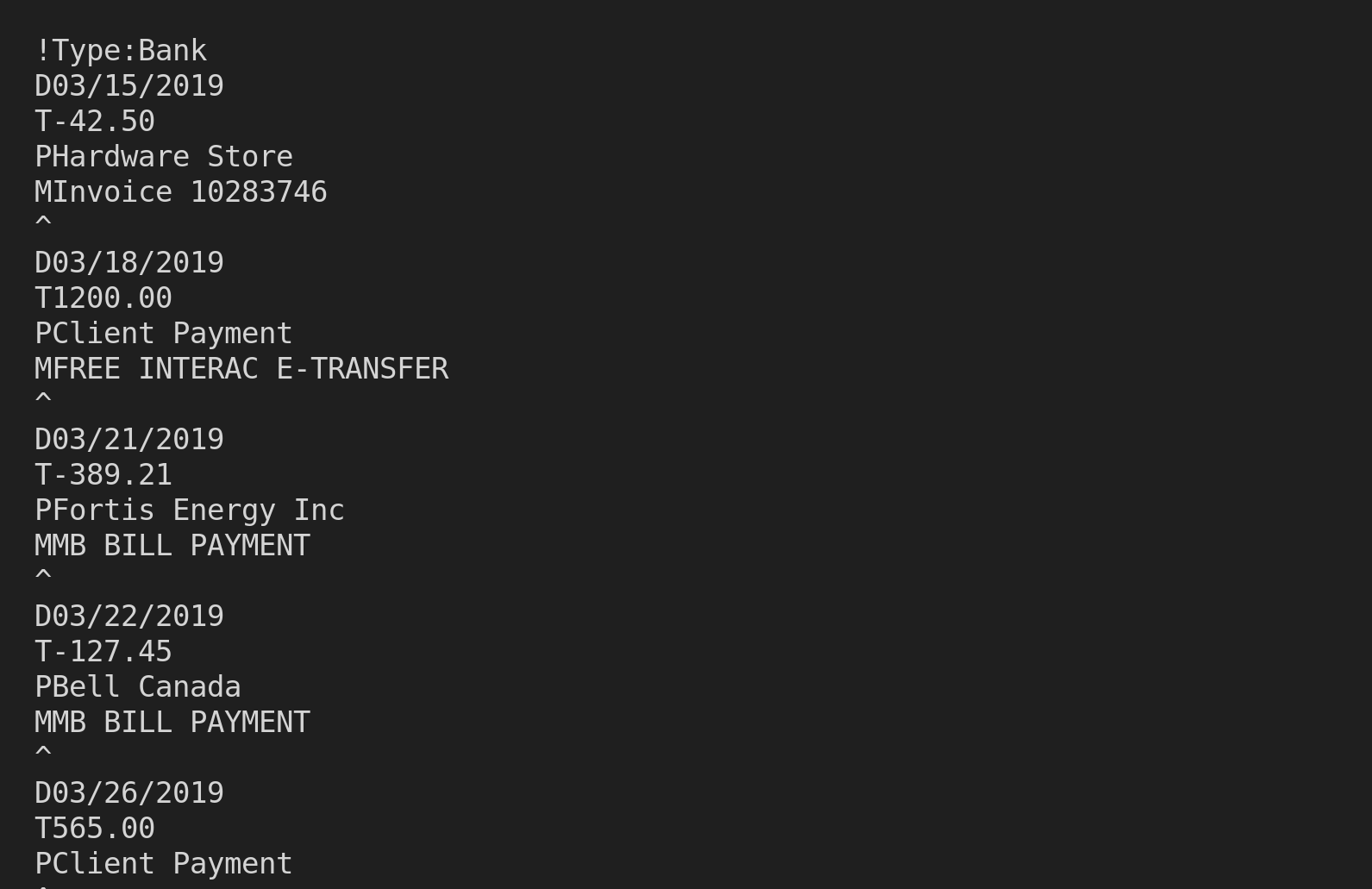
QIF (Quicken Interchange Format) is the plain-text transaction format of 1990s and 2000s personal finance software: line-coded records, one field per line, carets between transactions.
You typically hold QIF files because Quicken exported them (its main export format for decades), because MS Money or another retired tool left them as the only readable archive, or because GnuCash or Moneydance produced them on the way out. They are often the sole surviving copy of years of financial history.
What's inside a QIF file (and what isn't):
!Type:Bank
D03/15/2019
T-42.50
PHardware Store
^
D03/18/2019
T1200.00
PClient Payment
^
Need QIF as an output instead? See our PDF to QIF and CSV to QIF converters.
Common Ways to Migrate QIF Data Into QuickBooks
Retype the History
Years of transactions, by hand, into the register. The reason most migrations quietly abandon the history instead.
QIF to CSV to Nowhere
Convert QIF to CSV first, then discover QuickBooks Desktop doesn't import CSV either. A detour that ends at the same wall.
Legacy Version Tricks
Old QuickBooks versions and intermediary tools sometimes read QIF, with date mangling and account merging as the price.
Automated QIF to QBO Conversion
Parses the QIF, asks for what the format omits (date convention, account details), and builds a valid Web Connect file QuickBooks imports through its supported path. Free to start.
QIF to QBO: Method Comparison
| Method | Time Required | Accuracy | Best For | Cost |
|---|---|---|---|---|
| Manual re-entry | Hours to days | 70-80% (error-prone) | Tiny histories | Free |
| QIF to CSV detour | 30+ minutes | Still not importable | Nothing | Free |
| Legacy version tricks | Hours, version-dependent | Date and account risks | The very patient | Varies |
| Ledger Tome | Under a minute per file | Explicit, no guessed dates | Any QIF archive | Free to start |
Why automated conversion wins: the format's gaps get answered once, explicitly, instead of guessed per import.
How Ledger Tome Converts QIF to QBO
Ledger Tome parses QIF natively and builds a valid Web Connect file from it.
Upload
Upload your .qif file
Fill the Gaps
Confirm the date convention, currency, and account type QIF doesn't carry; credit card sections are detected automatically
Review & Edit
Check every transaction in an interactive preview before export
Download QBO
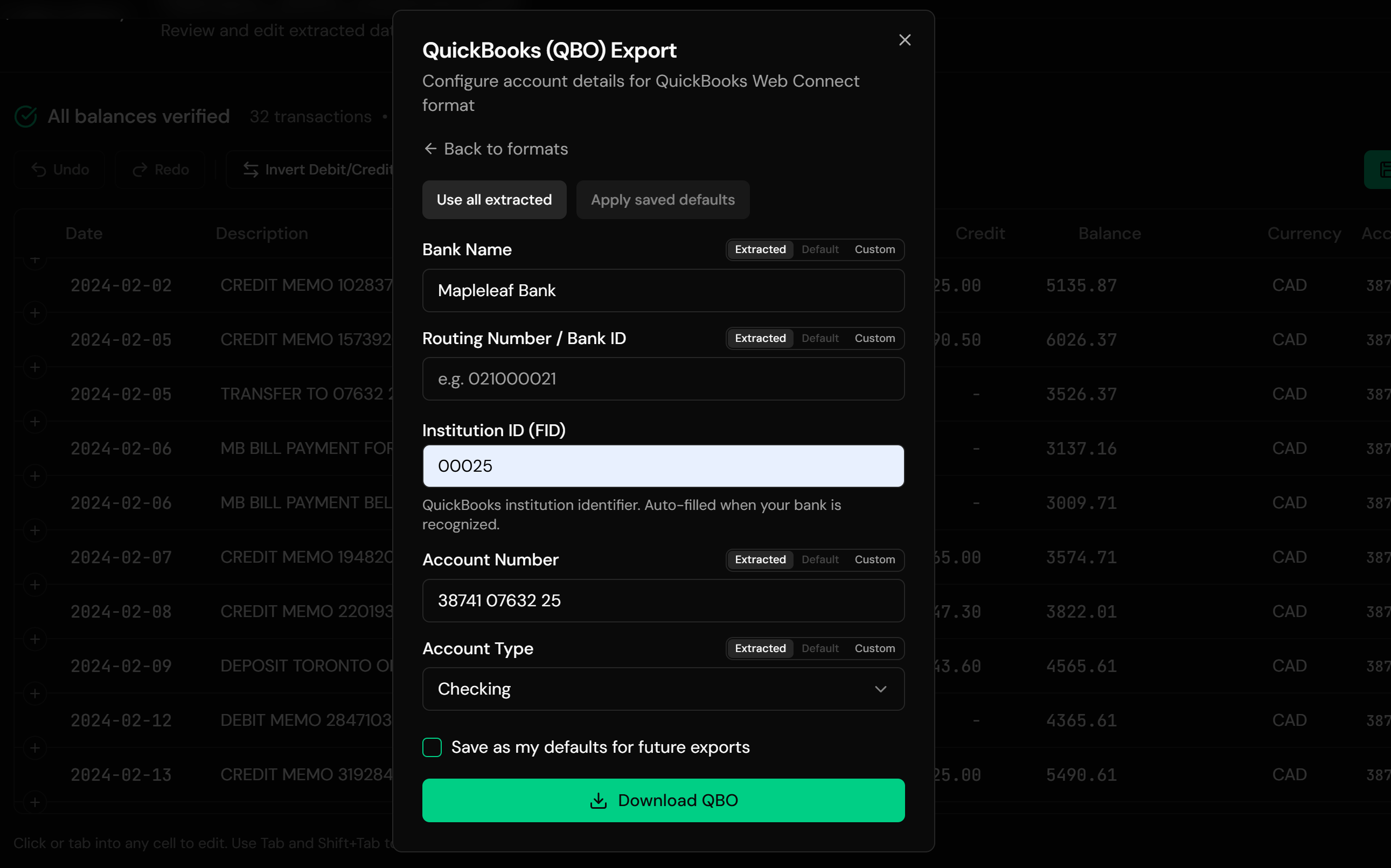
A Web Connect file with your bank's identifier, ready for QuickBooks
Provide an opening balance and Ledger Tome reconstructs per-row running balances for the preview; each exported transaction carries a unique FITID so re-imports never duplicate the register.
From Legacy Archive to QuickBooks-Ready QBO
Before: raw QIF file
After: QuickBooks-ready QBO
Use Cases
Quicken to QuickBooks Migration
The classic path: a household operation becoming a real set of books.
Inherited Client Archives
Bookkeepers taking over clients whose history lives in QIF exports.
MS Money and Retired Tools
Data from software that no longer runs, preserved as QIF.
GnuCash or Moneydance to QuickBooks
Open-source and indie tools whose export path is QIF.
Rebuilding After Data Loss
When QIF exports are the only surviving copy of the books.
Historical Records for a New Company File
Seeding a fresh QuickBooks file with prior-year history.
Who It's For
Quicken-to-QuickBooks Switchers
Personal finance graduating into business bookkeeping.
Bookkeepers & Accountants
Inheriting archives in formats their tools don't read.
Ex-MS Money Users
Two decades after discontinuation, the files still surface.
GnuCash & Moneydance Users
Moving to QuickBooks with QIF in hand.
Small Business Owners
Whose early records predate their accounting software.
Anyone With .qif Archives
Stranded history is still history worth keeping.
Related Converters
Ledger Tome reads and writes many financial formats. Choose the one that fits your workflow:
Starting from a CSV export instead.
The full Desktop import walkthrough.
The other direction: statements into QIF for legacy tools.
Reading Quicken's other format as spreadsheets.
PDF statements straight to QBO.
What Ledger Tome Does Not Do
For clarity and transparency, Ledger Tome does not:
- Access bank accounts directly
- Initiate or modify transactions
- File taxes or submit reports
- Replace accounting software
- Categorize transactions automatically
It focuses solely on converting statement data into structured, accounting-ready formats.
Security & Privacy
Your Financial Data is Protected
We take statement security seriously. Here's how we protect your data:
-
Encrypted Transmission
All uploads use 256-bit SSL encryption (the same security banks use)
-
Secure Processing
Files are processed in isolated, secure environments with no human access
-
Automatic Deletion
All uploaded files are permanently deleted after 7 days (or immediately upon request)
-
No Training Data
Your statements are never used to train AI models or shared with third parties
-
No Account Access
We never access your bank account directly or store your banking credentials
-
GDPR Compliant
Full compliance with data protection regulations
-
No Permanent Storage
We don't maintain a database of your financial information
Privacy First: We process your data solely for conversion purposes. No marketing, no data selling, no third-party sharing.
Frequently Asked Questions
Can QuickBooks import a QIF file?
How are QIF dates handled?
My QIF has no bank or account information. Is that a problem?
Does this handle credit card QIF files?
My QIF contains several accounts. What happens?
Can I get running balances?
Will importing create duplicates in QuickBooks?
Which tools' QIF exports work?
Can I convert to something other than QBO?
How much does it cost?
Troubleshooting Common Issues
Dates look shifted after conversion
The date convention was set wrong. Re-import and pick the other convention; the preview shows the result before anything is exported.
File isn't recognized
Confirm it starts with a !Type: or !Account header. Files renamed to .qif from other formats aren't QIF.
A multi-account warning appeared
The file holds several account sections. Split it (any text editor can: sections start at !Account or !Type: lines) and convert one per account.
"QuickBooks found an error in your file"
Usually the bank identifier. Enter your institution's FID manually in the export dialog before downloading.
Amounts look reversed
Check whether the section was bank or credit card; the preview shows the interpreted signs, and you can correct the account type before export.
Summary
QIF is where decades of financial history sit stranded: readable by nothing modern, ambiguous about its own dates, and silent about accounts and currency. QuickBooks Desktop needs Web Connect QBO files, and the honest path between the two formats surfaces QIF's gaps instead of guessing through them. Ledger Tome asks the questions the format can't answer and builds a valid, duplicate-safe QBO from the result.
If you have QIF archives that belong in QuickBooks, Ledger Tome migrates them in minutes.
Ready to Move Your History Into QuickBooks?
Stop letting old exports strand your records. Convert your first QIF to QBO in minutes.
Used by Quicken switchers, bookkeepers, and small business owners