Import Bank Statements Into QuickBooks Online
CSV or QBO (Web Connect) output for Transactions > Bank transactions > Upload from file
What QuickBooks Online uploads, which format imports cleanest, and how to convert whatever your bank gave you
QuickBooks Online's bank feeds handle the present tense. History is another story: transactions from before the feed connected, gaps where a feed broke, and banks the feed doesn't support all have to arrive as file uploads. If what you're holding is a PDF statement, that's a problem, because QuickBooks Online can't read PDFs at all. Ledger Tome converts PDF statements, CSVs, and Excel exports into files QuickBooks Online uploads cleanly.
One naming knot to untie first: QuickBooks Online (the software people abbreviate QBO) and a .QBO file (Intuit's Web Connect data format) are different things that happen to share a name. Confusingly but usefully, QuickBooks Online can upload .QBO files, and they import with better matching and duplicate protection than CSV. Ledger Tome produces both, so you can use whichever suits the job.
This page covers the upload formats, the CSV-versus-QBO tradeoff, the exact upload steps, and the mapping quirks that decide whether transactions land ready for review.
What QuickBooks Online Can and Can't Upload
The Upload from file path takes some formats and not others:
CSV: accepted, with a wizard
QuickBooks Online walks you through mapping columns and confirming date and amount conventions on every upload. Workable, manual, and unprotected against duplicates.
QBO files: accepted, and cleaner
Web Connect files carry their own structure and per-transaction IDs, so they skip the wizard and dedupe on import.
PDF: not accepted
The format banks actually give you for history is the one QuickBooks Online can't read.
Feed limits
Feeds reach back only so far at connection time, break silently, and don't cover every institution. The gaps are file-upload territory.
So the job is converting the statement you have into the upload format that behaves best.
Works With Statements From Any Bank
Ledger Tome reads PDF statements and CSV/Excel exports from:
US Banks
Chase, Bank of America, Wells Fargo, Citibank, Capital One, US Bank, PNC Bank, Truist
Canadian Banks
RBC, Scotiabank, BMO, CIBC, National Bank, Desjardins
UK & International
HSBC, Barclays, Lloyds, NatWest, ANZ, Westpac, and 100+ banks worldwide
Different layout? The converter detects your file's structure automatically.
"QBO" Means Two Things. Here's the Untangling.
QuickBooks Online (the software)
Intuit's cloud accounting product, which this page is about. Its Upload from file feature accepts CSV and .QBO files.
.QBO (the file format)
A Web Connect data file: tagged, OFX-based, with a bank identifier and unique per-transaction IDs. Built for QuickBooks Desktop, also uploadable to QuickBooks Online, where those IDs buy you duplicate protection CSV lacks.
Which should you use? For a one-off upload you'll eyeball anyway, CSV is fine and transparent. For anything repeated, overlapping with feed data, or bulk-historical, the .QBO file's built-in IDs make double-imports a non-event. Ledger Tome exports both from the same preview.
Format deep dives: Bank Statement to QuickBooks (PDF to QBO) , CSV to QBO . On Desktop instead? See Import into QuickBooks Desktop .
How to Upload the File Into QuickBooks Online, Step by Step
Uploading a statement file into QuickBooks Online:
- In QuickBooks Online, go to Transactions > Bank transactions
- Click the Link account dropdown and choose Upload from file
- Select the .qbo or .csv file you downloaded from Ledger Tome
- Choose the QuickBooks account the transactions belong to
- For CSV: map the columns when prompted (Ledger Tome's output uses clean single-purpose columns that map directly)
- Review the transactions in the For review tab, then categorize and add as usual
Uploading history? Work oldest-first and keep each file to one account. With QBO files, overlap with feed data is deduplicated by transaction ID; with CSV, avoid overlapping periods entirely.
How Ledger Tome Prepares Your Statements for QuickBooks Online
Ledger Tome is an AI-powered tool that turns PDF bank and credit card statements, CSVs, and Excel exports into upload-ready files.
Upload
Upload your PDF statement or spreadsheet export
AI Extraction
Statement structure, columns, dates, and debit/credit logic detected automatically
Review & Edit
Check every transaction in an interactive preview before export
Download CSV or QBO
Pick the upload format that suits the job
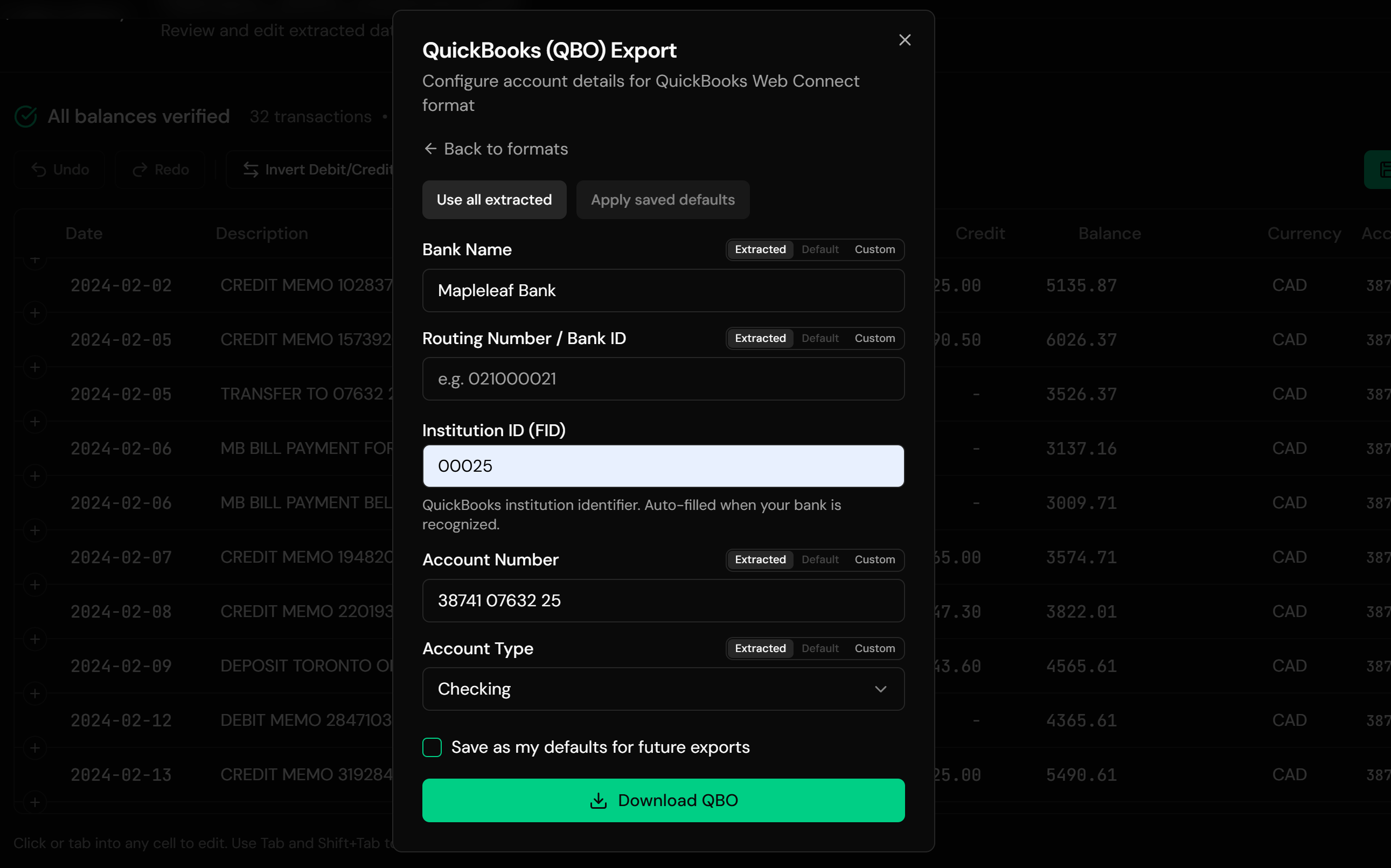
QBO output carries a unique FITID on every transaction, so uploading the same file twice never duplicates your books.
From Bank Statement to For-Review Queue
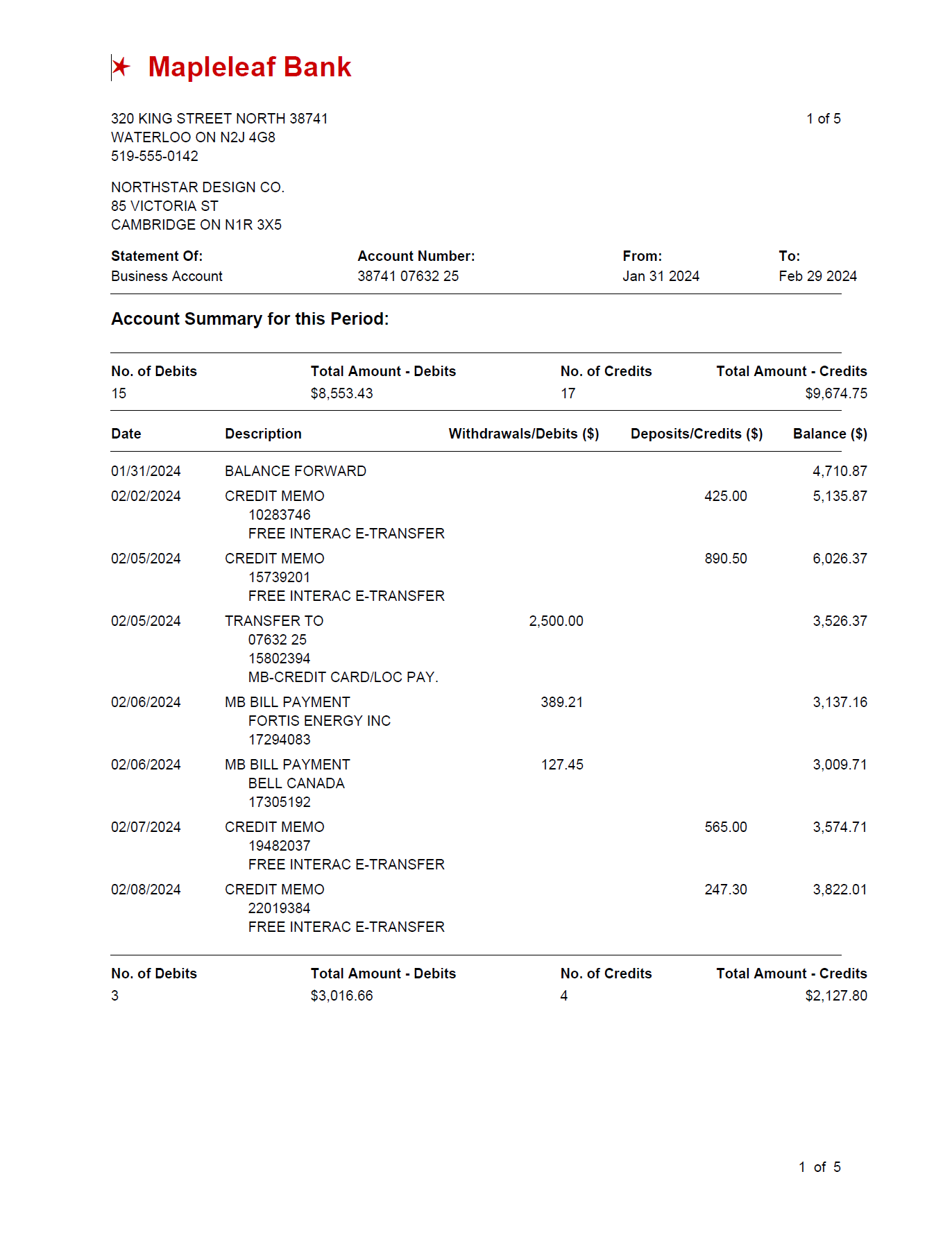
Before: PDF statement
After: upload-ready file
Use Cases
Pre-Feed History
The feed starts today; the books need the last eighteen months. Convert and upload the backlog.
Feed Gaps
A broken connection left a hole. Fill exactly that period from the statement.
Unsupported Banks
No feed on offer. File upload becomes the routine, so make it fast.
New Client Onboarding
Bookkeepers rebuilding history in a fresh QuickBooks Online company.
Credit Card Accounts
Card statements convert with correct signs for the card account.
Migrations
Moving books into QuickBooks Online with history in tow.
Who It's For
QuickBooks Online Users
Simple Start through Advanced, wherever files beat feeds.
Bookkeepers & Accountants
Practices doing catch-up and onboarding work at volume.
Small Business Owners
Getting their own history in without retyping it.
ProAdvisors
Standardizing client statement intake regardless of bank.
Businesses With Feed-Less Banks
Where upload is the permanent workflow.
Anyone Holding PDF Statements
The format QuickBooks Online can't read, made uploadable.
Related Converters
Ledger Tome supports multiple formats and destinations. Choose the one that fits your workflow:
The PDF-to-QBO format page.
CSV exports into Web Connect files.
On Desktop? Different rules entirely.
The Xero equivalent of this guide.
Plain CSV output from PDF statements.
What Ledger Tome Does Not Do
For clarity and transparency, Ledger Tome does not:
- Access bank accounts directly
- Initiate or modify transactions
- File taxes or submit reports
- Replace accounting software
- Categorize transactions automatically
It focuses solely on converting statement data into structured, accounting-ready formats.
Security & Privacy
Your Financial Data is Protected
We take statement security seriously. Here's how we protect your data:
-
Encrypted Transmission
All uploads use 256-bit SSL encryption (the same security banks use)
-
Secure Processing
Files are processed in isolated, secure environments with no human access
-
Automatic Deletion
All uploaded files are permanently deleted after 7 days (or immediately upon request)
-
No Training Data
Your statements are never used to train AI models or shared with third parties
-
No Account Access
We never access your bank account directly or store your banking credentials
-
GDPR Compliant
Full compliance with data protection regulations
-
No Permanent Storage
We don't maintain a database of your financial information
Privacy First: We process your data solely for conversion purposes. No marketing, no data selling, no third-party sharing.
Frequently Asked Questions
How do I import a bank statement into QuickBooks Online?
Can QuickBooks Online read PDF bank statements?
Is a QBO file the same as QuickBooks Online?
Should I upload CSV or a QBO file?
What CSV format does QuickBooks Online expect?
Will uploading create duplicate transactions?
How far back can I upload?
Does this work for credit card statements?
My amounts imported backwards. Why?
Does this work in the UK, Canada, and Australia?
How much does it cost?
Troubleshooting Common Issues
QuickBooks rejects the CSV upload
Usually date format or column mapping. Ledger Tome's CSV maps cleanly; re-check the wizard's date format choice against the file.
Transactions doubled up
Overlapping CSV uploads or feed overlap. Undo the upload (QuickBooks lets you exclude or delete uploaded transactions), then re-upload the period as a QBO file so IDs deduplicate.
"We can't verify your financial institution" on QBO upload
The bank identifier in the file wasn't recognized. Enter your institution's FID manually in Ledger Tome's export dialog and re-download.
Transactions landed in the wrong account
The account chosen at upload was wrong. Exclude the uploaded batch and re-upload against the correct account.
Statement period partially missing
Check the preview covered all statement pages; multi-page PDFs process automatically, and the preview shows every extracted row before export.
Summary
QuickBooks Online uploads CSV and QBO files, feeds don't reach history or every bank, and PDFs, the format history actually arrives in, can't be uploaded at all. Conversion closes the loop: clean CSV when you want transparency, a Web Connect QBO file when you want mapping-free, duplicate-safe imports. Ledger Tome produces both from any bank's statement.
If you have statements waiting to get into QuickBooks Online, Ledger Tome converts them in minutes.
Ready to Get Your Statements Into QuickBooks Online?
Stop retyping history the feed can't reach. Convert your first statement to an upload-ready file in minutes.
Used by QuickBooks Online users, bookkeepers, and ProAdvisors