Your bank exports CSV, but your accounting software works best with OFX. Anyone who has fed CSV files into Xero knows the routine: map the columns, confirm the date format, hope you didn't import last month's file twice. Our converter turns any bank's CSV export into a properly formatted OFX file in minutes, so the import just works.
The difference is not cosmetic. An OFX file carries its own structure: dates in an unambiguous format, amounts with defined signs, and a unique ID on every transaction so importing software can skip anything it has already seen. CSV has none of that, which is why CSV imports are where duplicates and shifted dates come from.
This page explains what OFX is, why it imports better than CSV, and how to automate the conversion. Ledger Tome also accepts Excel files and PDF statements as input.
Why CSV Imports Go Wrong
CSV is a spreadsheet format, not a financial data format. The problems show up at import time:
Manual column mapping
Every CSV import starts with telling the software which column is which. Every bank lays it out differently, and one wrong pick corrupts the whole import.
Ambiguous dates
Is 03/04 the 3rd of April or the 4th of March? CSV files don't say. OFX dates are unambiguous by definition.
No duplicate protection
CSV rows have no identity. Import an overlapping file and every shared transaction appears twice in your books.
Sign conventions vary
Some banks export debits as negatives, some as positives, some in separate columns. Get it backwards and income becomes spending.
OFX solves all four by design, which is why Xero and Sage handle it so much better.
Works With CSV Exports From Any Bank
Ledger Tome reads CSV and Excel exports from:
UK Banks
HSBC, Barclays, Lloyds, NatWest, Santander, Monzo, Starling, Nationwide
Australia & New Zealand
ANZ, Westpac, Commonwealth Bank, NAB, ASB, BNZ, Kiwibank
US & International
Chase, Bank of America, Wells Fargo, Citibank, and 100+ banks worldwide
Credit Unions & Regional Banks
Any CSV layout, no templates needed
Different column layout? The converter detects your file's structure automatically.
What Is an OFX File?
OFX (Open Financial Exchange) is the open standard for exchanging bank data, in use since 1997. It is what your accounting software wishes your bank had given you.
Why this format matters: OFX is the preferred statement import for Xero and Sage, and it also works with QuickBooks Online, MYOB, and GnuCash. No column mapping, no date guessing, and a unique ID on every transaction so duplicate imports are skipped automatically. Working from a PDF statement instead of a CSV? See our PDF to OFX converter .
Key characteristics of a proper OFX file:
OFXHEADER:100
DATA:OFXSGML
VERSION:102

<OFX>
<BANKMSGSRSV1><STMTTRNRS><STMTRS>
<CURDEF>GBP
<BANKTRANLIST>
<STMTTRN>
<TRNTYPE>DEBIT
<DTPOSTED>20260115
<TRNAMT>-4.50
<FITID>2026011500001
<NAME>Coffee Shop
</STMTTRN>
</BANKTRANLIST>
Common Ways to Convert CSV to OFX
Import the CSV Directly
Xero and others accept CSV, but you map columns by hand, confirm date formats, and get no duplicate protection. Workable once, painful weekly.
Spreadsheet Templates and Macros
Community templates that reshape CSV into OFX exist, but they break on your bank's specific layout and produce invalid files that fail on import.
Ask the Bank for OFX
Some banks offer OFX downloads, usually capped to recent months. If you're holding a CSV, this option has probably already failed you.
Automated CSV to OFX Conversion
Reads your CSV, detects the column layout and sign convention, and generates a valid OFX file with duplicate-safe IDs. Free to start.
CSV to OFX: Method Comparison
| Method | Time Required | Accuracy | Best For | Cost |
|---|---|---|---|---|
| Direct CSV import | 10-30 minutes per file | 80-90% (mapping errors, duplicates) | One-off imports | Free |
| Templates and macros | 30-60 minutes setup | Fragile | Technical users, one bank | Free |
| Bank OFX download | Minutes | High | Recent periods at supporting banks | Free (if available) |
| Ledger Tome | Under a minute | 99%+ | Any CSV, any bank, any period | Free to start |
Why automated conversion wins: the import stops being a chore you double-check and becomes a file you drop in.
How Ledger Tome Converts CSV to OFX
Ledger Tome turns bank CSV and Excel exports (and PDF statements) into valid OFX files.
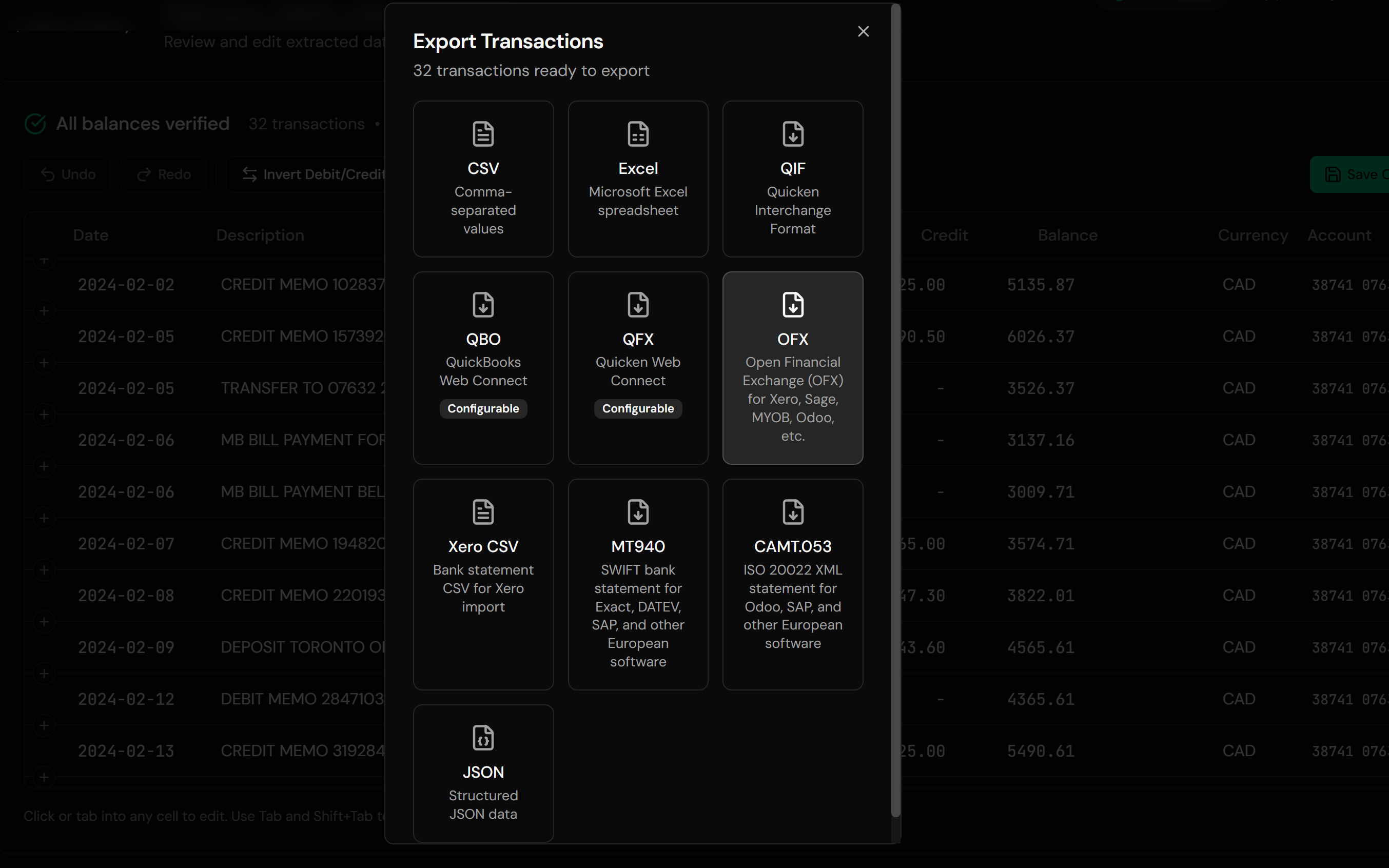
Upload
Upload your bank or credit card CSV export
Automatic Mapping
Columns, date formats, and debit/credit logic detected automatically
Review & Edit
Check every transaction in an interactive preview before export
Download OFX
Get an import-ready OFX file
The output follows the OFX specification with unique FITIDs on every transaction, so re-importing the same file never duplicates data in Xero or Sage.
How to Import the OFX File Into Your Software
Xero:
- Go to Accounting > Bank accounts
- Select the account and choose Import a statement
- Upload the .ofx file from Ledger Tome
- Reconcile the imported transactions as usual
Sage Business Cloud:
- Go to Banking and select the account
- Choose Import statement and upload the .ofx file
- Review and confirm the imported transactions
QuickBooks Online:
- Go to Transactions > Bank transactions
- Choose Upload from file and select the .ofx file
- Match the file to the correct bank account
- Review the transactions in the For review tab
MYOB:
- Go to Banking > Bank transactions
- Choose Import statement and upload the .ofx file
- Allocate and match the imported transactions
GnuCash:
- Go to File > Import > Import OFX/QFX
- Select the .ofx file and map it to the right account
- Review the matched transactions and finish the import
OFX is an open standard, so the same file also imports into Zoho Books, Wave, FreeAgent, Odoo, Banktivity, and most other accounting tools with a bank statement import option.
Credit card exports work too. Select credit card as the account type at export and the OFX carries the correct signs, so payments and purchases land the right way around.
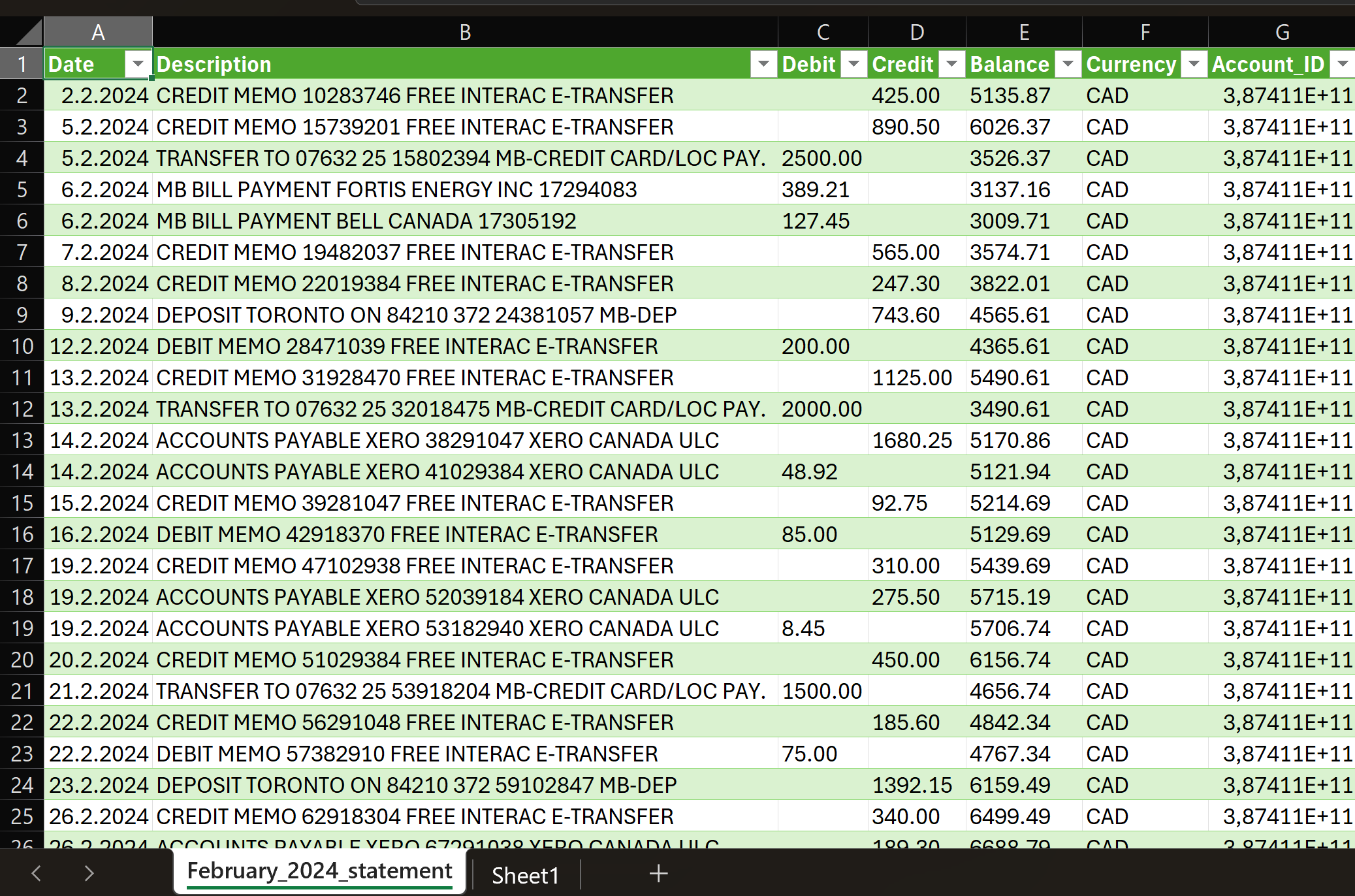
From Raw CSV to Clean OFX
Before: Raw CSV
After: Structured OFX
Use Cases for CSV to OFX Conversion
Weekly Xero Reconciliation
Banks that only export CSV, converted on a schedule instead of remapped every time.
Catch-Up Bookkeeping
A folder of monthly CSVs converted in a batch and imported without duplicate anxiety.
Multi-Bank Client Work
Bookkeepers normalizing CSV exports from many client banks into one consistent import format.
Credit Card Accounts
Card issuer CSVs converted with correct debit and credit handling.
Fixing a Botched CSV Import
Re-doing an import cleanly after a column-mapping mistake, with FITIDs preventing double-counting going forward.
Software Migrations
Moving transaction history into a new Xero or Sage organisation in its preferred format.
Who CSV to OFX Conversion Is For
This type of conversion is commonly used by:
Xero Users
OFX skips the CSV import wizard entirely and reconciles cleaner.
Sage Users
UK and Ireland bookkeepers importing client bank data.
QuickBooks Online Users
OFX uploads accepted in many regions.
MYOB Users
ANZ businesses importing bank files.
Bookkeepers & Accountants
Anyone processing more than one CSV a month.
GnuCash & Personal Finance Users
Open-source tools with first-class OFX import.
OFX vs QFX vs QBO: Which File Do You Need?
OFX
The open standard. Use for Xero, Sage, QuickBooks Online, MYOB, GnuCash. This page.
QFX
Intuit's Quicken-branded OFX variant. Quicken only accepts QFX, not generic OFX. See our CSV to QFX converter .
QBO
Intuit's Web Connect format for QuickBooks Desktop. See our CSV to QBO converter .
Related Converters
Ledger Tome supports multiple output formats. Choose the one that fits your workflow:
Working from PDF statements instead of CSV exports? Same clean OFX output.
Using QuickBooks Desktop? Convert your CSV to its Web Connect format.
Quicken user? Convert your CSV to QFX.
Prefer a spreadsheet? Get clean XLSX output from PDF statements.
Universal spreadsheet format for any workflow.
What Ledger Tome Does Not Do
For clarity and transparency, Ledger Tome does not:
- Access bank accounts directly
- Initiate or modify transactions
- File taxes or submit reports
- Replace accounting software
- Categorize transactions automatically
It focuses solely on converting statement data into structured, accounting-ready formats.
Security & Privacy
Your Financial Data is Protected
We take statement security seriously. Here's how we protect your data:
-
Encrypted Transmission
All uploads use 256-bit SSL encryption (the same security banks use)
-
Secure Processing
Files are processed in isolated, secure environments with no human access
-
Automatic Deletion
All uploaded files are permanently deleted after 7 days (or immediately upon request)
-
No Training Data
Your statements are never used to train AI models or shared with third parties
-
No Account Access
We never access your bank account directly or store your banking credentials
-
GDPR Compliant
Full compliance with data protection regulations
-
No Permanent Storage
We don't maintain a database of your financial information
Privacy First: We process your data solely for conversion purposes. No marketing, no data selling, no third-party sharing.
Frequently Asked Questions
How do I convert a CSV file to OFX?
Why is OFX better than CSV for Xero?
My bank's CSV has separate debit and credit columns. Is that a problem?
What about ambiguous dates like 03/04?
Can I convert an Excel file to OFX?
Will importing the same OFX file twice duplicate transactions?
Does this work with credit card CSV exports?
Which accounting software supports OFX files?
Does this work with banks outside the US?
Can I review the data before downloading the OFX file?
How much does it cost?
Troubleshooting Common Issues
Xero rejects the file
Verify the file has a .ofx extension and re-download. If the problem persists, contact support.
Dates import wrong
When dates are ambiguous, Ledger Tome asks you to confirm the format before export; double-check the choice if imported dates look off.
Amounts have flipped signs
Some banks export debits as positive numbers. The preview shows the interpreted sign for every transaction, so flip the convention there if needed.
CSV contains summary rows or balances
Upload the file as-is. The converter identifies transaction rows and ignores headers, footers, and running-balance columns.
Need a different format
For QuickBooks Desktop use CSV to QBO . For Quicken use CSV to QFX .
Summary
CSV is what banks give you; OFX is what accounting software wants. The gap shows up as column mapping, date guessing, and duplicate transactions. Automated conversion closes it: any bank's CSV becomes a clean, duplicate-safe OFX file that Xero, Sage, and most other tools import without ceremony.
If you have a CSV export waiting to become an OFX file, Ledger Tome converts it in under a minute.
Ready to Convert Your CSV to OFX?
Stop mapping columns and worrying about duplicates. Convert your first CSV to OFX in minutes.
Used by Xero bookkeepers, Sage accountants, and small business owners