Need your PDF bank statements in OFX format? Our free converter extracts transaction data from any bank's PDF statement and outputs a properly formatted OFX file in minutes. No manual data entry, no CSV column mapping, no templates.
OFX (Open Financial Exchange) is the format accounting software actually prefers. Xero, Sage, QuickBooks Online, MYOB, and GnuCash all import OFX cleanly, with built-in duplicate protection that CSV imports lack. The problem is upstream: banks give you PDFs, and their OFX downloads (when they exist at all) usually only cover the last few months. Anything older lives in PDF statements.
This page explains what an OFX file is, why it imports better than CSV, and how to automate the conversion from PDF.
Why Converting PDF Statements to OFX Is Difficult
Bank statements are PDFs designed for reading, not for import. Common obstacles:
PDF formatting complexity
Statements are laid out for printing and review, not data extraction.
Limited bank OFX exports
Banks that offer OFX downloads usually limit them to the last 90 days or 12 months. Older periods exist only as PDF statements.
Varying statement layouts
Every bank formats statements differently: column orders, date conventions, running balances, multi-page structures.
OFX structure requirements
OFX files need valid headers, transaction blocks, and unique FITIDs. Malformed files fail on import into Xero, Sage, and other tools.
Because of this, getting historical PDF statements into accounting software by hand does not scale.
Works With Banks Across the UK, Australia, New Zealand, and Beyond
Ledger Tome's AI-powered converter reads bank and credit card statements from:
UK Banks
HSBC, Barclays, Lloyds, NatWest, Santander, Monzo, Starling, Nationwide
Australia & New Zealand
ANZ, Westpac, Commonwealth Bank, NAB, ASB, BNZ, Kiwibank
South Africa
FNB, Standard Bank, Absa, Nedbank
US & International
Chase, Bank of America, Wells Fargo, Citibank, and 100+ banks worldwide
Don't see your bank? The AI adapts to any statement layout automatically.
What Is an OFX File?
OFX (Open Financial Exchange) is an open standard for exchanging financial data, in use since 1997. It is the closest thing to a universal bank transaction format.
Why this format matters: OFX is the preferred statement import for Xero and Sage, and it also works with QuickBooks Online, MYOB, and GnuCash. Unlike CSV, an OFX import needs no column mapping and carries a unique ID on every transaction, so importing the same file twice does not duplicate your data. Need a spreadsheet instead? See our bank statement to Excel converter or bank statement to CSV converter .
Key characteristics of a proper OFX file:
OFXHEADER:100
DATA:OFXSGML
VERSION:102

<OFX>
<BANKMSGSRSV1><STMTTRNRS><STMTRS>
<CURDEF>GBP
<BANKTRANLIST>
<STMTTRN>
<TRNTYPE>DEBIT
<DTPOSTED>20260115
<TRNAMT>-4.50
<FITID>2026011500001
<NAME>Coffee Shop
</STMTTRN>
</BANKTRANLIST>
Common Ways to Convert PDF to OFX
Manual Data Entry
Retype each transaction from the PDF into your accounting software or a spreadsheet. Slow, error-prone, and there is still no OFX file at the end of it.
Bank OFX Export
Works if your bank offers it and the period you need is recent. Most banks cap OFX downloads at a few months, and some don't offer OFX at all.
CSV Import Instead
Xero and others accept CSV, but you have to map columns manually, fix date formats, and there is no duplicate protection. Every import is a chance to double-count.
Automated PDF to OFX Conversion
Reads the PDF directly, extracts every transaction, and generates a valid OFX file with duplicate-safe IDs. Works for any bank and any statement age. Free to start.
PDF to OFX: Method Comparison
| Method | Time Required | Accuracy | Best For | Cost |
|---|---|---|---|---|
| Manual data entry | 30-60 minutes per statement | 70-80% (error-prone) | Single statements | Free |
| Bank OFX export | 5-10 minutes | 95% | Recent periods at supporting banks | Free (if available) |
| CSV import | 20-40 minutes | 80-90% (mapping errors, duplicates) | One-off imports | Free |
| Ledger Tome | Under a minute | 99%+ | Any statement, any bank, any period | Free to start |
Why automated conversion wins: it turns the statements you already have into the format your software actually wants.
How Ledger Tome Converts PDF to OFX
Ledger Tome is an AI-powered tool designed to convert PDF bank and credit card statements into OFX files.
Upload
Upload your PDF bank or credit card statement
AI Analysis
AI analyzes the statement structure and layout
Extract & Normalize
Transactions extracted and formatted for OFX
Download OFX
Get your import-ready OFX file
The output follows the OFX specification with unique FITIDs on every transaction, so re-importing the same file never duplicates data in Xero or Sage.
How to Import the OFX File Into Your Software
Xero:
- Go to Accounting > Bank accounts
- Select the account and choose Import a statement
- Upload the .ofx file from Ledger Tome
- Reconcile the imported transactions as usual
Sage Business Cloud:
- Go to Banking and select the account
- Choose Import statement and upload the .ofx file
- Review and confirm the imported transactions
QuickBooks Online:
- Go to Transactions > Bank transactions
- Choose Upload from file and select the .ofx file
- Match the file to the correct bank account
- Review the transactions in the For review tab
MYOB:
- Go to Banking > Bank transactions
- Choose Import statement and upload the .ofx file
- Allocate and match the imported transactions
GnuCash:
- Go to File > Import > Import OFX/QFX
- Select the .ofx file and map it to the right account
- Review the matched transactions and finish the import
OFX is an open standard, so the same file also imports into Zoho Books, Wave, FreeAgent, Odoo, Banktivity, and most other accounting tools with a bank statement import option.
Credit card statements work too. Ledger Tome handles the reversed debit and credit logic and transaction-versus-posting dates that credit card statements use, so the OFX imports with the correct signs.
From PDF Chaos to Clean OFX
Before: Raw PDF
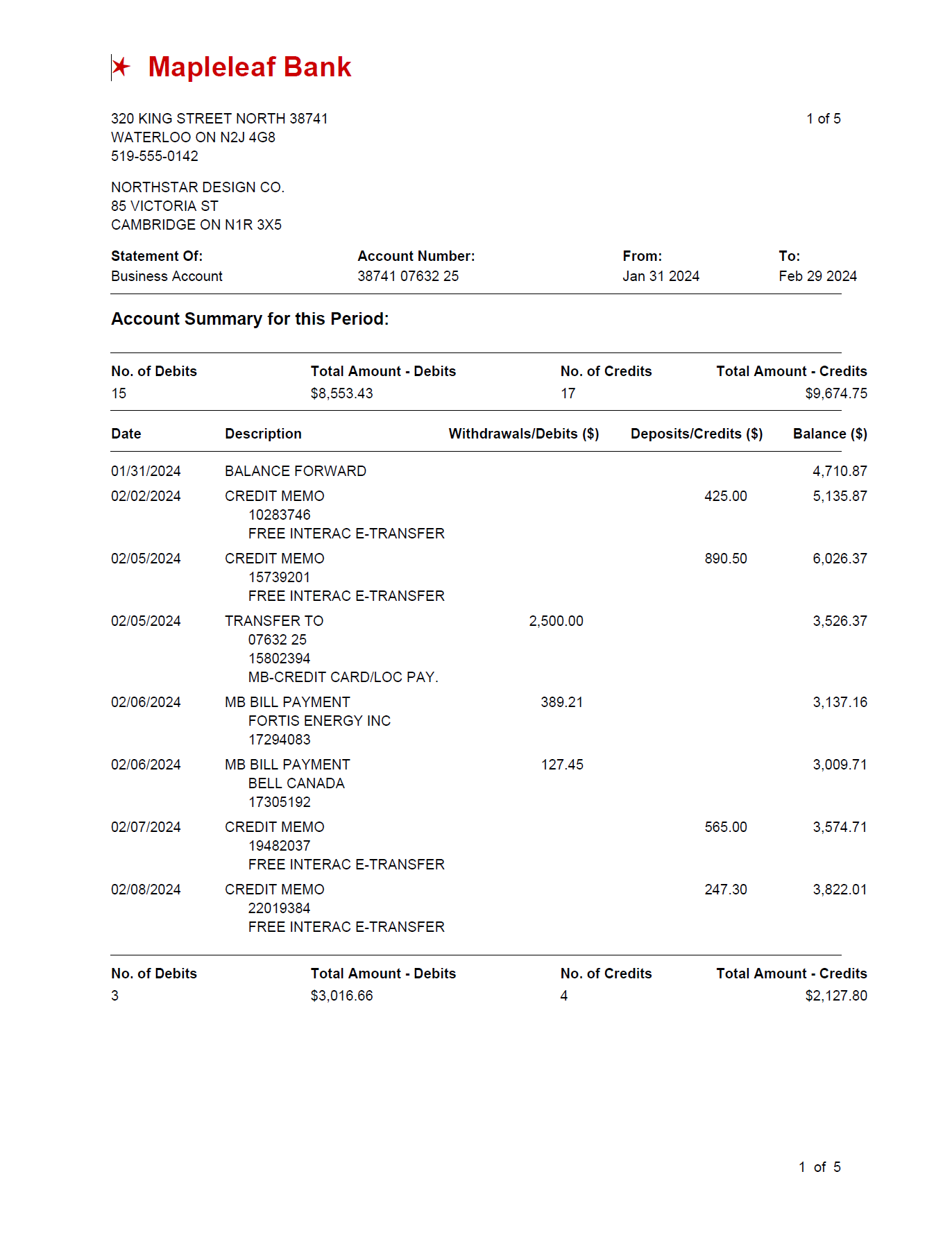
After: Structured OFX
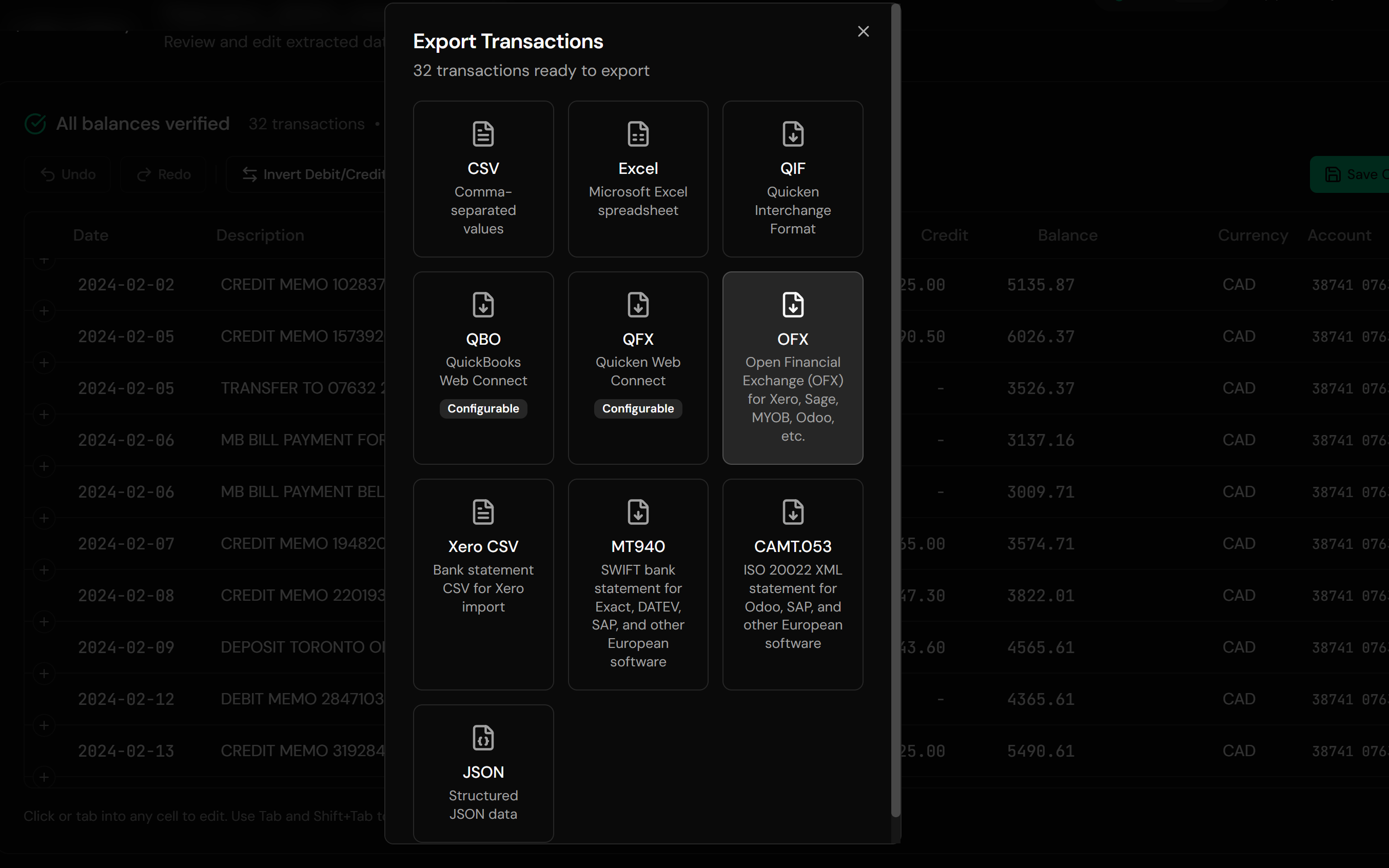
Use Cases for PDF to OFX Conversion
Xero Catch-Up Bookkeeping
Months behind on reconciliation with only PDF statements to work from? Convert the backlog into OFX and import it in one pass.
Statements Beyond the Export Window
Your bank's OFX download covers 90 days; your job covers two years. PDFs fill the gap.
Switching Accountants or Software
Rebuild transaction history in a new Xero or Sage organisation from archived statements.
Credit Card Statements
Convert credit card PDFs with correct debit and credit handling.
Multi-Bank Client Work
Bookkeepers converting statements from many client banks into one consistent import format.
Historical Records
Import old statements for audits, loan applications, or back-year accounts.
Who PDF to OFX Conversion Is For
This type of conversion is commonly used by:
Xero Users
OFX is Xero's cleanest statement import, with no column mapping and built-in duplicate protection.
Sage Users
UK and Ireland bookkeepers importing client statements into Sage.
QuickBooks Online Users
QuickBooks Online accepts OFX uploads for bank transactions in many regions.
MYOB Users
The ANZ counterpart, importing OFX bank files.
Bookkeepers & Accountants
Processing statements from banks that limit or lack OFX downloads.
GnuCash & Personal Finance Users
Open-source and personal finance tools with OFX import support.
OFX vs QFX vs QBO: Which File Do You Need?
OFX
The open standard. Use for Xero, Sage, QuickBooks Online, MYOB, GnuCash. This page.
QFX
Intuit's Quicken-branded OFX variant. Quicken only accepts QFX, not generic OFX. See our CSV to QFX converter .
QBO
Intuit's Web Connect format for QuickBooks Desktop. See our PDF to QuickBooks converter or CSV to QBO converter .
Related Converters
Ledger Tome supports multiple output formats. Choose the one that fits your workflow:
Prefer a spreadsheet? Get clean XLSX output.
Universal spreadsheet format for any workflow.
Direct QBO output for QuickBooks Desktop.
For Quicken (older versions), GnuCash, and YNAB workflows.
Already have a CSV export? Convert it for QuickBooks Desktop.
What Ledger Tome Does Not Do
For clarity and transparency, Ledger Tome does not:
- Access bank accounts directly
- Initiate or modify transactions
- File taxes or submit reports
- Replace accounting software
- Categorize transactions automatically
It focuses solely on converting PDF statement data into structured, accounting-ready formats.
Security & Privacy
Your Financial Data is Protected
We take statement security seriously. Here's how we protect your data:
-
Encrypted Transmission
All uploads use 256-bit SSL encryption (the same security banks use)
-
Secure Processing
Files are processed in isolated, secure environments with no human access
-
Automatic Deletion
All uploaded files are permanently deleted after 7 days (or immediately upon request)
-
No Training Data
Your statements are never used to train AI models or shared with third parties
-
No Account Access
We never access your bank account directly or store your banking credentials
-
GDPR Compliant
Full compliance with data protection regulations
-
No Permanent Storage
We don't maintain a database of your financial information
Privacy First: We process your data solely for conversion purposes. No marketing, no data selling, no third-party sharing.
Frequently Asked Questions
Can I convert any PDF bank statement to OFX?
How do I import an OFX file into Xero?
Why is OFX better than CSV for Xero?
Can I convert scanned bank statements to OFX?
What if my statement has multiple pages?
Can I convert old bank statements?
Does this work with credit card statements too?
Does this work with banks outside the US?
Which accounting software supports OFX files?
Will importing the same OFX file twice duplicate transactions?
Can I review the data before downloading the OFX file?
Troubleshooting Common Issues
Scanned statement with poor quality
OCR handles most scans, but for best results use at least 300 DPI with clearly readable text.
Statement has unusual formatting
The AI adapts to different layouts automatically. Use the interactive preview to correct anything before downloading.
Dates import wrong
Usually a DD/MM versus MM/DD interpretation issue. Check the dates in the preview before export; Ledger Tome outputs unambiguous OFX date fields either way.
Xero rejects the file
Verify the file has a .ofx extension and re-download. If the problem persists, contact support.
Need a different format for specific software
For QuickBooks Desktop use our PDF to QuickBooks converter . For spreadsheets, use bank statement to Excel or CSV .
Summary
Xero, Sage, and most modern accounting software import OFX more reliably than anything else, but banks hand out PDFs, and their own OFX exports rarely reach past the last few months. Manual re-entry and CSV mapping are slow and fragile, while automated conversion turns any PDF statement into a clean, duplicate-safe OFX file.
If you have PDF statements that need to end up in Xero, Sage, or any OFX-compatible tool, Ledger Tome converts them in minutes.
Ready to Convert Your PDF to OFX?
Stop retyping statements and mapping CSV columns. Convert your first bank or credit card statement to OFX in minutes.
Used by Xero bookkeepers, Sage accountants, and small business owners